

Open Design > Watermark in desktop Word to add a text label or picture behind the text. Choose the mark you need, then check the pages so it stays visible without competing with the document's contents.
Add the text mark in desktop Word
Save a separate document copy if the unmarked version must remain. Check for an existing watermark before inserting another, especially in a template received from someone else.
Microsoft documents the platform choices in its watermark instructions. In Windows, open Design > Watermark and select a preset. Inspect the document pages after the mark appears.
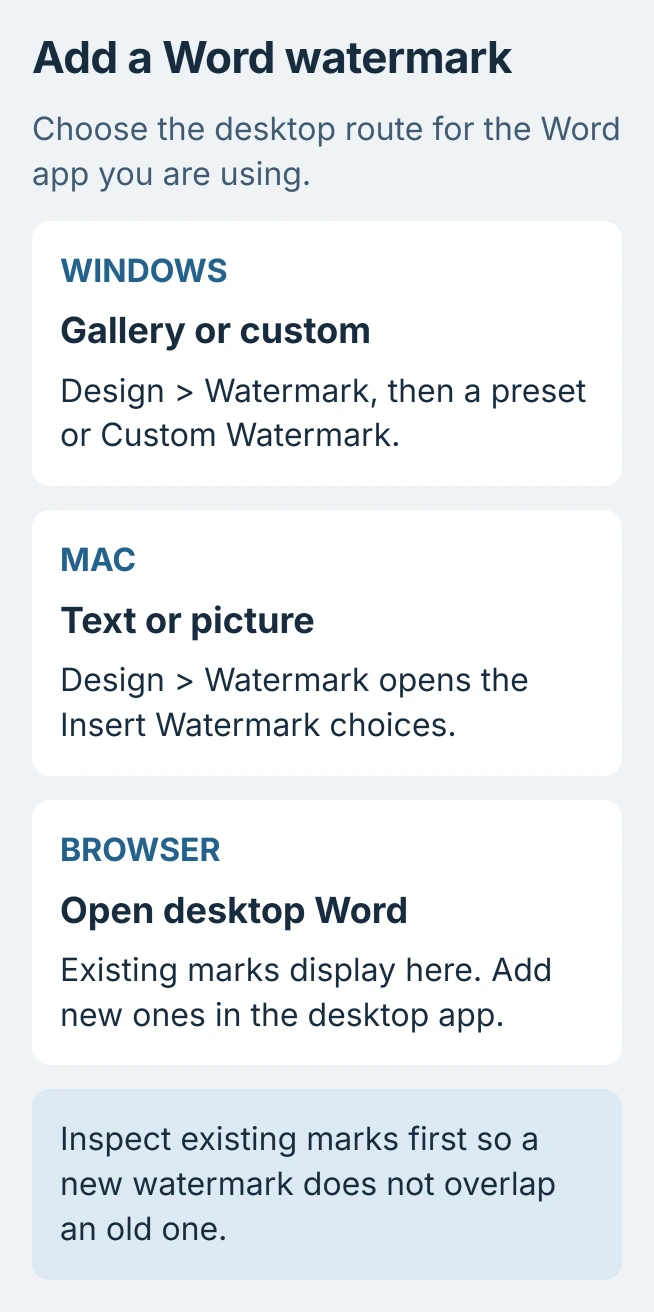
Status: Microsoft watermark guidance reviewed October 29, 2026, for Windows, Mac and browser Word. No document was edited. The diagram explains the available routes.
On Mac, choose Design > Watermark, then Text. Select a supplied phrase or type the wording, adjust its appearance, and choose OK. Use View > Print Layout if the mark is not visible.
Use custom wording for a particular document
In Windows Word, select Design > Watermark > Custom Watermark. Choose Text watermark, enter the wording in Text, then choose OK after reviewing the appearance controls.
Keep the wording short enough to read without covering the document's purpose. For example, an internal review copy can carry FOR REVIEW. That is sample wording, not a required Word setting.
Microsoft states that a custom watermark can be saved to its gallery. Use that optional feature for a design that needs repeating across documents, after checking the first result.
For a visible rule between paragraphs, use Word's horizontal-line controls. A watermark serves as a background page mark rather than a paragraph separator.
Insert a picture instead of text
Use an image you have permission to include, such as your own organization's approved logo. Choose a version that stays recognizable when faded behind the document text.
On Windows, open Design > Watermark > Custom Watermark > Picture watermark > Select Picture. Select the image, choose Insert, then confirm the watermark settings.
On Mac, open Design > Watermark, choose Picture > Select Picture, and locate the image. Microsoft says Auto scale with Washout enabled is its starting setup in the picture-watermark guide.
Choose OK, then inspect text readability. Adjust the picture settings if the mark competes with the body text. The small preview in the settings box cannot show how every paragraph will read.
Check every page and the browser limitation
From browser Word, choose Editing > Open in Desktop App when that command is available. Make the watermark change there and save. Reopen the document in the browser to confirm the saved mark is displayed.
Microsoft's all-pages instructions warn that an existing single-page watermark should be removed before applying another across the document. Otherwise, marks can overlap on that page.
Use the watermark removal procedure for an old mark that remains. Avoid deleting the entire header just to replace one object.
Review the first page and any sections with a different layout in print preview. If the result is inconsistent, give Microsoft Support a sanitized sample and the Word version. Without desktop Word, ask the document owner to add the mark.
The Short Version
Choose a preset or custom watermark in desktop Word. Windows and Mac use different boxes, and browser Word needs a desktop handoff. Check existing marks, picture readability and the pages that will actually be shared or printed.

Isaac Smith is the founder and editor of PC Glance, a website that covers computers, laptops, and technology. He is a tech enthusiast and a computer geek who loves to share his insights and help his readers make smart choices when buying tech gadgets or laptops. He is always curious and updated about the latest tech trends.