
Changing PowerPoint's slide size changes the whole presentation, so save a copy before altering an existing deck. Open Design > Slide Size to choose the shape, then check how the text and pictures fit.
Choose the dimensions for the whole deck
Microsoft documents slide sizing for Windows, Mac and the web. Pick the target size before adjusting individual text boxes or pictures.
Status: Microsoft's slide size guidance reviewed October 29, 2026. Custom dimensions are documented for the web version as well as desktop PowerPoint.
For Windows or PowerPoint in a browser, select Design > Slide Size and choose the required preset. For another size, choose Custom Slide Size, enter Width and Height, then confirm.
On a Mac, the same Slide Size menu offers the presets. Use Page Setup for custom dimensions. Do not hunt for a Windows-only dialog name when the Mac control is already available.
Before entering measurements, check the units requested by the display, event organizer or print provider. A requirement for a 16:9 screen describes a proportion; a requirement for a printed poster also needs physical dimensions.
Microsoft states that a presentation has one slide size and orientation throughout. Changing one selected slide does not create a different-sized page inside the same deck.
Choose how the existing content should fit
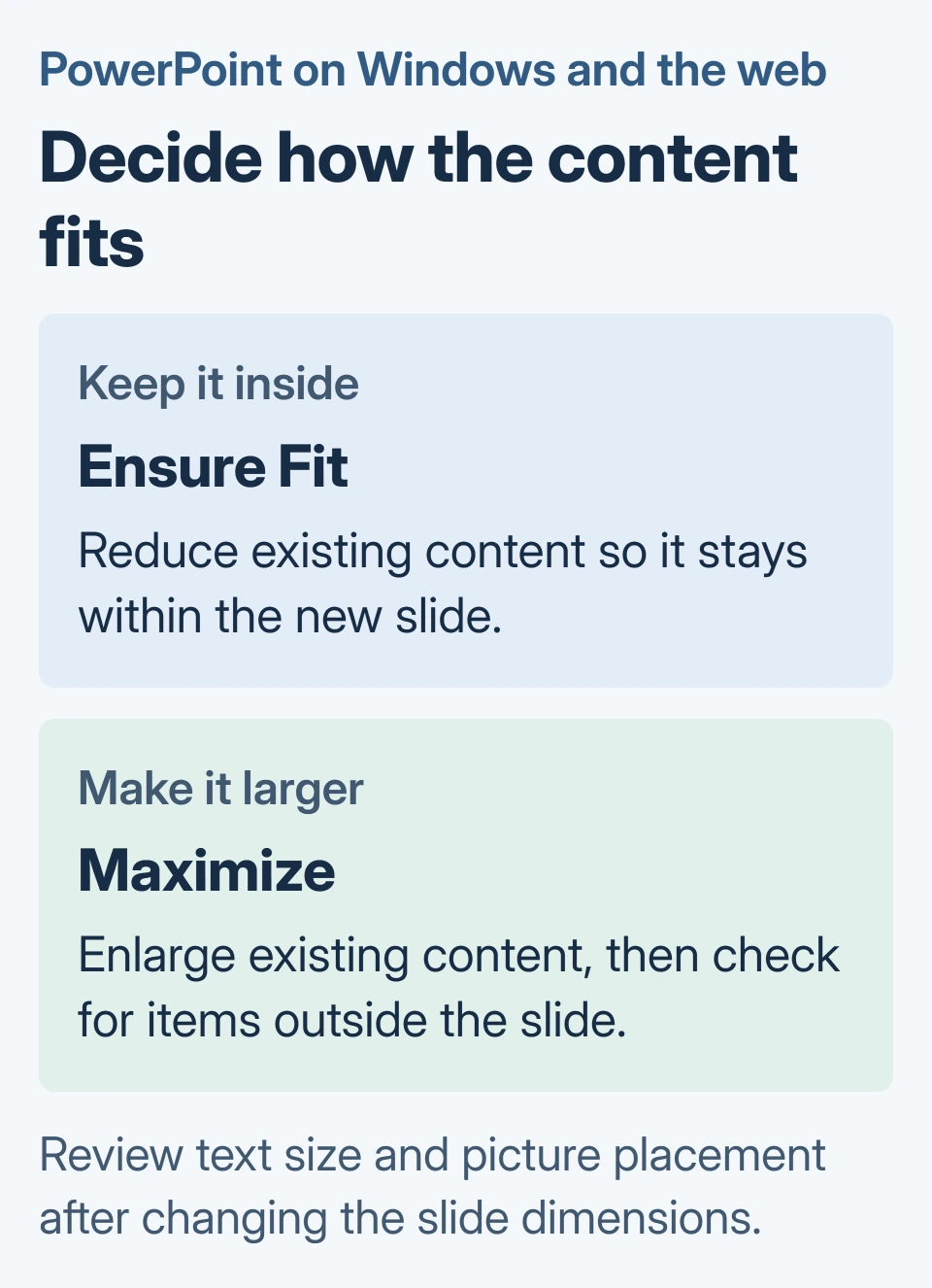
Windows and the web can offer Ensure Fit or Maximize when the new dimensions require a content choice. Ensure Fit reduces content so it stays inside the slide. Maximize can make items larger than the available space.
On a Mac, the equivalent decision is presented as Scale or Don't Scale. Scale reduces or enlarges the slide content for the new dimensions; Don't Scale keeps the content size as it is.
For a finished deck, I would start with the choice that keeps content visible, then inspect its readability. A smaller text box that remains on the page can still be too small for the audience.
Review a title slide, the densest text slide and any slide with a large image. Look for clipped labels, empty space and pictures that now need repositioning before applying the same cleanup across the deck.
Check orientation and the final presentation
Microsoft says the page-layout controls also set slide orientation. Use Portrait or Landscape in the sizing dialog when the target format needs it.
This is separate from text-box margins. Reducing a text margin will not turn the presentation into a wider slide or remove a printer's unprintable paper edge.
Run the deck on its intended screen after resizing. For embedded PowerPoint videos, check their visible frame as well as ordinary images.
For an unattended display, check the finished layout before setting the presentation to loop. Playback timing will not correct content that was pushed off the slide.
If a required custom size cannot be entered, tell Microsoft Support which PowerPoint edition rejected the dimensions, including their units. Include whether the problem occurs in the browser, Windows or Mac app.
The Short Version
Choose the deck's dimensions under Design, then decide how existing content should scale. Review the result on the intended screen or print preview before distributing the resized presentation.

Isaac Smith is the founder and editor of PC Glance, a website that covers computers, laptops, and technology. He is a tech enthusiast and a computer geek who loves to share his insights and help his readers make smart choices when buying tech gadgets or laptops. He is always curious and updated about the latest tech trends.