
Running an AppImage on a Chromebook requires the Linux development environment and a download built for that Chromebook's processor. Move the file into Linux files, make it executable in Terminal, then launch it there.
An AppImage is not installed by opening it as a ChromeOS document. It runs inside Linux, so a missing Linux environment or the wrong processor build must be addressed before changing launch permissions.
Enable the Linux environment in Settings
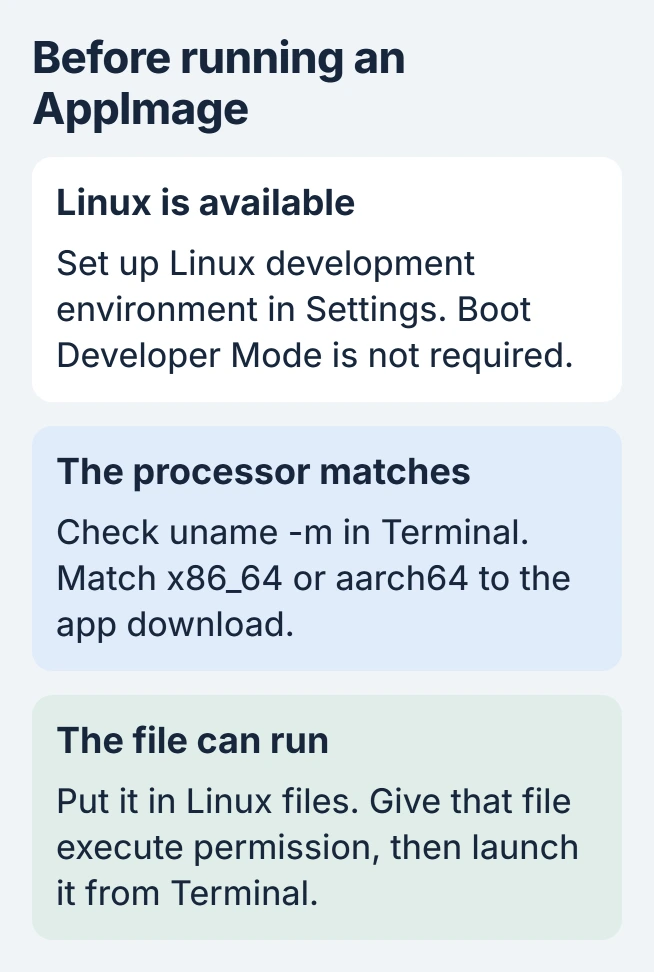
Open Settings > About ChromeOS > Developers. Beside Linux development environment, choose Set up and finish the prompts. Google says this creates a Debian environment with its own Terminal.
The official Linux setup page also describes restrictions on managed computers. If setup is unavailable, check device support and ask the organization's administrator before downloading more files.
Status: ChromeOS Linux setup and AppImage execution documentation checked October 31, 2026. App compatibility still depends on the processor and Linux libraries; no application was installed here.
The Chromebook Developer Mode guide explains a different feature that changes boot verification. That mode transition is unnecessary for this ordinary Linux-app workflow.
Google states that Linux apps share the same environment and its permitted files. Use the application's official download, because a harmful Linux app can affect other work stored there.
Match the download to the processor
Open the Terminal app and its Linux terminal. Run this read-only command:
uname -mAn x86_64 result needs an x86-64 build. An aarch64 result needs an ARM64 build. Download from the application's own website and check its supported platforms; changing the filename cannot convert one build into the other.
If the developer offers only x86-64 and the Chromebook is ARM, stop and ask about a supported version or web app. Execute permission does not provide processor emulation.
Put the file in Linux files and launch it
Open the Chromebook's Files app. Copy the downloaded AppImage into Linux files. Google's ChromeOS development documentation describes this as a way to make downloaded files accessible to the Linux environment.
For these commands, rename that copy to MyApp.AppImage using Files. The name is an example, not an application recommendation. Keep its capitalization identical when typing it in Terminal.
cd ~
chmod +x MyApp.AppImage
./MyApp.AppImage
The AppImage quickstart documents making the file executable before running it. The first command selects the Linux home folder, where the top level of Linux files is shown.
The app should open its own window. This manual launch does not guarantee a ChromeOS launcher icon; desktop integration is a separate AppImage feature. Keep the file for later launches rather than deleting it as an installer.
Read the terminal error before changing anything else
No such file or directory: confirm the file is actually in Linux files and its name matches. Run ls to list the current folder. A file still sitting only in ChromeOS Downloads is not in the location used by this example.
Permission denied: confirm that chmod +x completed for the correct file. Keep it in Linux files for this check instead of attempting to execute it from an unrelated shared or removable location.
Exec format error: return to the processor check and the developer's download choices. A different CPU build is a different download, not a missing permission.
If the error names FUSE, the AppImage project documents an extract-and-run fallback for supported type 2 AppImages:
./MyApp.AppImage --appimage-extract-and-runThat option extracts the contents temporarily and runs the app without mounting it through FUSE. Extraction takes extra work and storage, so use it for a FUSE failure rather than making it the first launch method.
If that option is unsupported or the next error names a missing library, send the exact terminal output to the app developer. Do not disable the application's sandbox merely to remove an error message.
When Linux itself will not start
A Chromebook restart is documented by Google as a Linux troubleshooting step. Check the ChromeOS update procedure if the system is outdated, then try Terminal before retrying the AppImage.
Our distinction is simple: Terminal failing to open is an environment problem; one AppImage failing inside a working terminal belongs with its developer. Preserve Linux projects before considering removal of the environment.
The Short Version
Enable Linux, match the download to the processor and launch the executable file from Linux files. Use the terminal's actual error to choose the next step. FUSE errors, wrong builds and missing files need different fixes.

Isaac Smith is the founder and editor of PC Glance, a website that covers computers, laptops, and technology. He is a tech enthusiast and a computer geek who loves to share his insights and help his readers make smart choices when buying tech gadgets or laptops. He is always curious and updated about the latest tech trends.