

In desktop Excel, select the date cells, open Format Cells and choose Date. Pick a style and check the preview before applying it. This changes the displayed date without changing its stored value.
Use a custom format when the built-in choices do not match the report. If applying a format changes nothing, check whether the cells contain text before trying another display style.
Choose a date style for the selected cells
Select the date cells in Excel on Windows and press Ctrl + 1. On Mac, use Command + 1. Open the Number tab, choose Date under Category and select an entry in Type.
Read the Sample preview before selecting OK. Microsoft documents the platform-specific choices in its date-format instructions. Apply the choice to dates rather than unrelated numbers.
Status: Excel date-display controls checked October 31, 2026, for Windows, Mac and web. Examples illustrate formatting rules; no workbook was opened or modified.
For Excel in a browser, select the cells and open Home > Number Format. Choose Short Date or Long Date. Use desktop Excel when creating the custom patterns described next.
Our recommendation is to begin with a date whose day and month are unmistakable, such as October 31. That makes an unintended month/day interpretation easier to spot than a date like October 6.
Build the exact pattern in desktop Excel
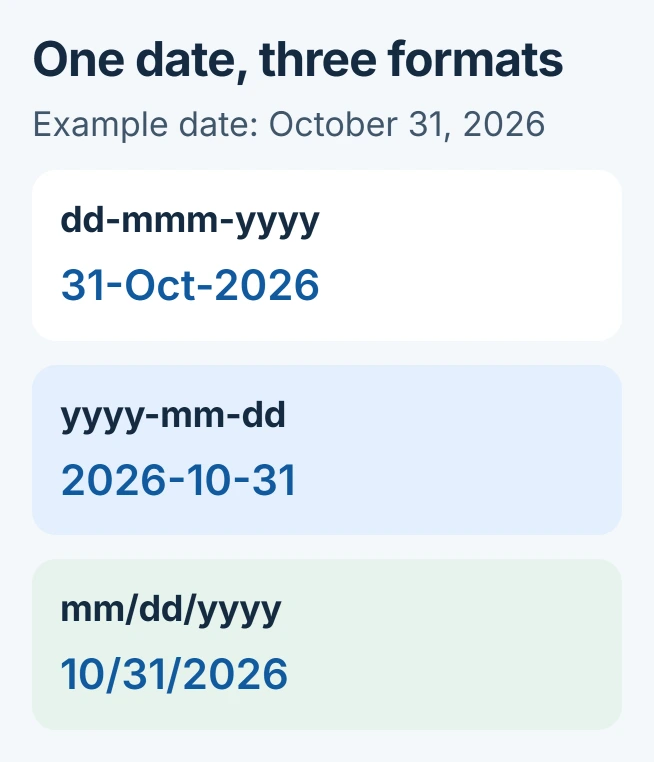
Return to Format Cells and choose Custom from the Category list. Enter the desired code in Type, inspect Sample, then confirm. These examples assume English month names and the date October 31, 2026.
| Format code | Displayed result |
|---|---|
dd-mmm-yyyy | 31-Oct-2026 |
yyyy-mm-dd | 2026-10-31 |
mm/dd/yyyy | 10/31/2026 |
Microsoft says dd displays a two-digit day, mm a two-digit month and yyyy the full year. Its format-code reference also lists mmm for abbreviated month names and mmmm for full names.
Changing the display order does not exchange the stored day and month. October 6 remains October 6. If Excel already interpreted an imported value incorrectly, formatting alone cannot repair that interpretation.
When a cell includes a time, a date-only pattern can hide that time without deleting it. Microsoft's number-format explanation distinguishes the display from the value used in calculations.
Should the format follow regional settings?
In the Date list, an entry marked with an asterisk follows changes to regional date settings. Microsoft states that unstarred formats keep their pattern. Choose an explicit order for consistent reports.
The cell's display pattern and the interpretation of newly typed dates are separate concerns. Avoid ambiguous numeric entries when sharing a workbook across regions; confirm the date itself before deciding its appearance.
Codes or part numbers that Excel converts into dates need the automatic date-conversion checks. A date-display format is appropriate only when the value is intended to be a date.
Fix text dates or a display that cannot fit
If the visible date ignores every format choice, use the text-date conversion procedure to establish its stored type and original date order. Preserve a copy before converting imported values.
For a cell showing #####, widen the column first. Drag the right edge of its column heading or double-click that edge to fit the contents. A longer month name can require more width than a short numeric date.
Afterward, compare a few records with the original source. A correct-looking format does not prove the original day, month and year were imported correctly.
If the chosen pattern changes again after saving and reopening, keep a small example file for Microsoft Support. Include the Excel version, operating system, exact format code and whether the issue also occurs in a new workbook.
The Short Version
Choose Date for a built-in style or Custom for an exact desktop pattern. Check regional behavior and the preview, then verify a known date. Text conversion and an already-misread date require different corrections from formatting.

Isaac Smith is the founder and editor of PC Glance, a website that covers computers, laptops, and technology. He is a tech enthusiast and a computer geek who loves to share his insights and help his readers make smart choices when buying tech gadgets or laptops. He is always curious and updated about the latest tech trends.