
Acer's Input Not Supported message means the monitor is receiving a video signal at a resolution or refresh rate it cannot display. Restore a supported mode from another working screen, or use Windows' low-resolution startup option.
This message differs from No Signal. Start with the video mode, particularly if the picture disappeared immediately after changing resolution, refresh rate or a game's display settings.
Use a working display to correct the Acer's mode
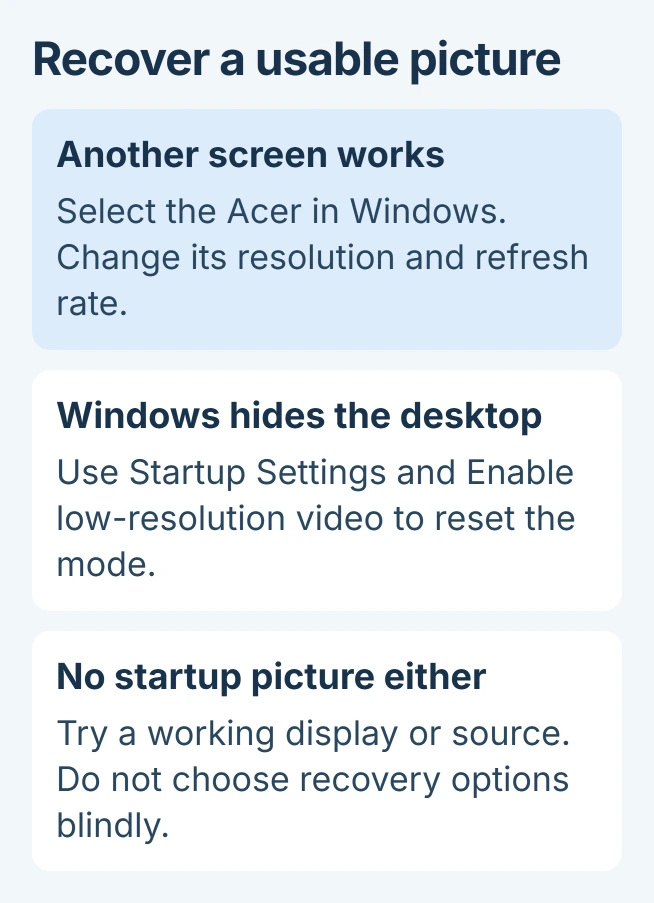
Keep the laptop's built-in screen open, or connect another display that produces a picture. In Windows 11, open Settings > System > Display, select the Acer display, then find Display resolution under Scale & layout.
Microsoft says the Recommended resolution is normally the appropriate choice in its display-resolution guide. Match it to the Acer model's specifications.
Status: Acer's message definition and Windows display-recovery controls checked November 1, 2026. Supported modes depend on the monitor and input. No display setting was changed here.
Next, open Advanced display, select the Acer and inspect Choose a refresh rate. Pick a rate listed as supported for that resolution and connection in the monitor's manual. Keep the change only when a stable picture appears.
Microsoft documents this refresh-rate control. Some listed rates require changing resolution, so check both values after applying a choice.
Avoid copying a high refresh rate from another Acer model or input. HDMI, DisplayPort and older connections can have different limits on the same monitor. A custom mode is unnecessary for restoring a normal supported picture.
Recover the desktop when the only screen rejects Windows
If the startup logo appears but Windows triggers the warning, enter the Windows Recovery Environment. Save work first when another screen provides access. For an encrypted PC, obtain its BitLocker recovery key before proceeding.
On an accessible Windows screen, hold Shift while choosing Power > Restart. Then select Troubleshoot > Advanced options > Startup Settings > Restart.
At the next list, press 3 or F3 for Enable low-resolution video. Microsoft states that this starts the current video driver with reduced resolution and refresh settings so the display configuration can be reset.
Use the restored desktop to choose resolution and refresh settings within the Acer's limits, then restart normally. The screen should continue displaying Windows after the normal graphics mode loads.
If no usable desktop is available but the startup logo is visible, Microsoft's recovery entry instructions include interrupting startup twice, followed by Automatic Repair.
Use that only when a normal restart route is unavailable and no update is running. At the logo, hold power until shutdown; repeat once. On the third start, select Advanced options and continue to Startup Settings.
Acer's support explanation names Safe Mode for changing the unsupported mode. Microsoft's low-resolution option specifically retains the current graphics driver for that task.
If even the recovery screen cannot be displayed, try a working spare screen or ask the PC maker for help. Do not attempt recovery choices blindly.
The warning appears only in one game
When the desktop works and a game alone triggers the warning, its full-screen configuration may request another video mode. Close the game and use its documented windowed, safe-launch or graphics-reset option.
Set the game's resolution and refresh rate within the monitor's limits before returning to full screen. Launch options vary by game; there is no single command that safely resets every title.
If Windows shows different desktop and outgoing resolutions, the active-signal comparison explains what those two readings mean.
Check the source when changing Windows has no effect
If the monitor actually reports No Signal, follow the Acer input and cable checks. Changing Windows resolution cannot correct a monitor listening to an unused socket.
A warning present before Windows loads points away from a Windows-only setting. Try a direct compatible connection and another source using a mode the Acer manual lists. Record whether the monitor works there.
For a failure that remains at a documented supported mode, give Acer Support the exact monitor model, selected input, source device, resolution and refresh rate. Include whether its own menu and the startup logo remain visible.
The Short Version
Use a working screen to correct the Acer's resolution and refresh rate. When Windows makes the only display unreadable, try low-resolution startup to reach those controls. Treat No Signal and game-only failures separately.

Isaac Smith is the founder and editor of PC Glance, a website that covers computers, laptops, and technology. He is a tech enthusiast and a computer geek who loves to share his insights and help his readers make smart choices when buying tech gadgets or laptops. He is always curious and updated about the latest tech trends.