
HP laptop power controls can sit around the keyboard, among its keys or on a side edge. Look for the power symbol: a broken circle with a short vertical stroke. Confirm an unclear control against the exact model's diagram.
The laptop's family name alone is insufficient. Different generations of a Spectre, Pavilion or other HP notebook can use different layouts.
Check the keyboard area and side edges
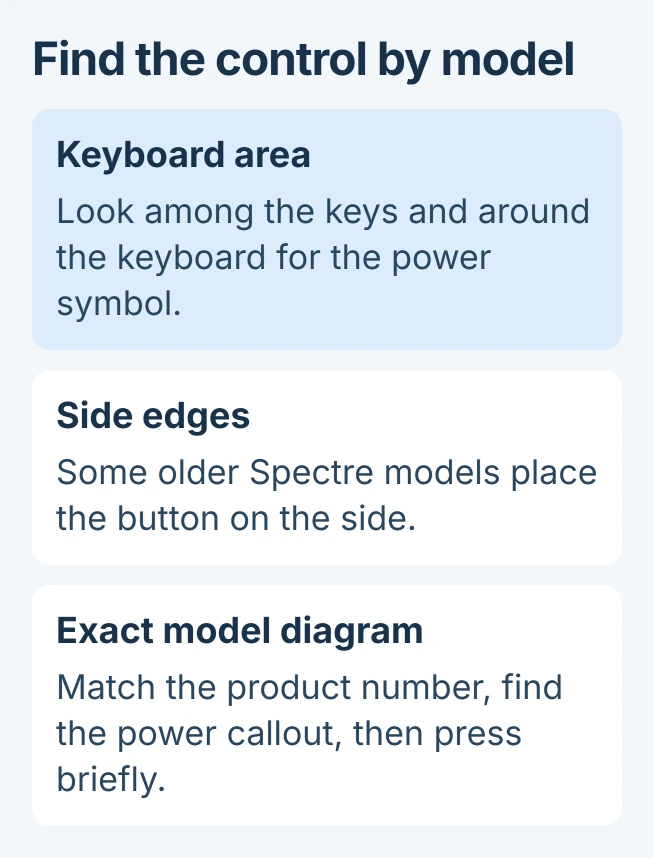
Open the lid in its normal laptop position. Inspect the top row of keys and the area between the keyboard and display. A power key can resemble the surrounding keys rather than a separate round button.
Next, check both side edges. HP documents a left-side power button in its 2018 Spectre x360 13 guide, under External component identification > Left side.
Status: HP component manuals checked November 1, 2026. The Spectre example is a 2018 layout, not a position shared by every HP. No laptop button was pressed during research.
The HP ZBook Studio G4 instead lists its power button under Keyboard area > Buttons, speakers, and fingerprint reader. Its component guide shows why the model matters.
A charging indicator is only a light. Do not push an indicator, microphone opening or unlabeled hole while looking for the power control. The manual identifies the physical button or key separately.
Match the product number to its component diagram
Read the product name and product number from the laptop's service label, usually on its underside. Set the closed computer on a safe surface to read it; opening the case is unnecessary.
On another device if needed, visit support.hp.com, find the exact product and open its manuals. Choose the User Guide or the external-component section of its maintenance guide.
Search the document for power button or power key. Match the drawing to the laptop's keyboard and ports, then follow the numbered callout to the labeled control.
HP says its guides can cover features that vary by product. If the pictured keyboard or side ports do not match, check the full product number instead of assuming a nearby key serves the same purpose.
Use a brief press for normal startup
With the laptop off, press and release the identified power button. HP states in both manuals that the button turns the computer on from its off state. Wait for a power indication or the startup screen.
Connect the specified charger if the battery is depleted. If the correct button produces no response, use the HP power-supply and startup checks. Finding the button and diagnosing a dead laptop are separate tasks.
Holding power is not the ordinary startup technique. HP warns that holding it can force shutdown and lose unsaved work. The emergency hold duration also varies between models, so use that model's instructions only when necessary.
For normal shutdown in Windows, save work and choose Start > Power > Shut down, as Microsoft documents in its power guidance.
A short press while the computer is already on can invoke Sleep or another configured action. It is not a reliable way to infer that Windows has fully shut down. Check the laptop's lid and power behavior when that is the real question.
If the matching manual still leaves the control unclear, contact HP with the product number. A physically damaged or stuck button needs service; pressing harder or opening the casing is not a substitute for identifying it.
The Short Version
Check the keyboard area and side edges for the power symbol. Confirm the location with the exact HP product's component diagram, then press briefly to start. A known button with no response needs power troubleshooting.

Isaac Smith is the founder and editor of PC Glance, a website that covers computers, laptops, and technology. He is a tech enthusiast and a computer geek who loves to share his insights and help his readers make smart choices when buying tech gadgets or laptops. He is always curious and updated about the latest tech trends.