
A dark HP laptop with no lights needs its power supply checked first. Connect the correct HP adapter to a working outlet, check its connections, then try HP's 15-second power reset. Lights with no picture need a different next step.
If the machine starts again, HP's hardware diagnostics can check the battery and adapter. Those tests require a functioning computer; pressing F2 cannot diagnose a laptop that still has no power.
Check the adapter before buying a battery
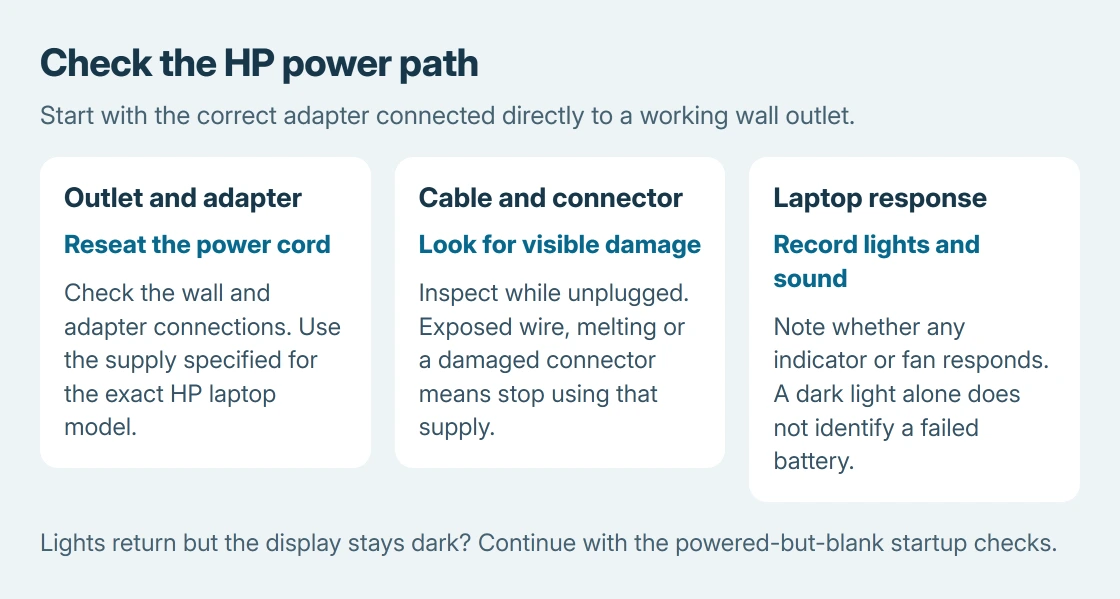
Disconnect the dock and other accessories. Reseat the power cord at the wall and adapter, then connect the adapter to the laptop. Use the adapter supplied for the model or the specified compatible replacement.
HP says to test with the supply connected directly to a wall outlet in its notebook power troubleshooting guide. If the adapter has its own light, check it at a working outlet.
Status: HP's power guide and diagnostics instructions reviewed October 26, 2026. Indicator meanings and tools vary by model. No adapter or battery was physically tested.
Not every HP adapter has an indicator. A missing light on the laptop can also result from a failed port or internal power circuit, so it is not enough evidence to order a charger by itself.
Inspect the unplugged cable and connector for exposed wire, melted plastic or visible damage. Stop using damaged equipment. A loose charging socket needs repair rather than pressure on the plug to keep it connected.
For a depleted internal battery, HP's guide recommends allowing an initial charge before another startup attempt. Leave the correct adapter connected for 15 to 30 minutes if there is no damage or abnormal heat, then press power once.
Perform HP's 15-second power reset
This hard reset is different from factory recovery. It clears a temporary power state and does not reinstall Windows or erase stored files. If an update is running, let it finish before trying it.
- Turn the laptop off. Unplug the AC adapter and disconnect USB devices, docks and memory cards.
- Remove the battery only if it has external release latches and is intended to be removed by the owner.
- Hold the power button for 15 seconds with AC disconnected.
- Refit a removed battery, reconnect the correct adapter and try starting the laptop.
HP states the 15-second procedure in its guide. Its ZBook Studio G4 service manual also describes that hold with AC disconnected and the sealed battery installed. Follow any model-specific instructions.
If power returns, continue to the diagnostic checks so a recurring adapter or battery problem is not overlooked. If it stays completely dark, try a known working, model-compatible adapter if one is available, or arrange HP service.
Reinstalling Windows is a separate HP recovery procedure, used after the laptop can stay powered and display recovery.
The general no-power guide helps distinguish a silent machine from a powered computer with a startup fault. Avoid a Windows reinstall while the laptop cannot even power on.
Compare battery operation on models with a removable pack
On a laptop designed for external battery removal, shut it down, disconnect AC and remove the pack. Reconnect the proper adapter and try starting without the battery, as HP's guide describes.
Starting only after that battery is removed points toward the battery or its connection. It still needs confirmation before replacement. A swollen or leaking pack should not be reinstalled or squeezed back into its compartment.
Skip this physical comparison for an internal battery. HP's software battery test is the appropriate next check once the laptop can start.
Run HP diagnostics once the laptop can display a menu
If Windows opens, search Start for HP PC Hardware Diagnostics Windows. In versions with Device Check, expand Power, choose AC Adapter test or Battery check, then run the selected test with the charger connected.
For a machine that powers on but cannot load Windows, turn it on and immediately press F2 repeatedly to try HP's diagnostics menu. In the UEFI tool, use Component Tests > Power and the available adapter or battery test.
Menus differ between the Windows app and UEFI versions, and some systems need the tool installed. An absent menu is not a failed component test. Use the official HP diagnostics download or ask HP for the model's supported route.
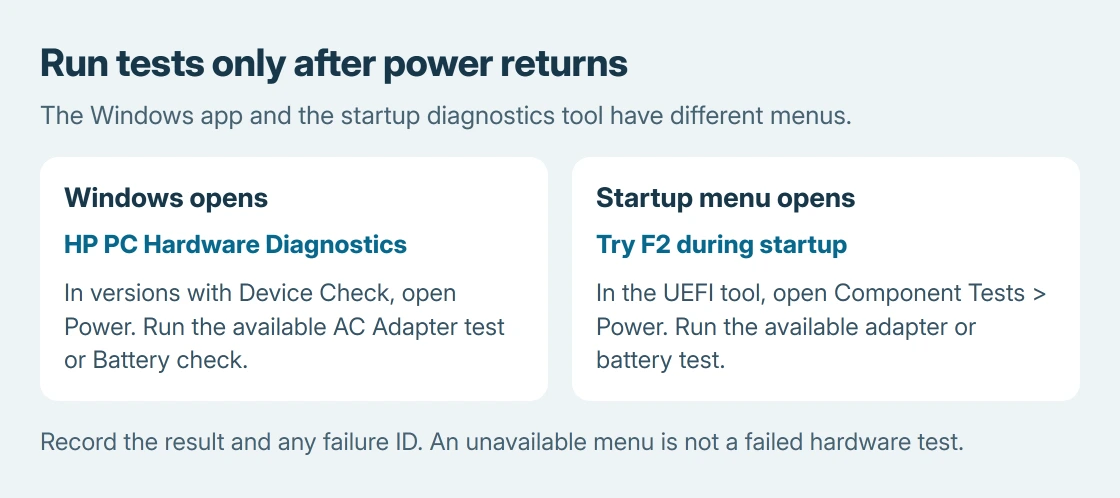
Write down the result, failure ID if shown, and product number. A failed test gives HP something specific to act on. A pass does not explain every intermittent connection or startup problem, so report continuing symptoms too.
Treat lights with no picture as a separate startup problem
Record repeating light or beep patterns, including the light's location. Charging indicators and startup diagnostic patterns have different meanings. Check the code table for that HP model.
For a powered laptop with a blank screen, Microsoft says to check the display and startup state. The black-screen startup guide follows that branch.
If the laptop remains dark after these checks, contact HP with its product number and adapter details. If it lights up but never displays a logo or diagnostics, include that result and any repeating code in the service request.
The Short Version
Verify the correct adapter and outlet, allow an initial charge, and perform HP's 15-second power reset. Test battery and adapter through HP diagnostics only after the laptop starts. Persistent no-power behavior needs hardware service.

Isaac Smith is the founder and editor of PC Glance, a website that covers computers, laptops, and technology. He is a tech enthusiast and a computer geek who loves to share his insights and help his readers make smart choices when buying tech gadgets or laptops. He is always curious and updated about the latest tech trends.