
Factory resetting an HP laptop starts in Settings > System > Recovery > Reset PC on Windows 11. When Windows cannot start, many HP models provide F11 during startup to open recovery instead. Back up important files before either route.
Choose file retention separately from the installation source. Keeping personal files still removes applications and settings; choosing a cloud download does not decide which documents survive.
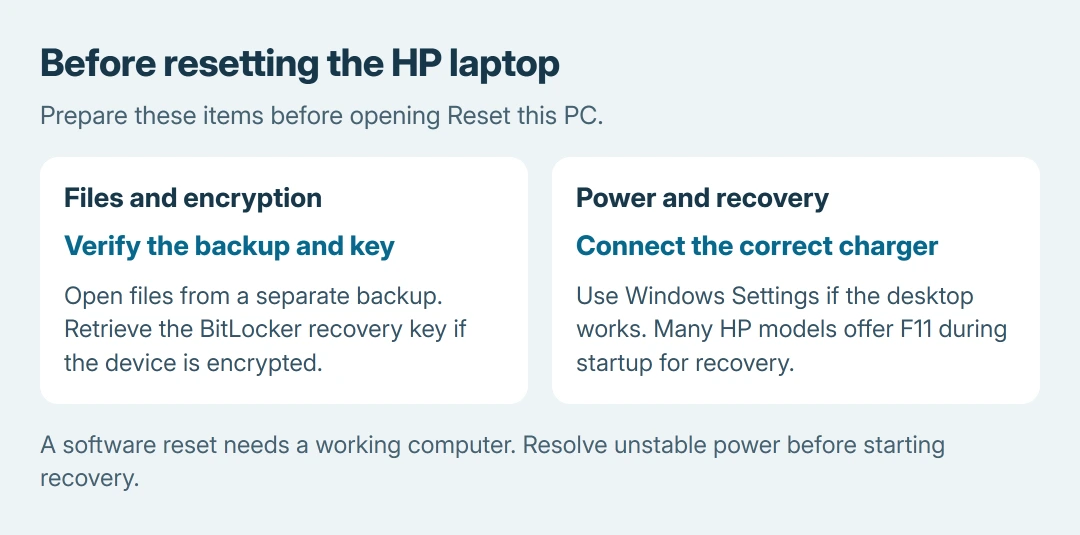
Prepare the backup, recovery key and power supply
Copy important documents, photos and local downloads to another device or verified cloud storage. Open a few files from that backup. A folder marked for syncing is not proof that every file has uploaded.
Microsoft says an encrypted device can require its BitLocker recovery key during reset. Retrieve it before starting, using another device if necessary. The BitLocker key guide covers where to look.
Status: HP's F11 recovery route and Microsoft reset options reviewed October 26, 2026. Cloud Recovery support varies by model. No recovery operation was performed.
Connect the laptop's proper charger. If it cannot stay powered or displays no startup image, address that hardware symptom first. A factory reset requires the computer to run through recovery and installation.
Start the reset from the working desktop
For Windows 11, open Settings > System > Recovery. Beside Reset this PC, select Reset PC. On Windows 10, open Settings > Update & Security > Recovery, then Get started in the reset section.
The PC reset instructions describe both Windows routes. Continue to the file-retention choice before approving the operation.
Resetting Windows is different from an HP power reset that clears a temporary startup state. If the original symptom is no power, the HP power and diagnostics procedure is the relevant starting point.
Use F11 if the HP cannot load Windows
Turn the laptop on and press F11 repeatedly during startup. HP says many models open recovery this way in its laptop recovery guidance.
When the recovery menu appears, select Troubleshoot > Reset this PC. If the desktop opens instead, use Settings. If recovery never appears, do not assume that repeatedly pressing the key will restore a missing recovery installation.
If the startup key cannot open recovery
From an available Windows sign-in screen, holding Shift while selecting Power > Restart is another recovery entry route. The advanced startup guide explains access when the usual desktop is unavailable.
Older HP recovery software can present a manufacturer restore rather than the modern Windows reset. Read its removal notice carefully; a factory-image restore is not automatically a file-preserving operation.
Select file retention, then choose where Windows comes from
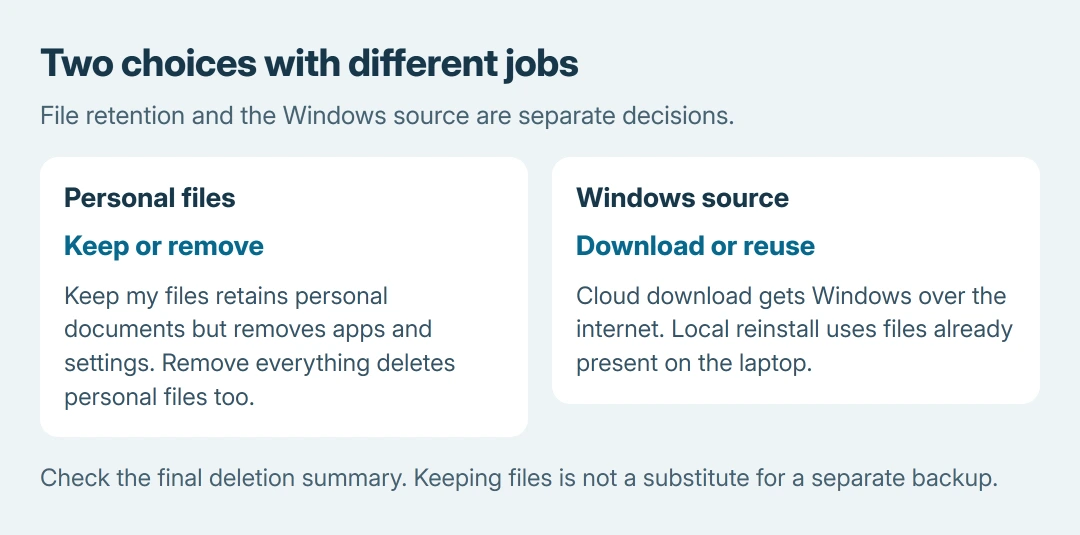
Pick Keep my files to reinstall Windows while retaining personal files. Installed apps and settings are removed. Pick Remove everything when personal files should also be erased, such as before handing the laptop to someone else.
For a sale or donation, review the drive-cleaning and account-removal steps before confirming. Microsoft's consumer cleaning option is not a certified erasure process for regulated data.
Next, select Cloud download or Local reinstall. The first obtains Windows through the internet; the second reuses existing installation files. Microsoft documents cloud download as useful when those local files are damaged or missing.
A Windows reset does not guarantee the exact software image that shipped with every HP model. HP lists HP Cloud Recovery for supported machines when manufacturer recovery media is needed. Check eligibility with the exact product number.
Review the removal summary and let recovery finish
Read the final confirmation for file deletion, apps and any drive-cleaning choices. Approve Reset after confirming the intended removal. Leave the charger connected throughout the process.
The display can remain black for an extended period, and Windows can restart several times. Microsoft warns that manually restarting during reset can cause failure. Do not interrupt it simply because the picture temporarily disappears.
After setup, install updates and the required apps, then check the original problem before restoring everything. A persistent charging failure or a defect visible before Windows loads needs HP assessment, even after a successful reinstall.
If recovery reports an error, preserve the message and selected installation source. Contact HP about supported recovery media. Arrange help recovering unbacked files before approving an erase.
The Short Version
Prepare the backup, recovery key and charger. Open reset through Settings or HP's startup F11 route. Choose file retention and the installation source, then let the confirmed reset finish.

Isaac Smith is the founder and editor of PC Glance, a website that covers computers, laptops, and technology. He is a tech enthusiast and a computer geek who loves to share his insights and help his readers make smart choices when buying tech gadgets or laptops. He is always curious and updated about the latest tech trends.