
Connecting a printer to OrcaSlicer takes more than choosing its model. For a supported network printer, open the Connection control beside the printer preset, select the correct host type, enter its address and run Test.
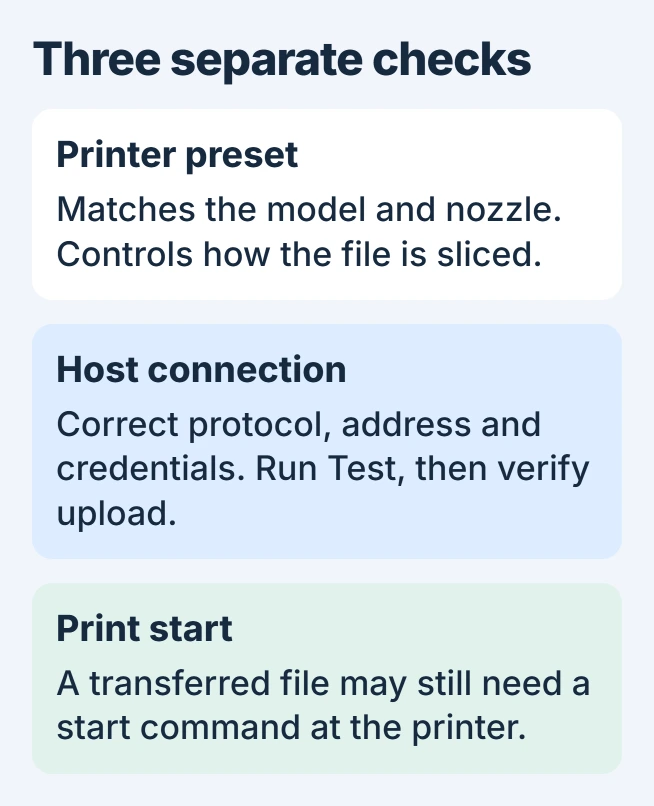
The preset tells OrcaSlicer how to slice the model. The host settings tell it where to send the finished file. A working Device tab does not establish whether uploading or starting a print will work.
Select the printer and its actual connection method
Choose the preset for the exact printer and nozzle. Then check how the printer accepts jobs: a supported network host, the manufacturer's account connection, or a file copied to removable storage.
OrcaSlicer's official project provides its releases and network support information. Use that source for the application; the project warns about unrelated sites presenting themselves as official downloads.
Status: OrcaSlicer 2.4.2 connection controls, official documentation and a continuing owner report checked November 1, 2026. No printer connection or print job was tested here.
For a network setup, read the printer's current address from its own screen or management interface. Both devices need network access to each other; a guest Wi-Fi connection can block that traffic.
The wireless-printer network checks explain that separation. OrcaSlicer sends jobs through its selected host, so adding a paper-printer queue in Windows is not the connection step described here.
Fill in the connection dialog
In the Printer panel, click the Connection icon beside the selected preset. In the Physical Printer dialog, set Host Type to the protocol supported by the printer or print-server software.
Enter its address under Hostname, IP or URL. Supply API Key / Password when that host requires authentication. The fields and Test action are documented by the vendor through OrcaSlicer's published source.
Use the credentials supplied by that particular host. The Wi-Fi password joins a device to the router; it is not automatically the print server's API key. Do not publish connection credentials in a troubleshooting screenshot.
Click Test, read the result and save the configuration with OK. Success confirms that the chosen host answered the connection check. Continue by slicing and sending a suitable file, then verify its arrival at the printer.
Match Klipper to the host it actually exposes
Current OrcaSlicer offers Moonraker (Klipper) for Moonraker's native API. Its 2.4 connectivity notes explain that this avoids relying on OctoPrint emulation. Octo/Klipper remains a separate choice.
Use the address and port specified by the printer's own documentation for that API. The web dashboard and upload API can use different ports; copying the dashboard URL into every field can reach the wrong service.
A printer based on Klipper can still expose a manufacturer's different upload protocol. Match the documented interface rather than selecting a host solely because the printer's firmware description contains the word Klipper.
Bambu account connections have their own network component and authorization rules. Follow the current instructions for that printer and firmware; selecting Octo/Klipper arbitrarily cannot replace the supported connection.
Separate a failed upload from a print that never starts
A failed print start was reported by an owner using an Ender-3 V3 KE: CrealityPrint passed Test and uploaded the file, but Upload and Print did not start it. Starting the saved file from Device worked for them.
Their OrcaSlicer report remained unresolved in their October 18, 2026 reply. This is a model-specific workaround, not evidence that changing every Creality printer to that host fixes it.
Check the printer's file list before sending another copy. If the file arrived, inspect the machine's status and start controls. If it never arrived, return to the host, address and authentication error instead.
On a Mac, also check OrcaSlicer under System Settings > Privacy & Security > Local Network if it is listed. Apple documents that per-app network permission; a denied app cannot freely contact local devices.
Use a supported file transfer when networking remains unavailable
For a printer that accepts removable media, export the sliced file in the format its manual specifies and transfer it using the supported card or drive. Verify the target model and preview before starting a physical print.
Our recommendation is to avoid changing firmware merely to make an unverified host choice work. Ask the printer maker or OrcaSlicer project for help with the model, firmware, slicer version, selected host and complete error text.
If a compatible computer is still being chosen, the 3D-printing setup budget covers the software and hardware costs separately. A connection failure alone does not establish a need for a new PC.
The Short Version
Match the preset to the machine, configure its supported host and test it. Verify upload and print start separately. Follow the printer's account or removable-media route when generic network-host setup does not apply.

Isaac Smith is the founder and editor of PC Glance, a website that covers computers, laptops, and technology. He is a tech enthusiast and a computer geek who loves to share his insights and help his readers make smart choices when buying tech gadgets or laptops. He is always curious and updated about the latest tech trends.