

A Mac stuck in full screen can return to a window with Control + Command + F, if the app supports that shortcut. Hidden menus and window buttons can make a responsive app look trapped when it is simply using full-screen mode.
If the shortcut does nothing, move the pointer against the display's upper edge to reveal the full-screen controls. An app that ignores clicks as well as keys needs a different check before closing it.
Reveal the green window button
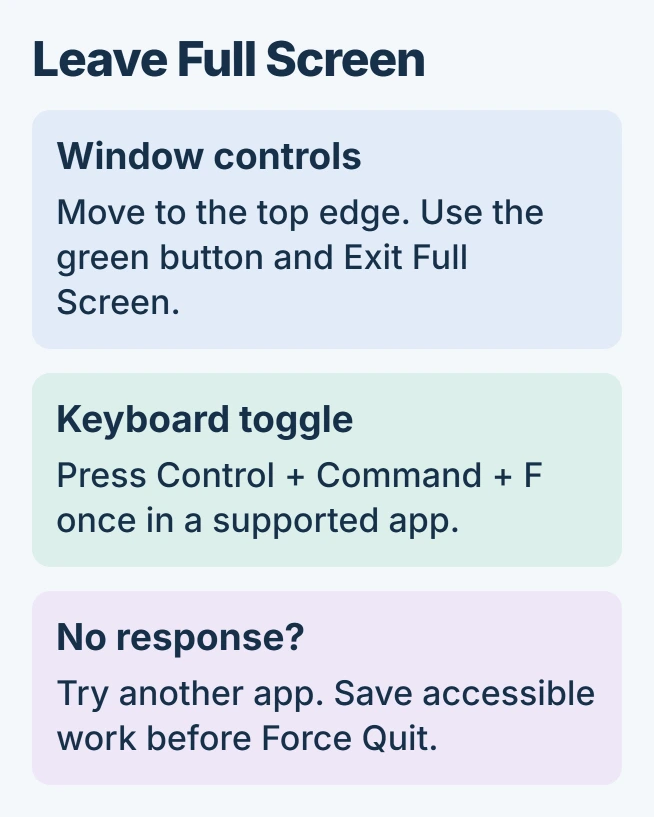
Move upward until the pointer reaches the display edge, then pause. Once the window controls appear, hover over the green button. Select Exit Full Screen in the menu that opens.
Apple documents the green-button menu in its full-screen instructions. The app should return to a desktop window, keeping its document open.
Status: Apple's macOS 27 window controls, keyboard reference and Force Quit procedure checked November 1, 2026. These are documented actions; no Mac was operated.
The keyboard alternative is Control + Command + F. Press the three together once while the affected app is active. Apple's shortcut reference says this toggles full screen in supported apps.
If a normal window returns, stop there. Repeating a toggle after it succeeds puts the app back into full screen.
Separate full screen from a window outside the display
A full-screen app occupies the display and hides desktop controls. A window whose title bar extends beyond the screen edge has a positioning problem instead.
For that second case, use the Mac window-position recovery controls. Moving a misplaced window and leaving a full-screen Space are separate actions, even though both can hide its buttons.
Apple says a maximized window can remain on the desktop with the menu bar and Dock visible. Use the window-sizing controls after exiting full screen if you want a larger window without hiding those desktop controls.
Switch to another app before deciding that the Mac froze
Press Command + Tab and select another open app. If that app responds, the whole Mac has not stopped accepting input. Save any work that remains accessible before dealing with the unresponsive application.
Moving to another Space can also expose the desktop, but it leaves the original app in full screen. Returning to the same full-screen window afterward does not mean the exit command was applied and then reversed.
If clicking a desktop in Mission Control sends you straight back, the Mission Control switching checks address that distinct behavior. Avoid repeatedly rearranging Spaces to fix one frozen app.
Close an unresponsive app only after trying a normal quit
Try Command + Q if the application can still respond. Save its document if prompted. Closing the app is unnecessary when its full-screen exit controls already work.
For an application that will not quit, press Option + Command + Esc. Select that application in the Force Quit window, then choose Force Quit. Unsaved edits in it can be lost.
Apple states in its Force Quit guidance that restarting the Mac is the next option if force quitting fails. Save other work before choosing Apple menu > Restart.
If menus also fail and a normal restart is impossible, hold the power button for up to 10 seconds until the Mac switches off, then press it again to start. A Touch ID button also serves as the power button.
For repeated freezes, report the app, macOS version and exact trigger to the app developer or Apple Support. Whether the green-button menu worked is more useful than describing every large window as frozen.
The Short Version
Reveal the green window button and leave full screen, or use the app's supported keyboard toggle. If clicks also fail, save accessible work and follow the unresponsive-app procedure.

Isaac Smith is the founder and editor of PC Glance, a website that covers computers, laptops, and technology. He is a tech enthusiast and a computer geek who loves to share his insights and help his readers make smart choices when buying tech gadgets or laptops. He is always curious and updated about the latest tech trends.