
OneDrive Personal Vault errors can affect unlocking or syncing. Record the message first: Microsoft gives 0x80004005 an update-related remedy, while a vault that is not up to date needs its sync checked.
First try the same personal Microsoft account at OneDrive.com. Files visible there confirm access to those cloud copies, but newer changes on the PC might still be waiting to upload.
Check the vault online before changing the PC setup
Sign in to OneDrive.com, select Personal Vault, and complete the offered identity verification. Use an up-to-date Edge, Chrome or Firefox browser, which Microsoft's Personal Vault guide lists as supported.
Open a relevant file and check for the expected recent work. Preserve unsynced local changes before resetting or reconnecting the desktop app. A successful web unlock provides access while the PC is being checked.
Status: Personal Vault documentation and Windows error guidance checked November 1, 2026. The sync sequence comes from a 2025 Microsoft support reply; no vault or account was accessed.
Microsoft says Personal Vault is for personal accounts and is available through Windows, mobile apps and the web. On a Mac, use the browser route; an absent Finder vault does not establish that the online files disappeared.
For 0x80004005, complete the offered Windows updates
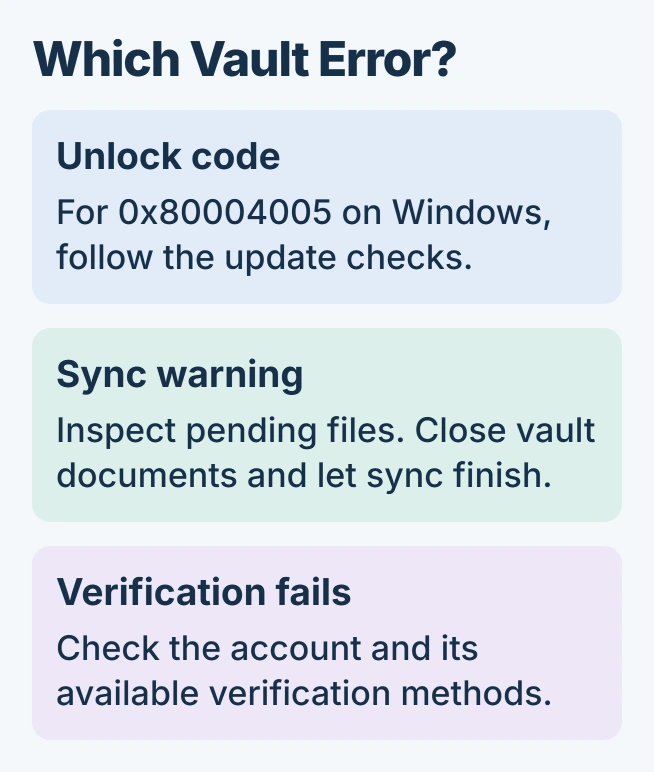
Microsoft documents 0x80004005 when unlocking Personal Vault in its OneDrive error-code reference. Its remedy is Windows Update troubleshooting and installing updates, including feature updates.
On Windows 11, visit Settings > Windows Update. Check for updates, install those offered for the device, and restart when requested before retrying the vault. Use the Windows Update troubleshooter if installation fails.
Microsoft's update instructions confirm the restart step. This is the remedy for that particular Windows unlock code, not a promise that every Personal Vault error is an outdated-PC problem.
An owner reporting the same code in 2019 had already updated and restarted without success. That older failure does not establish a current cause, but it is a reason to escalate a persistent error instead of repeating updates indefinitely.
For a vault that is not up to date, let syncing finish
A February 2025 Microsoft support reply gives this sequence for the Personal Vault sync warning: unlock the vault, close its files, and let synchronization finish.
Select the OneDrive cloud icon near the clock and inspect its current activity. Once syncing finishes, lock the vault again. If a file remains pending or an error is listed, address that item before assuming the warning has cleared.
The OneDrive synchronization checks cover filename and storage failures. They matter when the vault can open but a particular file, or the whole account, cannot finish uploading.
Distinguish a verification failure from normal locking
An email or phone number that cannot receive the verification code needs an account-access check. Confirm that the displayed destination belongs to you and use another verification method already offered on the account.
If sign-in itself fails, follow the Microsoft account recovery limits before attempting to repair OneDrive. Reinstalling a sync app cannot supply a missing verification method.
Microsoft states that Personal Vault locks after inactivity and excludes its contents from search results. A locked vault or an empty search result can therefore be expected behavior. Open the vault itself to inspect its contents.
Send Microsoft the failing step if access still fails
Give Microsoft Support the exact message or code, Windows and OneDrive versions, and whether the same vault opens online. State whether ordinary OneDrive files sync and whether the failure happens before or after verification.
Keep the vault and its contents intact while seeking help. Disabling security controls or deleting the vault is not a suitable general response to an unexplained access failure.
The Short Version
Check the same account online, then follow the specific message. The Windows unlock code, unfinished syncing and unavailable verification are different failures and need different next steps.

Isaac Smith is the founder and editor of PC Glance, a website that covers computers, laptops, and technology. He is a tech enthusiast and a computer geek who loves to share his insights and help his readers make smart choices when buying tech gadgets or laptops. He is always curious and updated about the latest tech trends.