
To install a custom cursor on Windows 11, select its extracted file on the Pointers tab in Mouse Properties. Assign it to the intended role, such as the normal arrow; other pointer shapes keep their own settings.
For a larger pointer or a different color, Windows already has built-in controls. A downloaded cursor is useful when the actual shape or animation needs to change.
Prepare the cursor files before opening settings
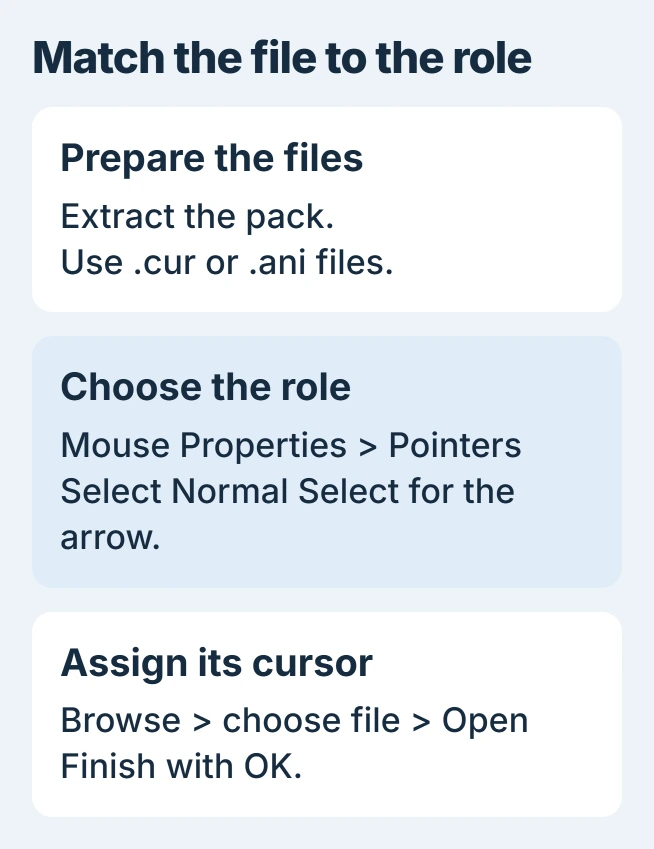
Use a cursor pack from a creator you trust. Microsoft states that Windows accepts .cur and .ani files in its cursor-file documentation. The ANI format carries animation.
If the pack arrives as a ZIP, right-click the archive and choose Extract All. Follow the extraction prompts. Microsoft documents that command in its ZIP instructions.
Status: Windows 11 pointer controls and supported cursor formats checked November 1, 2026, in Microsoft documentation. No cursor pack was installed.
Keep the extracted files in a permanent folder. Avoid a temporary folder that gets cleared regularly. This manual procedure uses cursor files directly, without running a pack's installer.
A PNG preview is not a CUR file. Renaming its extension does not convert the image into a usable Windows cursor. Obtain the pack's actual cursor files before continuing.
Assign the new design to a pointer role
Open Settings > Bluetooth & devices > Mouse. Under Related settings, choose Additional mouse settings. In the Mouse Properties window, select Pointers.
Microsoft says to use Scheme for a complete set, or Customize for individual entries, in its mouse instructions. Note the current scheme before replacing anything.
- Select Normal Select in the Customize list to replace the ordinary arrow.
- Choose Browse, open the extracted folder and select the intended cursor file.
- Click Open and check the preview for that entry.
- Repeat for other roles the pack supplies, such as Text Select or Busy.
- Choose OK to apply the assignments and close Mouse Properties.
Move the pointer over ordinary controls and editable text to check the relevant shapes. An unchanged text cursor can simply mean that Text Select still uses its previous file.
Choose the built-in option when size or color is enough
Go to Settings > Accessibility > Mouse pointer and touch. Use Size for visibility and Mouse pointer style for color. These controls do not require a downloaded cursor pack.
For a complete built-in pointer set, return to Mouse Properties and choose an entry from Scheme. This is also a straightforward way to replace a custom set that is hard to see against your usual apps.
Handle a missing file or a cursor that changes back
If Browse does not show the expected file, check the extracted folder and its file type. Avoid selecting the archive itself or a preview picture. Try another valid cursor from the pack if one file will not load.
When the design applies but later reverts, the cursor settings reverting guide covers that separate fault. Record whether the change follows a restart, theme change or Windows update.
An unresponsive pointing device needs the mouse and touchpad checks instead. Changing its artwork cannot repair a disconnected pointing device.
If a built-in scheme works but the downloaded files do not, contact the pack's creator with the file type and affected role. If a built-in scheme also reverts, report the Windows build and failed setting to Microsoft Support.
The Short Version
Extract the pack, open Mouse Properties and assign each wanted file on Pointers. Use Windows' accessibility controls for simple size or color changes, and keep the original scheme available as a fallback.

Isaac Smith is the founder and editor of PC Glance, a website that covers computers, laptops, and technology. He is a tech enthusiast and a computer geek who loves to share his insights and help his readers make smart choices when buying tech gadgets or laptops. He is always curious and updated about the latest tech trends.