
App updates on Android come through the store supplying each app. In Google Play, open the profile menu and Manage apps & device to review updates. Samsung owners should check Galaxy Store too.
Updating an app is different from installing a new Android system version. Start with the app store when a particular application needs its latest features or fixes.
Install the updates offered by Google Play
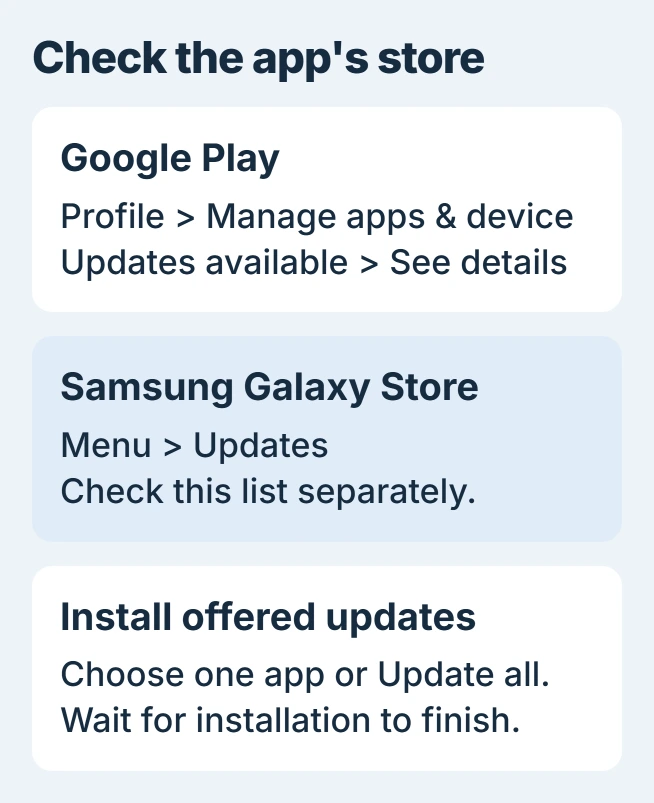
In the Play Store, tap the profile picture and select Manage apps & device. Under Updates available, open See details. Google says its Android update list offers individual and bulk installation.
Choose Update beside one app, or Update all for the offered list. Let installation finish before opening the updated app. Follow any permission request or restart prompt that appears.
Status: Google Play and Galaxy Store update paths checked November 1, 2026. Available buttons depend on store and app status. No phone or installed app was updated here.
An individual app's store page also shows Update when an update is available. If the listing offers Open, that page is not currently offering an update to this installation.
For a crash that remains after updating, use the Android app-closing checks and keep any locally saved work safe before considering data removal.
Set automatic updates to match the connection
From the Play Store profile menu, choose Settings > Network preferences > Auto-update apps. Select Update over Wi-Fi only to avoid ordinary automatic downloads over a metered cellular connection.
Google also offers automatic updates using Wi-Fi or cellular service. A limited-cellular-usage choice appears only for some users. Pick the option shown on the phone that suits the data plan.
For one app, open its Play Store detail page, tap the three-dot menu and enable Enable auto update. Google states that automatic updates can fail when an account has a sign-in error.
On a much older phone, separate Google's account and Play services cutoffs before retrying the update list.
Check Galaxy Store separately on Samsung
Open Galaxy Store, tap Menu at the bottom right, then select Updates. Use the update symbol beside one entry or choose Update all.
Samsung says its Galaxy Store apps need a separate update check from Play Store apps. Finishing the Play Store list does not establish that both stores are current.
To set Galaxy Store's automatic behavior, open Menu, tap its settings gear and select Auto update apps. A Samsung account is required for that store; the Google account used by Play Store is separate.
When an update stays pending or fails
Check the internet connection and available storage before deleting anything. Close Play Store, reopen it and retry; restart the phone if installation remains stuck. Google's basic download troubleshooting covers these checks.
When only one app refuses an update, send its error to the developer through the store listing. For store-wide failures, use Google's troubleshooting or ask the manufacturer for help, naming the model and Android release.
Avoid uninstalling an app merely to make an Update button appear. The Android app-removal guide explains what must be preserved first; reinstalling can remove information kept only inside that app.
The Short Version
Install offered updates from Google Play, then check Galaxy Store on a Samsung device. Configure automatic updates for the connection you want, and check network and storage when downloads fail.

Isaac Smith is the founder and editor of PC Glance, a website that covers computers, laptops, and technology. He is a tech enthusiast and a computer geek who loves to share his insights and help his readers make smart choices when buying tech gadgets or laptops. He is always curious and updated about the latest tech trends.