
Connecting Beats to a laptop starts with discovery mode on the headphones or earbuds. Turning them on is not always enough: wait for the pairing lights or tone, then select the Beats in the laptop's Bluetooth controls.
Windows laptops and MacBooks can both use this connection. The button that makes the Beats discoverable depends on the model, so identify that first rather than holding an unrelated playback control.
Make the Beats visible to the laptop
Charge the Beats if they will not switch on, and keep them close to the laptop. Apple documents manual pairing with a Windows PC as well as Apple devices in its Beats pairing guide.
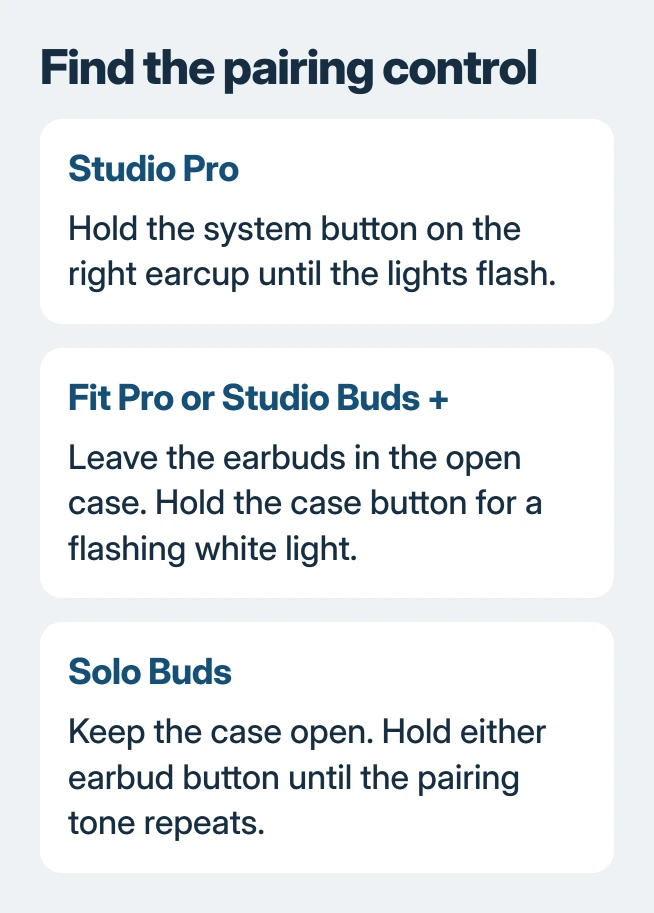
For Beats Studio Pro, hold the system button on the right earcup until the lights flash. On Beats Solo 4, use the power button and wait for the flashing pairing indication.
Status: Beats discovery controls and Windows/Mac pairing instructions checked November 2, 2026. No headphones were paired or audio tested.
For Beats Fit Pro, Studio Buds +, Powerbeats Fit or Powerbeats Pro 2, leave both earbuds inside the open case. Hold the system button on the case and wait for a white flashing light.
Beats Solo Buds use a different control: keep them in the open case and hold the button on either earbud until the pairing tone repeats. Their pairing cue is audible rather than the case-light procedure just described.
For Beats Flex, hold the power button on the right control module until the light flashes. Older Beats models have their own instructions; use the exact model's guide if its controls differ from these.
Select the Beats in Windows
On Windows 11, open quick settings by selecting the taskbar's sound, network or battery area. Open the device list beside Bluetooth, then select the Beats under New devices. Scroll past existing devices if necessary.
Microsoft says discovery mode is required before a headset appears in its Windows Bluetooth pairing instructions. Complete any pairing prompt and select Done when offered.
On Windows 10, open Settings > Devices > Bluetooth & other devices. Select Add Bluetooth or other device, choose Bluetooth, and select the Beats when Windows discovers them.
If the laptop has no Bluetooth switch, use the Windows Bluetooth availability checks before repeating the headphone buttons. A missing radio or driver cannot be fixed by keeping the Beats in pairing mode.
Connect through a MacBook's Bluetooth settings
Open Apple menu > System Settings > Bluetooth and turn Bluetooth on. With the Beats discoverable, locate their name in the device list and choose Connect.
Apple says pairing Beats with one Apple device also makes them available on devices signed into that Apple Account. If they already appear on the Mac, try connecting that existing entry before creating a fresh pairing.
Play a familiar recording after connecting. If the Mac's speakers still play, open System Settings > Sound > Output and select the Beats. Apple's sound-output instructions cover this separate choice.
Connected, but the laptop speakers still play?
On Windows, choose the Beats under Settings > System > Sound > Output, then play audio again. Also check whether the application has its own speaker selection, especially in a meeting app.
If the Beats connect but never appear among outputs, use the missing headphone-output checks. Windows can recognize a Bluetooth device without offering it as a speaker.
If the Beats never appear, re-enter discovery mode and check that their pairing cue is still active. A steady light can indicate power without the discoverable state needed for pairing.
When discovery or connection repeatedly fails, use Apple's Beats connection checks or contact Beats Support. Report the model, pairing indication and whether another device can connect.
The Short Version
Use the pairing control for the exact Beats model, then select the device in Windows or macOS Bluetooth settings. After connection, check the audio output if sound continues through the laptop speakers.

Isaac Smith is the founder and editor of PC Glance, a website that covers computers, laptops, and technology. He is a tech enthusiast and a computer geek who loves to share his insights and help his readers make smart choices when buying tech gadgets or laptops. He is always curious and updated about the latest tech trends.