
The Bad Image error in Windows 11 concerns a program file that cannot load, not a damaged photograph. Read the app name and file path before choosing a repair. An Office DLL needs a different response from OneDrive's codecs.
This guide focuses on the 0xc000012f reports and the program named in their messages. The error code alone does not identify which application needs attention.
Record the program and the DLL together
Keep a screenshot showing the window title, file path and error status. Note whether the box appears at sign-in or only when opening a particular app. Those details let support identify the component involved.
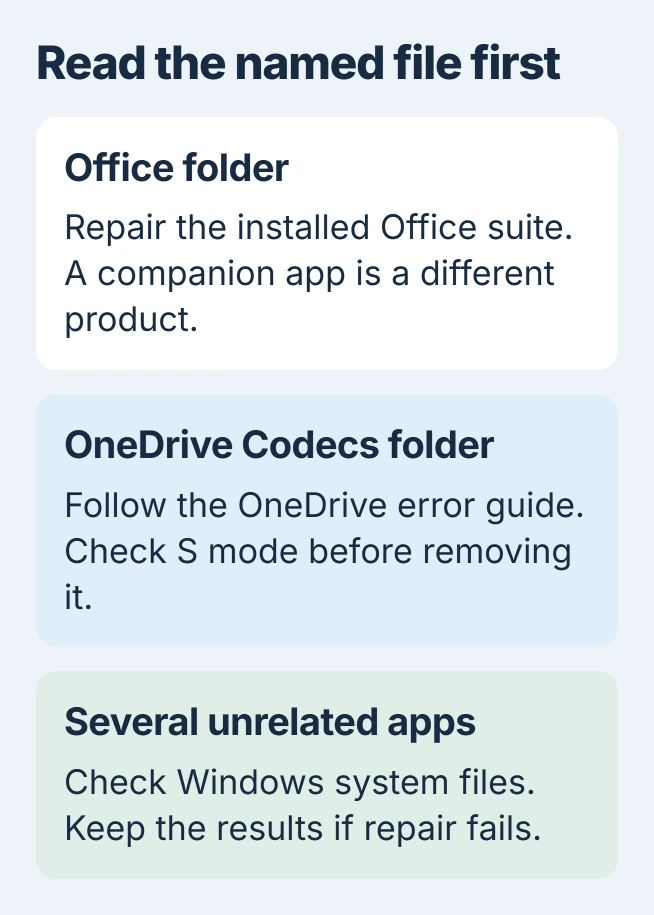
For OneDrive.Sync.Service.exe with a file inside OneDrive\Codecs, use the OneDrive-specific Bad Image checks. That separate fault has important limits for S mode PCs.
Status: Windows 11 repair guidance and complete Office owner replies reviewed November 2, 2026. Office removal helped reported cases; it is not a universal cure. No repair ran here.
Do not replace the named DLL with a loose download. Use the application's supported repair or installer so its files remain a matched set. A folder under Windows can also contain third-party components, so location alone is not a diagnosis.
A box reporting DLL initialization error 1114 needs a separate app and graphics check from this Bad Image fault.
Repair the installed application named by the error
Open Settings > Apps > Installed apps. Find the affected app, open its three-dot menu and select Advanced options when available. Choose Repair, then try the same action that produced the error.
Microsoft documents these app repair controls. Some desktop software instead offers Repair or Change in Control Panel's Programs and Features.
If repair is unavailable, check the software maker's reinstall instructions. Preserve local work and confirm access to its installer and license before removing anything. Do not start by resetting Windows for one failing application.
An Office DLL needs the actual Office installation
Names such as c2r64.dll, C2RUI.dll or AppVIsvSubsystems64.dll inside Microsoft Office folders appeared in the saved owner reports. Find the installed Microsoft 365 or Office suite, not an unrelated app with a similar name.
Close Office apps. In Installed apps, open that suite's menu and select Modify. For Click-to-Run installations, choose Online Repair > Repair and follow the prompts; an MSI installation offers Repair > Continue instead.
Microsoft says this repair affects the Office suite, even when only Word is failing. Reopen the affected app afterward and check whether the same DLL message returns.
One owner using Windows 11 tried changes to Copilot and companion apps, but the error named an Office16 DLL and continued. They later removed Office after contacting Microsoft Support and reported that the error stopped.
That account does not establish that a missing license caused the DLL fault. It shows why repairing a similarly named companion app is not evidence that the desktop Office installation was repaired.
If Office repair or its uninstaller also fails
Another owner reported Bad Image errors from both Word and OfficeClickToRun.exe. They later confirmed that removal through Microsoft's linked uninstall guidance helped, describing the result as so far rather than a long-term guarantee.
Use Microsoft's Office removal instructions for the installed edition. Its Get Help troubleshooter supports Microsoft 365, Office 2021, 2019 and 2016; Microsoft states that it cannot currently remove Office 2024.
Keep the documents backed up and confirm the account or license needed to reinstall. The removal page says uninstalling Office does not remove documents created with it. Follow its reinstall route after completing the supported removal.
If Get Help will not open, or the installed edition is outside its supported list, contact Microsoft Support. Avoid copying another computer's Office DLLs into the broken installation.
Check Windows files when several applications fail
For failures affecting Windows components or multiple unrelated apps, Microsoft's System File Checker procedure checks protected system files. It does not replace every third-party application's files.
Install available Windows updates and restart first. Search Start for Command Prompt, choose Run as administrator, and approve the prompt. Run this command and wait for successful completion:
DISM.exe /Online /Cleanup-image /RestorehealthThen run the file check and allow verification to finish:
sfc /scannowKeep the final result before closing the window. If SFC reports damage it cannot repair, use the SFC repair-result guidance. Repeating an unsuccessful command without reading its result does not establish a repair.
For an error that remains, send Microsoft or the affected app's support team the complete message and repair results. Include whether the app, its repair tool or several unrelated programs fail.
The Short Version
Match the repair to the named program and DLL. Office needs its desktop suite repaired or removed through the supported route. Broader Windows failures call for system-file checks, rather than loose replacement DLLs.

Isaac Smith is the founder and editor of PC Glance, a website that covers computers, laptops, and technology. He is a tech enthusiast and a computer geek who loves to share his insights and help his readers make smart choices when buying tech gadgets or laptops. He is always curious and updated about the latest tech trends.