
Music added to PowerPoint can start on one slide and continue while the presentation advances. Insert the audio file on the slide where it should begin, then select Play in Background for automatic playback across slides.
A song intended only for one slide needs different playback settings. Choose that behavior after insertion, rather than adding a separate copy of the same song to every slide.
Insert the music on its starting slide
Select the starting slide in Normal view. In PowerPoint for Windows, choose Insert > Audio > Audio on My PC, find the audio file, and select Insert. An audio icon appears on that slide.
Microsoft documents the insertion sequence in its music-across-slides instructions. On Mac, the corresponding file picker is Insert > Audio > Audio from File.
Status: PowerPoint music insertion, desktop/web playback controls and the browser upload limit checked November 2, 2026. No presentation was edited or played.
Use an actual audio file available on the computer. A streaming-service link is not the file selected by these controls. Microsoft recommends AAC audio in an .m4a file in its supported-format guidance.
If the deck itself still needs organizing, the PowerPoint slide-building guide covers layouts and presentation views before adding sound.
Keep one song playing as slides advance
Select the audio icon, open Playback, and choose Play in Background. Microsoft says this starts the file automatically during the slide show and allows it to continue through multiple slides.
Begin the show from the slide containing the audio, then advance at least once. Confirm that the same track continues instead of stopping at the next slide. Starting after the audio's slide is a different test.
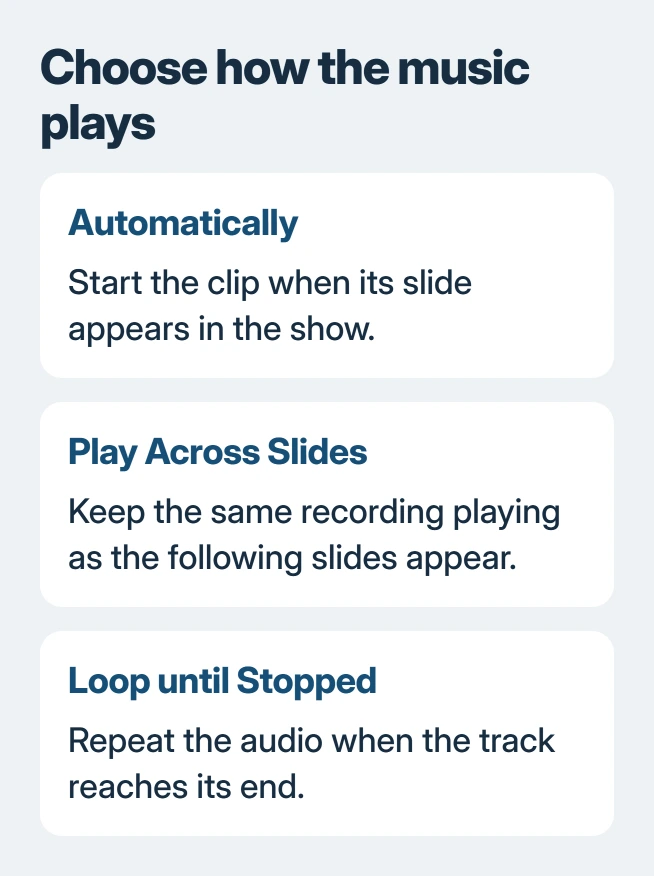
The individual controls separate three behaviors. Start > Automatically starts sound when its slide appears; Play Across Slides lets playback continue past it; Loop until Stopped repeats the track when it reaches its end.
Check the looping option if the presentation lasts longer than the song. For a clip that should play only once, leave repetition disabled. Use Volume on the Playback tab to set a suitable level and rehearse with any spoken narration.
The unattended presentation controls handle slides advancing and the deck repeating. Repeating the music alone does not make the slides advance automatically.
Play sound on just one slide or hide its icon
Select the audio and leave Play Across Slides off when the recording belongs only to its own slide. Choose Automatically to start on arrival, or When Clicked On when the presenter should start it deliberately.
For automatic music, enable Hide During Show if the speaker icon should not be visible to the audience. Microsoft states in its audio controls guide that the icon remains visible in Normal view.
Keep the icon visible when playback depends on clicking it. To remove the clip entirely, select its icon in Normal view and press Delete, then run the show to confirm that the unwanted audio is gone.
Add music in PowerPoint for the web
Open the presentation in the browser, choose Insert > Audio, and select the local file. Microsoft's current web instructions support MP3, WAV, M4A, AAC and OGA, with a maximum audio-file size of 16 MB.
Select the inserted audio icon and look on the Audio or Playback tab for Play in Background. The exact tab wording can differ; the music guide documents both names for the browser interface.
Run the browser slide show from the audio's starting slide and check playback through the next slide. If uploading fails, verify the file format and size before trying the desktop app, which has its own supported-format rules.
Check the presentation on the computer that will play it
Save the deck and rehearse using the intended speakers or headphones. If the music plays in editing view but not in the show, check its starting slide and playback selection before inserting another copy.
If no application produces sound, troubleshoot the computer's output. If only one audio file fails, try a supported unprotected file; Microsoft's format guidance warns that some purchased music needs an authorized computer.
For a failure that persists with a supported file, give Microsoft Support the PowerPoint version, audio format and whether preview or slide-show playback fails. On a workplace device, include any upload or policy message for IT.
The Short Version
Insert the song on its starting slide, then use Play in Background to continue it across the deck. Adjust starting behavior, repetition and icon visibility separately, and rehearse on the presentation computer.

Isaac Smith is the founder and editor of PC Glance, a website that covers computers, laptops, and technology. He is a tech enthusiast and a computer geek who loves to share his insights and help his readers make smart choices when buying tech gadgets or laptops. He is always curious and updated about the latest tech trends.