

Two columns in Word let a passage flow through the left column before continuing in the right one. Select the paragraphs to format, then choose Layout > Columns > Two in desktop Word for Windows.
Leave a heading outside that selection when it should span the page. These are flowing text columns; they do not create two independent writing boxes.
Select the passage that should use two columns
For an existing document, highlight only the paragraphs that belong in the column layout. Keep the title and any full-width introduction outside the selection. Microsoft documents this selection-first method in its column creation guide.
Open Layout, choose Columns, then select Two. Check that the chosen passage has split across the page while the surrounding text keeps its intended layout.
Status: Two-column formatting reviewed November 2, 2026 for desktop Word on Windows. Column flow, breaks and section scope follow Microsoft documentation. No file was reformatted.
For a new document that should use columns throughout, choose the same layout before typing. In an existing document with sections, inspect each section instead of assuming one choice changes every page.
Microsoft says the column layout applies to the current section when a document contains several sections. Use the Word section-boundary guide when different parts need different page layouts.
Move text into the second column deliberately
Text normally continues into the next column as the available space fills. To choose an earlier starting point, click immediately before the text that should move and select Layout > Breaks > Column.
Microsoft's column-break instructions also give Ctrl+Shift+Enter for Word on Windows. This inserts the break at the cursor; it does not create the two-column layout by itself.
Choose Home > Show/Hide to see the break label. Check that the intended paragraph starts in the following column. Undo the insertion if the wrong text moved, then place the cursor at the correct boundary.
Avoid repeated blank paragraphs to push text across. Their position changes as the document is edited, while a column break identifies where the flow should move.
Adjust the widths without changing the words
Click inside the column passage and open Layout > Columns > More Columns. Use Width and spacing to change the space assigned to each column and the gap between them.
Microsoft states that clearing Equal column width allows different widths in its column-width guidance. Leave that option selected for matching columns.
Check the result in Print Layout and print preview, especially around pictures and long words. A layout that fits the page can still leave the text too narrow to read comfortably.
Return a passage to one column or use desktop Word
Select the affected passage and choose Layout > Columns > One to return it to a full-width text area. Inspect the material immediately before and after it before saving.
Do not delete section boundaries just to tidy the display. Removing a Word section break can change the formatting of the joined sections, including their columns.
These steps use desktop Word's layout controls. If Word in a browser does not offer the needed Columns or width options, open the document in the desktop application and save the change there.
For a layout that still affects the wrong passage, keep a small sample for Microsoft Support with formatting marks visible. Report the app version along with the document's section arrangement.
The Short Version
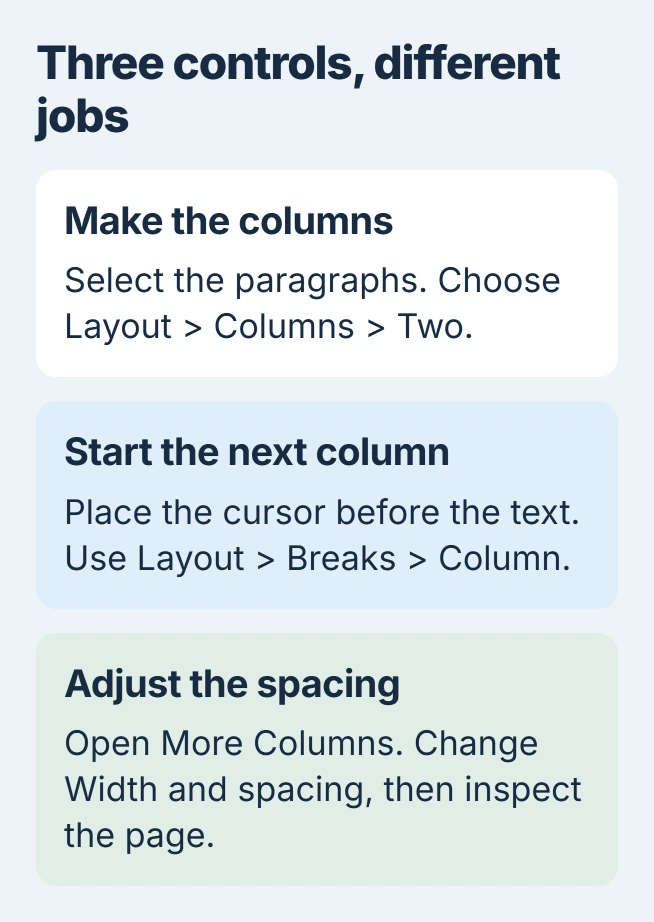
Select the intended paragraphs and choose Layout > Columns > Two. A column break controls where following text moves, while More Columns controls widths and spacing. Check the section boundaries when unrelated pages change too.

Isaac Smith is the founder and editor of PC Glance, a website that covers computers, laptops, and technology. He is a tech enthusiast and a computer geek who loves to share his insights and help his readers make smart choices when buying tech gadgets or laptops. He is always curious and updated about the latest tech trends.