
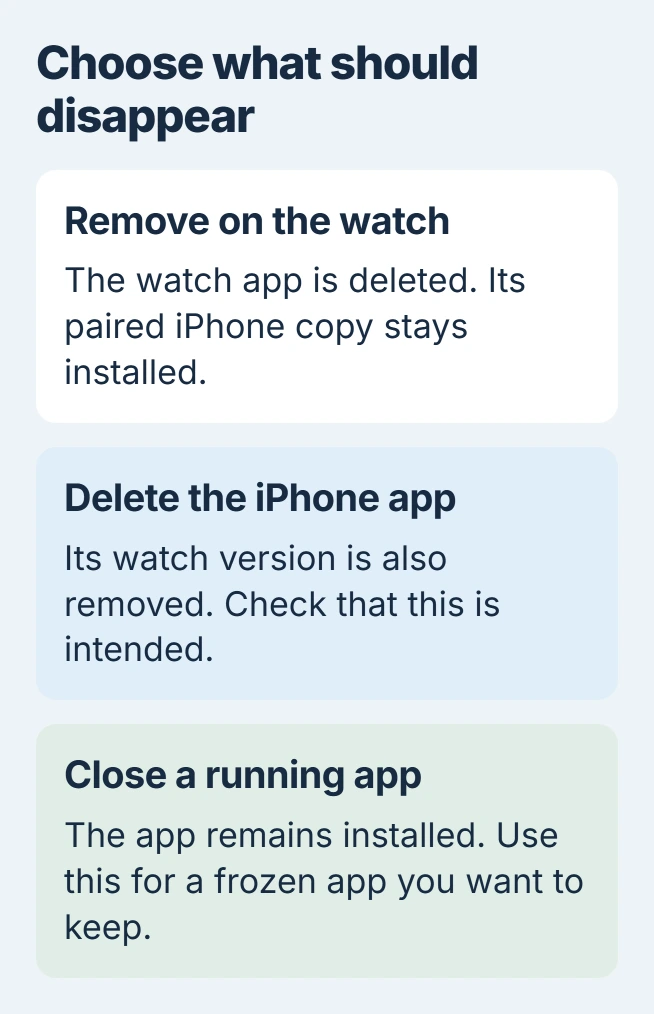
Removing an app from Apple Watch can leave its iPhone copy installed. Delete it from the watch itself, or use the app's controls inside the iPhone's Watch app. Deleting the iPhone app instead also removes its watch version.
For a frozen app that should stay installed, use the Apple Watch app-closing procedure instead. Uninstalling and closing are different actions.
Delete the app from the watch's full app list
Press the Digital Crown. On watchOS 27, swipe up past the frequently and recently used apps to reach all apps. Touch and hold the display until the apps begin to jiggle.
Tap the app's Delete control, then confirm with Delete App. Apple documents these watch uninstall controls. Check the full app list afterward to confirm the icon has gone.
Status: Apple's September 2026 removal instructions checked November 2, 2026. The current iPhone Watch menu includes Apps. No app or subscription was changed.
Older watch layouts can show all apps directly after pressing the Crown. Use the full app list rather than the recent-app switcher, whose removal control closes a running app.
Use the paired iPhone when its controls are easier
Open Watch > My Watch > Apps on the iPhone, then select the app. Set Show App on Apple Watch to off for a companion app that should remain on the phone.
For a watch-only app, choose Delete app on Apple Watch, then Delete to confirm.
Apple says in its watch organization guide that removing an app on the watch leaves it on the paired iPhone. Check both devices when that distinction matters.
When a built-in app has no Delete control
Not every Apple app can be removed. The absence of a Delete control on a protected built-in app is expected, so repeated presses will not reveal an uninstall option.
Apple states that deleting supported built-in apps also removes their associated data and settings. Its built-in app removal list explains which apps qualify and which functions can be affected.
For example, removing Heart Rate affects related heart and cardio fitness notifications. Check the app's role before deleting it simply to make the grid less crowded. Rearranging the grid avoids uninstalling the app.
Check subscriptions separately and restore apps when needed
Deleting an app is not a subscription cancellation. For Apple-billed services, open the iPhone's Settings, tap your name, then Subscriptions. Select the subscription and use Cancel Subscription if offered.
Apple's subscription cancellation guide explains that a missing cancel button or an expiration message can mean it is already canceled. A subscription billed elsewhere must be managed with that provider.
To bring an app back, use the Apple Watch installation routes. Supported built-in apps can also be found by their exact names in App Store and downloaded again.
If a removable third-party app stays present after confirmation, contact Apple Support with the app name, watchOS version and which removal route failed.
For missing app data after reinstallation, ask the developer about its account and storage behavior.
The Short Version
Remove the app through the watch's full app list or its controls in Watch on iPhone. Watch-only removal leaves the iPhone copy alone. Some built-in apps cannot be deleted, and paid subscriptions need their own cancellation.

Isaac Smith is the founder and editor of PC Glance, a website that covers computers, laptops, and technology. He is a tech enthusiast and a computer geek who loves to share his insights and help his readers make smart choices when buying tech gadgets or laptops. He is always curious and updated about the latest tech trends.