
Installing apps on Apple Watch can start on the watch itself: open App Store, find the app and choose Get or its price. For an app already on the paired iPhone, check Available Apps in the iPhone's Watch app instead.
Only apps with a compatible watch version can be installed there. An iPhone download does not automatically mean the same app is available for the watch.
Download directly from the watch
Press the Digital Crown to reach the apps. Apple's current instructions say to swipe up from the frequently and recently used selection to see them all. Open App Store, then use its search control to find the intended app.
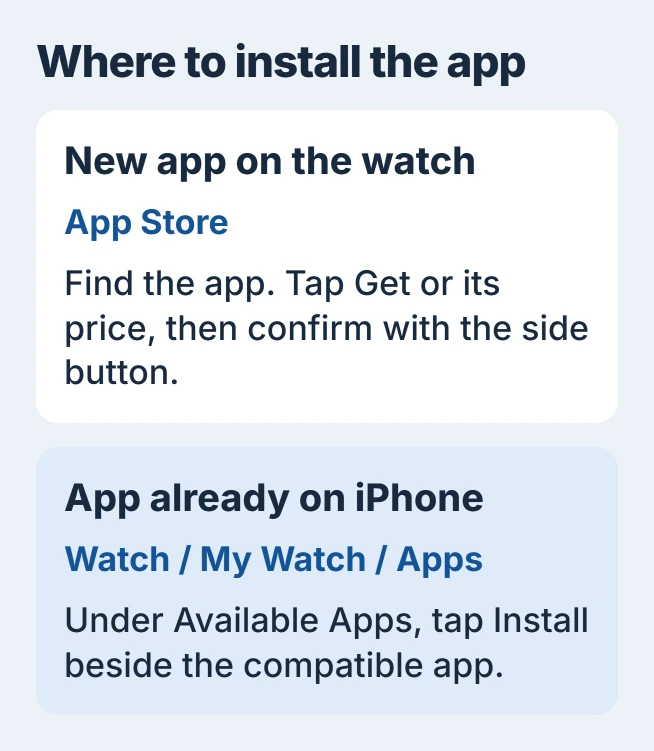
Open the listing and check the developer, requirements and price. Tap Get for a free download or the displayed price for a purchase. When asked, double-click the side button, which is separate from the Digital Crown, to confirm.
Status: Apple's watchOS 27 app-download instructions checked November 1, 2026. The current iPhone route includes Apps. No watch app was installed or purchased.
Apple says in its watch app download instructions that Get does not charge for the download. A free app can still offer paid subscriptions or purchases inside it, so read those details before continuing.
After installation, open the app from the watch's app list. Follow any account or setup instructions it presents. Its icon confirms installation; signing in to a separate service may still be necessary.
Add a compatible app from the iPhone
On the paired iPhone, open Watch > My Watch > Apps. Scroll to Available Apps and tap Install beside the app. Apple documents companion installation in the current App Store guide.
Older Watch app layouts can show Available Apps directly on My Watch. Look for that heading if there is no separate Apps entry. Check the watch afterward to confirm the chosen app is present.
If the app is absent from Available Apps, check its store listing for Apple Watch support. Ask the developer about the required model and watchOS version rather than repeatedly reinstalling the iPhone copy.
Decide whether apps should arrive automatically
On the watch, open Settings > App Store. Apple states that Automatic Downloads installs compatible purchases from other devices. Automatic Updates brings newer versions of installed apps.
Choose the preference that matches the goal. Turning off automatic downloads lets installation remain a deliberate choice; it is different from turning off updates for apps already in use.
An installed app may also offer a complication. Use the Apple Watch face customization controls to choose a supported position after the app is installed.
App support and Apple's built-in features remain separate. For example, the Steps complication model guide explains why installing an app does not add every Apple feature to an older watch.
An app is missing or will not download
For a previously purchased app, open the watch's App Store, scroll to Account, then choose Purchased. Apple says eligible purchases can be downloaded again without paying again.
Availability can differ by region or language. Check the app's current listing and compatibility before treating an absent result as a watch fault. A discontinued or unsupported app needs an answer from its developer.
Our recommendation for a failed download is to record the exact message and whether other apps install. Give Apple Support that result, the app name and the watchOS version; it separates one unavailable app from a broader store problem.
The Short Version
Use the watch's App Store for a new download, or Available Apps on the paired iPhone for a compatible companion app. Confirm purchases with the side button and check the installed app before adding its complication.

Isaac Smith is the founder and editor of PC Glance, a website that covers computers, laptops, and technology. He is a tech enthusiast and a computer geek who loves to share his insights and help his readers make smart choices when buying tech gadgets or laptops. He is always curious and updated about the latest tech trends.