Apple Watch can still close an app on watchOS 27. With the app open, keep a finger on the side button. When the power sliders show, let go and hold the Digital Crown down until the watch face returns.
watchOS 27.2 adds a second way: press and hold the bottom of the screen inside an app to open the app switcher, then swipe left on an app and tap the X. Double-clicking the Digital Crown no longer opens that switcher.
In this guide
Why the old double-click stopped working
On watchOS 26 and earlier, a double-click of the Digital Crown opened the app switcher, a scrolling list of your recent apps. Swiping one to the left and tapping the X closed it.
watchOS 27 set that double-click aside for Live Rewind, an upcoming feature for the Ultra 4 and Series 12 that shows a transcript of the last 15 seconds of speech. It's in the watchOS 27.3 beta now.
The switcher vanished with it, on older watches too, until watchOS 27.2 brought it back on October 26 behind the new gesture.
So if you're on 27.0 or 27.0.1, the side button method is the one you have. On 27.2 you can use either.
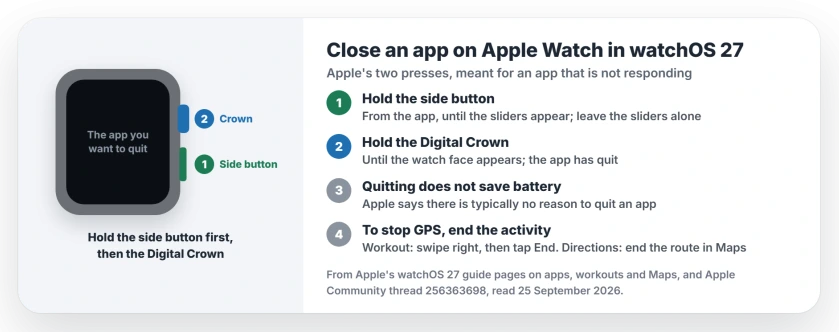
1. Force quit with the side button and Digital Crown
Open the app you want to close. Press the side button and don't let go until the sliders show up. Release it, then press the Digital Crown and hold it down until you're back on the watch face.
The app is closed, and it opens fresh the next time you tap it on the Home Screen. Apple's watchOS 27 guide still lists this as the way to quit an app.
The sliders look as if the watch is about to switch off. Don't touch them: holding the Digital Crown is what closes the app, and the watch stays on.
2. On watchOS 27.2, swipe it away in the app switcher
Inside any app, rest a finger on the lower edge of the screen and hold it there until your recent apps appear as cards. Turn the Digital Crown to move through them, or tap one to jump back to it.
To close an app, swipe its card to the left and tap the X. It's the quickest way out of a frozen app, as long as the switcher still opens.
Do it from inside an app, not from the watch face. Apple didn't list the gesture in the 27.2 notes, so it's easy to miss.
Not on 27.2 yet?
Check your version in Settings > General > About on the watch. To update, go through the iPhone's Apple Watch app (My Watch > General > Software Update), or Settings > General > Software Update on the watch itself.
The watch has to sit on its charger with more than half its battery while it installs. If the update stalls, the Apple Watch update fixes cover the usual blocks.
3. Close a frozen app, then leave the rest alone
Apple's guide is plain about when to quit: when an app stops responding, quit it and open it again. A stuck app that won't scroll or answer a tap is the right time to use either method.
It also says you usually have no reason to quit apps, and that quitting doesn't save battery. The watch looks after apps you aren't using, so closing them one by one gains you nothing.
If what you want is the app gone for good, remove the watch app while keeping its phone copy through the full app list or the iPhone's Watch controls.
4. If GPS is the worry, end the activity
GPS stays on because an activity is still running, not because an app is open on your wrist. That's why closing a map or trail app is the wrong lever when the battery drops fast.
In the Workout app, swipe right and tap End. You can pause a workout at any moment by squeezing both buttons at once, the side button and the Crown, which is handy when a walk turns into a coffee stop.
For directions, end the route in Maps. For a hiking or trail app, stop the recording inside that app, the same way you would at the end of the walk.
5. Or switch off Location Services
On the watch, open Settings, tap Privacy & Security, then Location Services, and turn it off. Apple's Maps page for the watch gives the same path.
Maps can't guide you while it's off, so switch it back on before your next walk or drive. For one stubborn app, ending its activity is the gentler fix.
Other Apple Watch battery problems
If your watch battery drains fast even with nothing running, the watchOS 26 battery fixes still apply. On an iPad, closing apps works differently again, and the iPadOS swipe-up page covers it.
If the new app grid is what gets in your way, the app grid page shows how to reach your full list and switch to List view.
Can you close apps on Apple Watch in watchOS 27?
Yes. With the app open, wait for the power sliders while holding the side button, then hold the Crown until you see the watch face. On watchOS 27.2, you can also close it from the app switcher with a swipe.
How do I open the app switcher on watchOS 27.2?
Press and hold the bottom of the screen while you're inside an app. Turn the Digital Crown to scroll, swipe an app left and tap the X to close it.
Why doesn't double-clicking the Digital Crown show my apps anymore?
watchOS 27 set that double-click aside for Live Rewind, a speech transcript feature coming to the Ultra 4 and Series 12. The app switcher came back in 27.2 behind the press-and-hold gesture instead.
Does closing apps on Apple Watch save battery?
No. You rarely need to quit an app at all, and quitting doesn't save battery. End a workout or a route instead, since that's what keeps GPS busy.
How do I stop an app using GPS on my Apple Watch?
End the activity that uses it, such as a workout, a recorded hike or a route in Maps. Or turn off Location Services in Settings > Privacy & Security, though Maps won't work while it's off.
The Short Version
- watchOS 27 still quits apps the old way: sliders from the side button, then a long press on the Crown.
- On watchOS 27.2, press and hold the bottom of the screen in an app for the app switcher, then swipe left and tap X.
- The Digital Crown double-click now belongs to Live Rewind.
- Quitting is for frozen apps; it doesn't save battery.
- To stop GPS, end the workout, the hike recording or the route.
Checked November 8, 2026.
 If you have any business, I can build it online