
You press the Digital Crown on your Apple Watch, and instead of your own layout you get a small grid of apps the watch picked for you.
The app you want is not always there, and you cannot pin it. That is annoying when you had your apps exactly where your thumb expects them.
I read Apple's watchOS 27 guide, then a MacRumors thread of owners' tips for living with the new grid. Your old layout is still there, one turn of the Crown away.
What changed in watchOS 27
Apple calls it the dynamic app grid. In its words, it "highlights Siri-suggested apps, including your most popular and recently used apps", with the Siri app in the center.
Owners in the thread were split. One wrote: "I love the new grid, but I do agree that we should be able to pin items to it". The first poster's complaint was the same, the "inability to customise it".
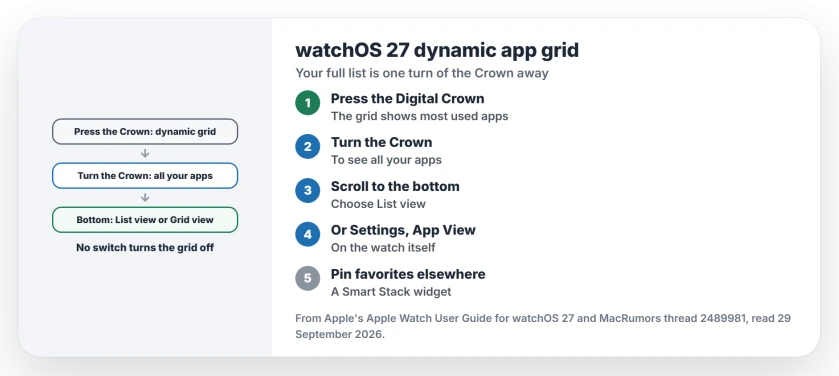
Status: watchOS 27, checked 29 September 2026. Apple documents the dynamic app grid and the List or Grid view behind it. Apple lists no switch that turns the dynamic grid off.
1. Turn the Digital Crown to reach every app
The grid is only the first screen. Apple's guide says it "shows the apps you use most and have used most recently", then adds: "To see more apps, turn the Digital Crown."
An owner who shrugged it off put it simply: "I just click the crown and scroll to the app I want. Same as before." Another said getting to the app list "is just a turn of the crown after the initial press".
2. Choose List view for the full list
Behind the grid, your full app screen can be a list or a grid, and you choose. Apple says to turn the Crown "to see all your apps", then "Scroll to the bottom, then choose an option".
You can also pick it on the watch itself: Settings, then App View. A list is quicker to scan with the Crown, in my view.
3. Arrange the full grid from your iPhone
If you prefer the grid, you can still decide where each app sits in it. On your iPhone, Apple's organize page says to "tap My Watch, tap App View, then tap Arrangement."
Drag your favorites to the top. It will not change the dynamic grid, but it makes the full screen behind it predictable again.
4. Pin your favorites in the Smart Stack instead
Apple lists no way to pin apps to the new grid, and owners have not found one. The workaround in the thread was the Smart Stack, where one owner uses a widget that pins three apps.
Another owner simply gave the grid time: "so far the app I want to launch is in that new grid at least 90% of the time". It learns from what you open.
5. One owner's shortcut past the grid
This is user-reported, and I could not test it. With Reduce Motion switched on, one owner found they could skip the grid by turning the Crown slightly as they pressed it.
In their words, "the whole smart-screen-thing won't show itself. It goes straight to the app view." Reduce Motion also changes other animations, so switch it back if you dislike the side effects.
Other watchOS 27 changes
Closing apps works differently too, and the closing apps page covers the two presses. If a new Apple Watch reboots on its own, the Series 12 page has Apple's fix.
Looking for the Handwashing timer on a Series 12 or Ultra 4? It is not there, and the Handwashing page explains why.
Fiddly watch settings are easier on a bigger screen. The Apple Watch Mirroring page shows how to work the watch from your iPhone.
Can I turn off the dynamic app grid?
Apple lists no switch for it. Turning the Digital Crown gets you past it to all your apps.
How do I switch my watch to List view on watchOS 27?
Turn the Crown to the bottom of your apps and choose List view, or open Settings on your watch and tap App View.
Can I pin apps to the watchOS 27 app grid?
Not according to Apple's guide. Owners pin apps in a Smart Stack widget instead.
Why is Siri in the middle of my app grid?
Apple designed it that way. Its notes say the grid puts the Siri app in the center.
The Short Version
- The first screen is now a dynamic grid.
- It shows your most used and recent apps.
- Turn the Crown to see every app.
- Choose List view at the bottom.
- Or set it in Settings, App View.
- Arrange the full grid from your iPhone.
- Pin favorites in the Smart Stack.
Where to Next
Press the Crown, turn it to the bottom and pick List view now. Your apps will be where you expect them after the first screen.
If you find a way to pin apps to the new grid, post it as a comment. Tips that hold up against Apple's guide get added here.

Isaac Smith is the founder and editor of PC Glance, a website that covers computers, laptops, and technology. He is a tech enthusiast and a computer geek who loves to share his insights and help his readers make smart choices when buying tech gadgets or laptops. He is always curious and updated about the latest tech trends.