
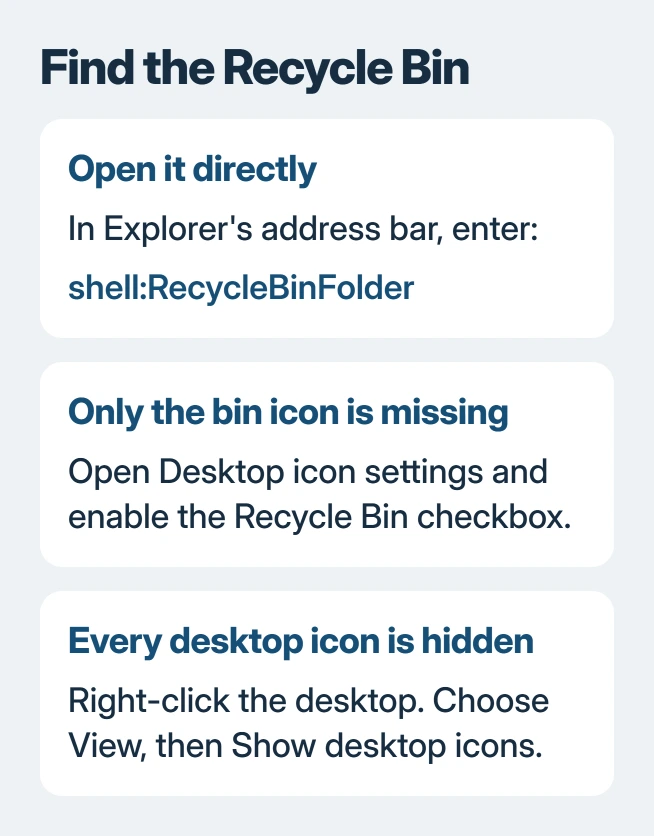
The Recycle Bin opens from File Explorer even if its desktop icon is missing. Enter shell:RecycleBinFolder in Explorer's address bar and press Enter. Use the bar showing the current location, not the separate search box.
This opens Windows' deleted-file view. The Recycle Bin is a special shell location rather than an ordinary folder that must appear inside Documents or This PC.
Open the bin directly from Explorer
Press Windows + E to open File Explorer, then Alt + D to select its address bar. Replace the displayed location with the following and press Enter:
shell:RecycleBinFolderThe window should display Recycle Bin, with deleted items if any are retained. Opening it does not empty it. An empty view means the location opened, even though it contains no retained files.
Status: Recycle Bin shell registration checked without opening its contents on November 2, 2026. Microsoft's icon instructions and a confirmed Windows 10 shortcut outcome were also reviewed.
Microsoft documents RecycleBinFolder as the canonical name of a virtual folder in its known-folder reference. The matching registration was present in this laptop's registry; no deleted files were read.
The same address works in Windows + R when an Explorer window is not already open. Enter the shell address in Run and confirm with Enter to open the bin directly.
Put a missing Recycle Bin icon back on the desktop
Open Settings > Personalization > Themes, then select Desktop icon settings. Enable the Recycle Bin checkbox and confirm with OK.
Microsoft says enabling that checkbox restores the icon in its missing Recycle Bin instructions. Double-click the restored icon to open the same deleted-file view.
Microsoft states that a desktop missing all its icons may have them hidden together. Right-click empty desktop space and enable View > Show desktop icons to make them visible.
An Explorer window opening to Home is separate again. The Explorer starting-location setting changes that landing page; it does not restore deleted files or choose whether desktop icons are visible.
Create a shortcut if the desktop route stays inconvenient
Right-click an empty area on the desktop and choose New > Shortcut. For the location, enter this command, then continue with Next:
explorer.exe shell:RecycleBinFolderName the shortcut Recycle Bin, then select Finish. Open it once to confirm that it reaches the bin. The first icon may look like Explorer; its appearance does not change the destination.
An owner using Windows 10 confirmed that an Explorer shortcut to this shell location solved their missing Start-search entry. Their procedure also placed the shortcut in the Start Menu folder; a desktop shortcut needs no such extra step.
This is an access shortcut, not a repair command. Do not delete the hidden $Recycle.Bin folders merely because the normal desktop icon disappeared.
If the bin opens but the wanted file is missing
Look for the file by name and check its original location before restoring it. A file deleted permanently or already removed from the bin will not return because its icon has been restored.
For missing files, use the Windows recovery options for deleted data. Stop saving new material to the affected drive if recovery beyond the bin may be necessary.
An explicit corruption message needs the separate Recycle Bin corruption procedure. That guide includes deletion steps, so it should not be used just to make an icon visible.
If neither the shell address nor the restored icon opens, report the displayed error and Windows release to Microsoft Support. On a managed PC, ask IT whether policy hides or restricts the location before changing system settings.
The Short Version
The shell address provides direct access through Explorer. Restore its checkbox when only that desktop icon is missing, or enable desktop icons when all are hidden. File recovery and a corrupted bin need different steps.

Isaac Smith is the founder and editor of PC Glance, a website that covers computers, laptops, and technology. He is a tech enthusiast and a computer geek who loves to share his insights and help his readers make smart choices when buying tech gadgets or laptops. He is always curious and updated about the latest tech trends.