
You turn on your PC, or open the Recycle Bin, and Windows asks: "The Recycle Bin on C:\ is corrupted. Do you want to empty the Recycle Bin for this drive?"
You click Yes, and the message comes back. It is annoying, and for some people it will not even take a click.
I would delete the hidden Recycle Bin folder with one command and let Windows build a fresh one. A Microsoft support engineer gave that answer on a 2010 thread, and the asker accepted it.
That thread has a "Same question" count of 300+, and a 2018 one about the same message has 300+ as well.
What the message means
Every drive keeps its Recycle Bin in a hidden folder called $Recycle.bin at its root, and when that folder gets damaged, Windows offers to empty it and start again.
Status: checked 6 October 2026. The corrupted Recycle Bin message kept coming back for owners on Windows 7 to 10. Deleting the hidden folder let Windows rebuild it, as an owner confirmed.
Ours: try Yes once. If the message returns, or the buttons do nothing, the folder needs removing by hand.
1. Rescue anything you still need
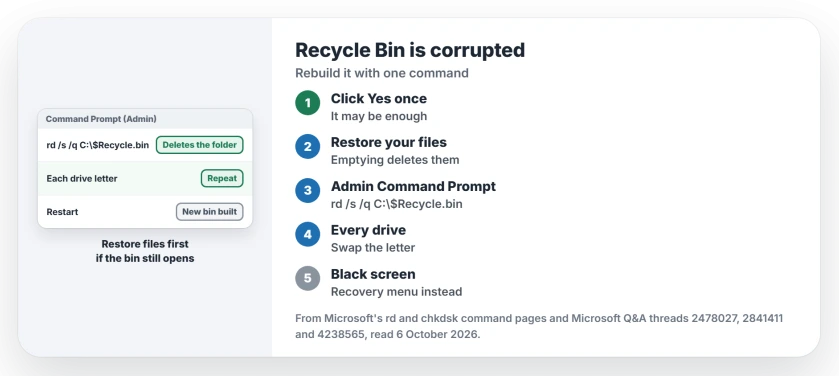
Emptying the bin deletes what is in it. If the Recycle Bin still opens, restore any file you want back first.
Ours: if it will not open, check backups. Recovering deleted files on Windows covers File History and the other routes.
2. Delete the folder in an administrator Command Prompt
Search for cmd, right-click Command Prompt and choose Run as administrator. Then type this and press Enter:
rd /s /q C:\$Recycle.binMicrosoft documents both switches. It says /s "Deletes a directory tree (the specified directory and all its subdirectories, including all files)", and /q skips the confirmation.
Ours: the old answer, as it reads today, has no backslash after C:. Type the backslash; without it, the command fails.
3. Repeat for each drive, then restart
The accepted answer warns: "You may have to do this for each hard disk partition in your system". Swap C: for D:, E: and so on.
Restart afterward. One adviser also suggested making a text file on the desktop and deleting it, so your new bin gets created straight away.
The same rd /s /q command is the fast way to clear any folder of thousands of small files, and we timed it against four other methods.
The owner who did it in File Explorer
Confirmed by an owner further down that thread: they showed hidden files and deleted $Recycle.bin from the root of each drive. Their words: "It will rebuild itself".
They added a warning about drives: "You probably need to do it on all drives or it won't work". Ours: I would still use the command, which does the same job without changing your view settings.
When the message sits on a black screen
A Windows 10 owner saw the message on a black screen, with no way to click anything. An adviser walked them into the recovery menu, where they ran the disk check and repair commands from its Command Prompt.
The owner came back with: "It seems to have worked. I am able to use my computer once more". For chkdsk itself, Microsoft says /f "Fixes errors on the disk".
Why does the bin get corrupted?
The adviser who helped the black screen owner blamed sudden shutdowns most often. Ours: real disk errors can cause it too. If you also see file or directory is corrupted and unreadable, check the drive itself.
The Short Version
- The hidden $Recycle.bin folder is damaged.
- Click Yes once, and restore files first if the bin still opens.
- If it returns, run rd /s /q C:\$Recycle.bin as administrator.
- Repeat with each drive letter, then restart.
- Windows builds a new Recycle Bin by itself.
- On a black screen, use recovery's Command Prompt.
Where to Next
Open the Recycle Bin now and restore anything you still need, then run the command once for each drive and restart.
Which drive letter did your message name? Mention it in the comments.

Isaac Smith is the founder and editor of PC Glance, a website that covers computers, laptops, and technology. He is a tech enthusiast and a computer geek who loves to share his insights and help his readers make smart choices when buying tech gadgets or laptops. He is always curious and updated about the latest tech trends.