A Recycle Bin delete prompt showing a strange internal filename is a known Windows update bug with a published fix. Install current cumulative updates first; a corrupted-bin warning or a PC that also crashes needs a separate repair path.
The filename glitch affects the confirmation dialog. It doesn't explain every stability problem that starts after an update, so compare the symptoms before you remove updates or clear deleted files.
In this guide
1. Match the symptom before changing the bin
Open Recycle Bin and compare the filename in its list with the name in the permanent-delete prompt. If the list has the right name but the prompt shows an internal identifier instead, that's the documented display problem.
Cancel the prompt while checking it. The test doesn't require deleting the file. In this bug, the odd confirmation text doesn't rename the original file or prevent the bin from restoring it under its original name.
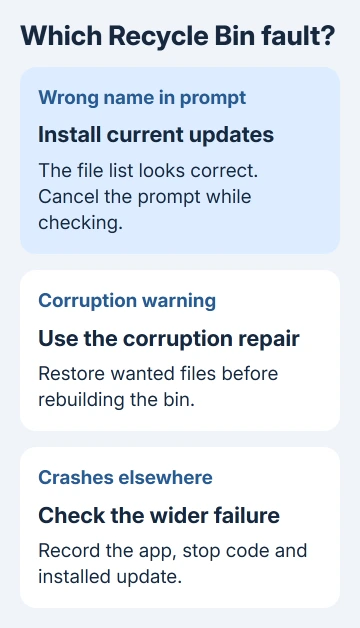
A message saying the bin on a particular drive is corrupted describes a different fault.
Our corrupted Recycle Bin instructions cover rebuilding that drive's bin after rescuing anything still needed.
If the icon itself is missing, use the Recycle Bin location guide.
Restoring a desktop icon won't repair a delete prompt, and rebuilding the bin isn't necessary just to make the icon visible.
For crashes, freezing, or repeated restarts, note whether only File Explorer closes or the whole computer restarts. Record the time and any stop code. Those details help you judge whether a repair has fixed the problem you started with.
2. Install the cumulative update that includes the fix
Microsoft's July 14, 2026 update notes list a fix for additional Recycle Bin confirmation-dialog cases introduced by the June 2026 security update.
That update is KB5101650, for Windows 11 24H2, plus 25H2, with builds 26100.8875 and 26200.8875. These are the versions and builds that received that repair; newer updates are available now.
On Windows 11, open Start > Settings > Windows Update, then select Check for updates. Accept the cumulative package offered for this Windows installation, complete any restart, and check again for a pending restart notice.
Later cumulative updates include earlier fixes. Use the package Windows offers for your installed version instead of hunting down the July package or forcing a package intended for another Windows release.
Press Windows + R, type winver, then press Enter. The window shows your Windows version and build number. Keep those details with the KB number shown in Windows Update > Update history.
On Windows 10, use Settings > Update & Security > Windows Update. The Windows 11 KB named here isn't a Windows 10 installer. Update availability depends on your edition of Windows 10 and its support or extended-security agreement.
Return to the same canceled delete operation after the restart. The confirmation dialog should now show the normal filename. If it still shows the internal name, try the next check. Emptying the bin won't help you check the prompt.
3. Recheck a remaining display problem safely
Save any open work, restart the PC normally, and open the bin again. A restart after installation is important because a downloaded update may still need a restart before its changes take effect.
Use a disposable text file for a repeatable check. Save it with an obvious name, delete it normally, then inspect its entry in Recycle Bin. Open the permanent-delete prompt and select Cancel after reading the name.
Keep a record of the list name, prompt name, installed build, and the update's installation date. Don't include personal filenames in a public screenshot. Support then has the incorrect text and the Windows build that shows it.
I'd leave the bin's hidden storage folder alone for this symptom. Deleting that folder permanently removes its contents and addresses corruption, while the update fixes the incorrect prompt text.
If the bin now behaves correctly but another app still freezes, treat that remaining failure separately. A corrected filename doesn't tell you whether a graphics driver, application, or Windows component caused the other symptom.
4. Repair Windows files when failures affect more than Explorer
Use this step for wider Windows faults, such as several built-in features failing or Explorer repeatedly crashing. The built-in repair tools restore damaged Windows components; they aren't a dedicated fix for the filename bug.
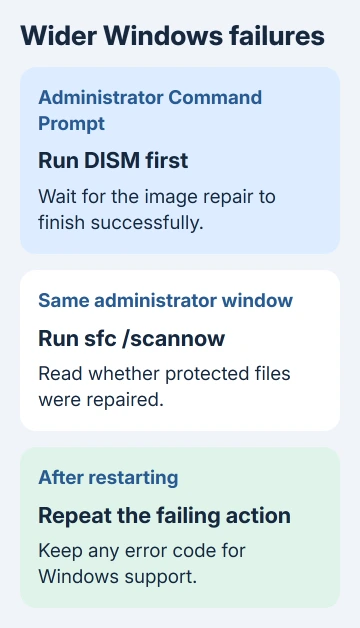
Open Start, type Command Prompt, then choose Run as administrator. Approve the account-control prompt. Enter this command, allowing the process to finish:
DISM.exe /Online /Cleanup-image /RestorehealthDISM repairs the Windows image that supplies system files. With a normal connection, it can retrieve repair files through Windows Update. If it ends with an error, record the exact code instead of assuming the repair completed.
After DISM succeeds, run the file checker:
sfc /scannowCheck whether the report lists damaged protected system files and says they were repaired. A message reporting no integrity violations means the scan found no damage in the protected system files it checked.
Restart and repeat the operation that previously failed. If repairs completed but the crashes continue, keep that result for support. Running the same scans indefinitely won't explain an unchanged crash.
5. Remove an update only for a reproducible wider failure
If a particular update immediately preceded repeatable crashes, save your work and back up important files before trying a rollback. A rollback takes away that update's security patches, so keep it temporary while troubleshooting.
In Windows 11, open Settings > Windows Update > Update history > Uninstall updates. Select the suspected update and choose Uninstall if that option is available. Restart when requested.
For Windows 10, open Settings > Update & Security > Windows Update > View update history > Uninstall updates. Some updates can't be removed. Don't force their removal with commands meant for another package.
Compare the same failing action after the restart. If the problem remains, it may have another cause even though it started around the update. Record the result and return to a supported, updated configuration with support's help.
For persistent crashes, open Get Help and request Windows support. Provide the version, build, suspected KB, exact stop code or app failure, and repair results. Ask them to check the specific failure against known issues for that build.
The Short Version
An internal filename in the delete prompt has an update fix. Install current cumulative updates for your Windows version.
Keep corruption, a missing icon, and system crashes on their own repair paths; don't erase the bin to fix a display-only bug.
Checked November 15, 2026.