
Outlook links can stop working because a message blocks them or the browser handoff fails. Try a familiar website link in another trusted email. If that opens, check the affected message before changing browser settings.
These checks cover Outlook for Windows. Keep any error wording visible as you work, because a policy warning and a link opening in the wrong browser are different problems.
Decide whether the failure belongs to the message
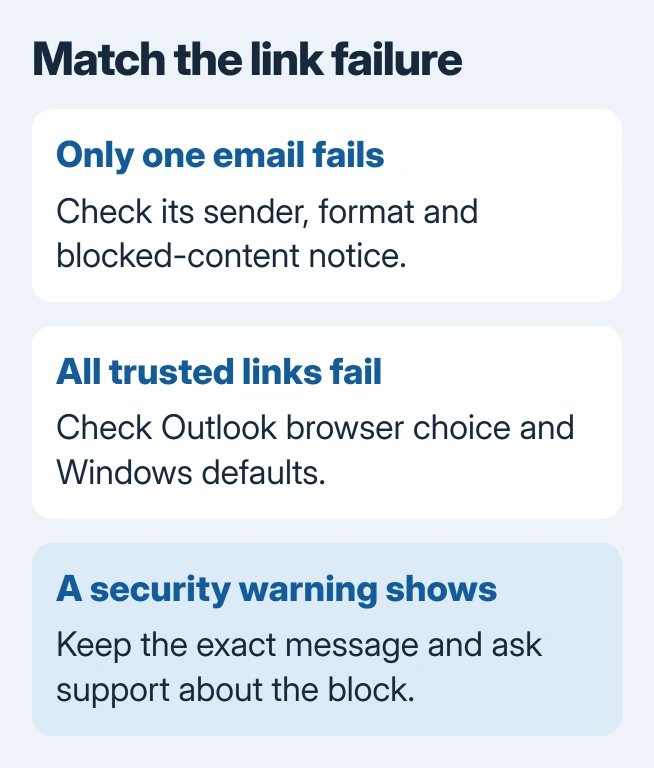
Open another trusted email and select a normal website link. If it opens, focus on the original message's format, sender and security notice. A functioning second link makes a general browser problem less probable.
Microsoft documents message-level blocking in its disabled-links guide. Plain text and an information bar warning can explain the behavior in classic Outlook.
Status: Microsoft's current Outlook link, browser-choice and Windows default-app guidance reviewed November 2, 2026. No mailbox, security policy or registry setting was changed.
For a message you recognize and have verified, use its information bar to enable the blocked content if that option is offered. Leave suspicious messages blocked; a working link is not proof that its destination is safe.
In new Outlook, open Settings > Mail > Junk email > Security options. Inspect Block attachments, pictures, and links from anyone not in my Safe senders and domains list.
If it was enabled unintentionally, clear that checkbox and choose Save. This affects all senders outside the safe list, so retain the setting when that restriction is intentional.
If the same sender's mail also lands in Junk, check the Outlook sender controls for a mistaken block. That is a separate delivery problem.
Choose which browser Outlook should use
Outlook can have its own browser preference even when Windows has a different default. Microsoft says changing this preference also affects the corresponding link-opening behavior in Teams.
In new Outlook, go to Settings > General > Files and links. Under Open hyperlinks from Outlook in, choose the intended browser or the offered default-browser option.
In classic Outlook, open File > Options > Advanced > File and browser preferences. Find Open hyperlinks from Outlook in and select the intended choice.
These routes are documented in Microsoft's Outlook browser-selection page. Availability depends on the Outlook edition and account; use the Windows check if this control is absent.
Retry the same trusted link after changing the selection. A link that opens successfully in another browser points toward the original browser or its configuration, rather than the email's visible text.
Repair the Windows browser choice when all web links fail
Open Settings > Apps > Default apps. Select the intended browser and review its web-link associations. In Windows 11, a browser can also offer Set default near the top of its settings page.
Microsoft states that Windows can assign defaults by application or link type in its default-app instructions. Check HTTP and HTTPS if the normal default-browser choice did not help.
The Windows default-browser guide covers the version-specific controls. Restart Outlook after correcting the choice and test a known website link again.
Only for a verified destination, copy its address and paste it into the browser. If it fails there too, keep the browser's error for the website owner or support team. Outlook cannot repair an expired destination or missing access rights.
Keep security and organization warnings intact
An error mentioning organization policies needs the exact wording and Outlook version. On a managed PC, send those details and a safe example to the help desk instead of changing security policy.
Microsoft's older hyperlink troubleshooting page includes Internet Explorer and registry procedures. Those assumptions do not describe every current Windows setup.
An owner using a personal PC reported that editing the .html registry value and restarting did not solve their error. That failed result is another reason to avoid treating one registry edit as a universal repair.
For a personal PC still affected, send Microsoft Support the link type, the browser comparison and whether all messages fail. Distinguish file or network-share links from ordinary HTTP or HTTPS websites.
The Short Version
Test another trusted message, inspect message blocking, then compare Outlook's browser choice with Windows defaults. Preserve security warnings and report the exact error if ordinary web links remain unusable.

Isaac Smith is the founder and editor of PC Glance, a website that covers computers, laptops, and technology. He is a tech enthusiast and a computer geek who loves to share his insights and help his readers make smart choices when buying tech gadgets or laptops. He is always curious and updated about the latest tech trends.