
Excel's Transpose paste option turns rows into columns and columns into rows. Copy the data, select an empty destination and paste with Transpose. The original stays in place while Excel rearranges the copy.
Use the TRANSPOSE function instead when the rotated result must update as the original values change. A pasted copy and a linked formula serve different purposes.
Copy the range and paste it with Transpose
Select the rectangular range to rotate, including its headings. Press Ctrl+C on Windows. Microsoft says to use Copy for this operation; Cut does not support the same transpose paste.
Select an empty cell away from the original range. It will become the upper-left corner of the result. Leave enough space for the rotated data because the paste replaces anything already in its destination.
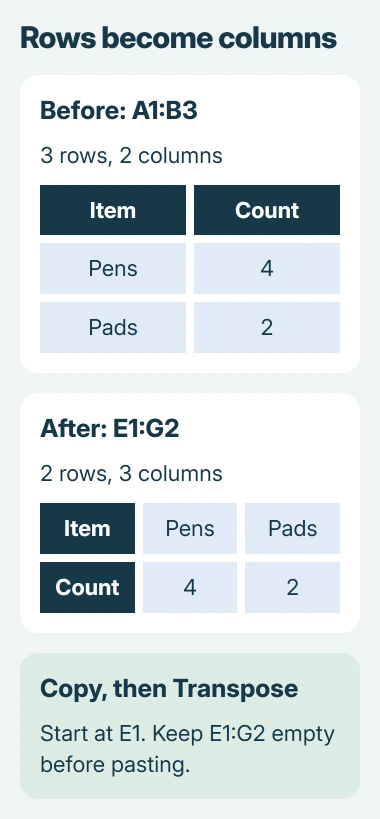
Status: Microsoft transpose instructions checked November 2, 2026. The example is an original layout illustration, not a screenshot or a workbook tested here.
Right-click the destination cell and choose Transpose under Paste Options. Microsoft's row-and-column transpose instructions show this command.
A source occupying A1:B3 is three rows by two columns. Starting its transposed copy at E1 uses E1:G2, two rows by three columns. Include the headings in the selection so they rotate with their values.
Check the new arrangement before removing anything from the source. If the goal is merely to reorder fields while keeping rows horizontal, use Excel's column-moving procedure instead.
Find the paste command on Mac or the web
On a Mac, select the source cells and choose Home > Copy. Select the empty destination, open the Paste menu on Home and choose Transpose. These choices are documented by Microsoft for Mac.
In Excel for the web, copy the range, select the empty destination, then use Home > Paste > Transpose Rows and Columns. This is the web label in Microsoft's transpose guide.
If Transpose is unavailable, check that the source is an ordinary range rather than an Excel Table. Microsoft documents that Table restriction and offers either converting the Table to a range or using the TRANSPOSE function.
The function is useful when the source should remain a Table. Put its output in ordinary worksheet cells outside a Table, with enough empty space for the result.
Use a formula for a result that stays linked
In current Excel for Microsoft 365, select the empty output cell, such as E1, and enter:
=TRANSPOSE(A1:B3)Press Enter. Excel fills the required output area automatically. The result reflects the source range, so keep A1:B3 and edit the original values when the rotated view needs updating.
Microsoft's TRANSPOSE function guide distinguishes that linked result from a pasted copy. Cell formatting does not transfer through the formula; apply the destination's formats separately.
In older Excel versions without dynamic arrays, select the entire output area first. For this example, select E1:G2, type the formula and confirm with Ctrl+Shift+Enter.
A #SPILL! error means Excel cannot place the complete result. Check the proposed output area for occupied cells or a Table. Move the formula to a clear area instead of deleting unrelated data to make room.
Check the result's formulas and headings
A transpose paste adjusts formula references for the new positions. Check calculations against the original, especially where a reference was meant to keep pointing at one fixed cell.
One owner restored a grayed-out Transpose checkbox by selecting Values in Paste Special. Use that option only for a result that should contain values instead of the original formulas.
For a chart built from the rearranged data, confirm that the intended headings and values are selected. Rotating the cells does not decide which series belongs in the chart.
If a small range still will not transpose, try it in an empty worksheet and note the Excel version, source type and exact message. Ask Microsoft Support to review that example if the operation still fails.
The Short Version
Copy and transpose into an empty area for a separate rearranged copy. Use TRANSPOSE when the result must follow the original values, and leave room for the reversed row and column dimensions.

Isaac Smith is the founder and editor of PC Glance, a website that covers computers, laptops, and technology. He is a tech enthusiast and a computer geek who loves to share his insights and help his readers make smart choices when buying tech gadgets or laptops. He is always curious and updated about the latest tech trends.