

Excel's Protect Workbook button also removes workbook protection. Open the Review tab, click that button and enter the current password if prompted. This restores changes to sheet tabs, such as renaming or moving them.
The button keeps its name while protection is active, which makes it easy to mistake for the wrong command. Check its highlighted state before looking for a separate unprotect button.
Remove the lock on sheet tabs
Microsoft says workbook structure protection disables operations such as inserting, deleting and renaming sheets. Its workbook protection instructions identify the highlighted button.
Status: Excel for Microsoft 365, 2024 and 2021 desktop instructions checked November 3, 2026. This covers workbook structure. No protected file was modified here.
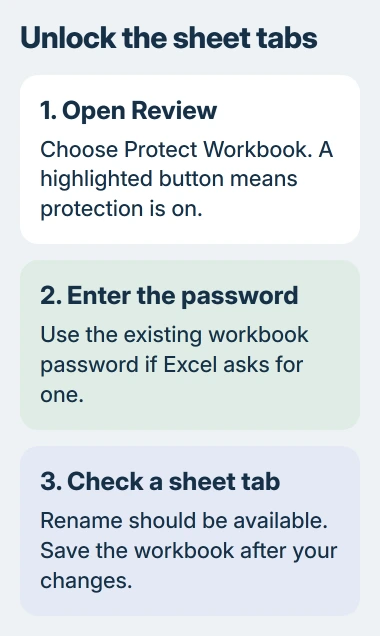
- In desktop Excel, open the intended file and choose Review.
- Click Protect Workbook. If Excel requests a password, enter the one used to protect the workbook and select OK.
- Right-click a sheet tab and check whether Rename is available. Cancel the menu if a name change is unnecessary.
- Save the workbook after making the intended changes.
A password is optional when structure protection is applied. With no password set, the command can remove protection without asking for one. An unexpected password prompt means the file needs credentials from its author.
To check the saved result, close the file and open it again. Inspect the same sheet-tab command before distributing the workbook. This catches saving the changed copy somewhere different from the file being shared.
Use the same control on a Mac
Microsoft documents Review > Protect Workbook for Mac too. Enter the existing password when asked; the command is still named Protect Workbook, even when its purpose is to turn protection off.
The separate Mac password instructions also explain changing protection afterward. Leave protection off while organizing sheets; reapply it only when that work is finished.
After unlocking, copying an Excel sheet uses the sheet tab's Move or Copy command. Check the destination workbook separately if copying into it remains unavailable.
When cells still refuse edits
Workbook structure and worksheet cells have separate locks. Microsoft states that Protect Sheet controls locked cells, while Protect Workbook controls structure, in its restriction guide.
If renaming sheets works but typing in a cell fails, use the worksheet unprotect procedure. Removing the workbook lock does not remove each sheet's protection.
A password requested before the file opens is another case. The Review tab cannot help until the file is open, so ask its author for the file-opening password as well as any structure password.
Browser editing or a forgotten password
Excel for the web cannot remove a workbook password. Open the file in the desktop application to perform the removal, or ask the person who supplied it to send a copy with the required sheet changes allowed.
Microsoft cannot recover a forgotten Excel protection password. Ask the author which password protects the workbook structure; a worksheet password or Microsoft account password may be unrelated.
If the correct password is accepted but commands remain unavailable, send the author the exact disabled command and whether the file is open in desktop Excel or a browser. That distinguishes another restriction from a failed password entry.
The Short Version
Use the highlighted Protect Workbook control on Review, then supply the existing password. Check a sheet tab afterward and save. A remaining cell-editing restriction needs its own worksheet check.

Isaac Smith is the founder and editor of PC Glance, a website that covers computers, laptops, and technology. He is a tech enthusiast and a computer geek who loves to share his insights and help his readers make smart choices when buying tech gadgets or laptops. He is always curious and updated about the latest tech trends.