
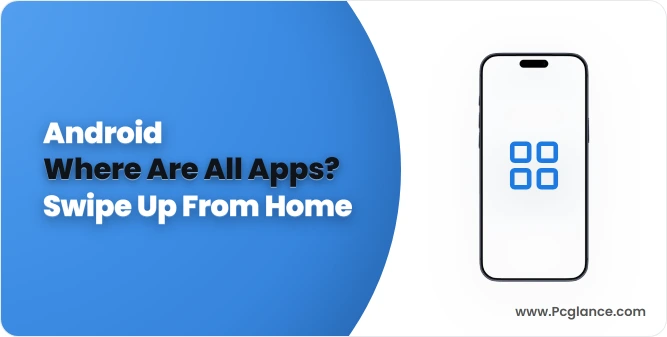
On an Android Home screen, swipe upward to open the app drawer, also called All Apps or the Apps screen. It lists apps beyond the shortcuts placed on Home. Start from Home rather than pausing halfway through a gesture inside another app.
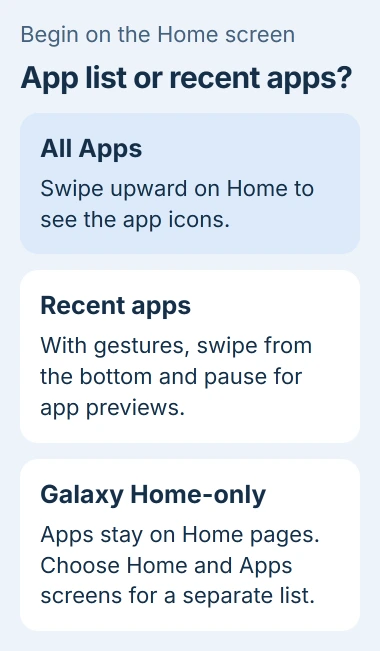
A Samsung phone configured for Home screen only behaves differently: its apps are spread across Home pages. Change that layout if you want a separate Apps screen again.
Return Home, then swipe up for the app list
Leave the current app using the Home gesture or Home button. From the Home screen, swipe upward from its middle or lower area to display the installed app icons.
Google documents this gesture for both button and gesture navigation in its Pixel navigation guide. Tap an icon in the list to launch that app.
Status: Android, Pixel and Samsung app-navigation instructions reviewed November 2, 2026. Home-screen software can change the gesture or layout. No phone was operated.
If the result is a row of large app previews, that is Recent apps. Return Home and swipe up without the pause used to open those previews. The recent-app view is not a complete installed-app list.
Google says All Apps contains apps beyond the Home shortcuts. On a phone with a work profile, look for the Work tab when the missing icon belongs to that profile.
Add an Apps button on Samsung Galaxy
For Samsung's Home screen, open Settings > Home screen. Enable Show Apps screen button on Home screen. Return Home and tap the Apps button that appears.
Samsung says this button provides another way to reach the list in its Galaxy app guide. It is useful when a swipe keeps opening an unintended screen.
The list may use pages or scrolling depending on the software and sorting choice. Search for the app by name or move through the remaining icons; the initial view may contain only part of the list.
Restore the drawer when Galaxy uses Home screen only
Open Settings > Home screen > Home screen layout. Select Home and Apps screens, then tap Apply when offered. Return Home and try the upward swipe again.
Samsung's Home-layout explanation distinguishes separate Home and Apps screens from the combined layout. Home screen only deliberately places the apps on Home pages.
With that combined layout selected, Samsung states that an upward swipe can show suggestions and a search field instead of the full drawer. That result does not mean the installed apps were erased.
These controls belong to Samsung's launcher. A replacement Home app may use its own gesture or menu, so use that app's instructions if the Samsung options are absent.
Follow a missing icon after the list opens
If the drawer opens but one app remains absent, check whether it was hidden or disabled. Those are app-specific states, separate from opening the list itself.
For a Galaxy with hidden icons, use the Samsung hidden-app controls. For a missing preinstalled browser, check the Chrome Enable or Open button.
If the expected list still cannot be reached, give the phone maker its model, Android version and Home-app name. Describe the result of the swipe: recent previews, search suggestions or no response.
The Short Version
Swipe upward from Home to open All Apps. Recent-app previews are a different screen. On Galaxy, use the optional Apps button or restore Home and Apps screens when the current layout keeps every icon on Home.

Isaac Smith is the founder and editor of PC Glance, a website that covers computers, laptops, and technology. He is a tech enthusiast and a computer geek who loves to share his insights and help his readers make smart choices when buying tech gadgets or laptops. He is always curious and updated about the latest tech trends.