

Disguising an Android app's icon doesn't stop someone from opening it. On supported phones with Android 15 or later, Private space lets you install a separate copy behind a lock, then hide that space from the app list.
Start in Settings > Security & privacy > Private space. It locks a separate copy of the app; it doesn't rename the original or move its existing data for you.
1. Check whether your phone supports Private space
Open your phone's Settings and search for Private space. Google says Private space needs Android 15 or later and a supported device. The phone maker can disable the feature.
Only the phone's main user can set it up. Guests and secondary users can't. A phone managed by work or school, an account with parental supervision, or more than four users or profiles on the phone can also prevent setup.
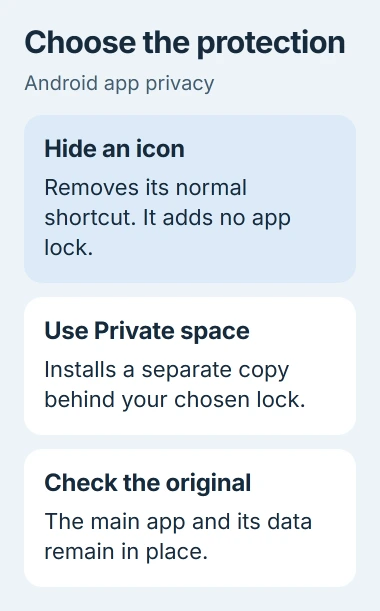
If the setting is missing, check your Android version in the phone's About section and ask the manufacturer whether that model supports it. Installing a different icon pack won't add this system feature.
On a Galaxy S10, the Samsung Hide apps control removes icons from the Home screen app, also called the launcher. That tidies the screen without putting a password on the apps. Choose the option that does what you need.
2. Set up the space and choose its lock
Open Security & privacy, find Private space under Privacy, and confirm your screen lock. Follow Set up and Got it. If the phone has no screen lock, setup asks you to create one first.
Choose Use device screen lock for the same unlocking method, or Choose new lock for a separate one. Follow the prompts and tap Done. Make sure you remember that lock before adding important files.
I'd choose a separate lock if someone else already knows the phone's PIN. Reusing that PIN is convenient, but someone who knows it can unlock your private apps too.
A Google Account is optional during setup. An account just for Private space helps keep activity separate. Reusing an account signed in elsewhere can make your synced photos, files, browsing history, or app recommendations appear there too.
Check the account inside each app too. Installing a separate copy doesn't create a new online account for you. What the app syncs affects whether its content stays inside Private space.
3. Install the private copy and check its data
Open the Android app drawer, scroll to Private space, and unlock it. Use + Install to open its app installer, then install the app you want to keep there.
You can also hold an app in All Apps and choose Install app in Private space. Follow the installation prompts. This installs another copy; your existing icon stays where it is.
The Android platform explanation describes this as a fresh installation with its own accounts and data saved on the phone. Your original app stays unchanged outside Private space.
Open the private copy and sign in if it needs an account. Check whether the app syncs the content you expect to see. An empty first screen can simply mean you haven't signed in to this copy yet.
The original icon stays outside Private space even when you hide the private copy. Check that you can still access any data you need before deciding whether to uninstall the original app.
To protect an existing app or use Galaxy's separate container, compare the phone maker's lock controls before removing either installation.
Installing an app doesn't transfer your files into the space. On Android 16 QPR2 or later, + Add > Add files can copy or move supported files into Private space. Copy keeps the original; Move removes it after a successful transfer.
4. Lock the space, then hide its container
Tap Lock beside Private space in All Apps. The private apps should disappear from the normal app search and recent-app view. Unlocking the space makes them available again.
To hide the Private space section from All Apps too, unlock it and tap its Settings control. Turn on Hide private space when it's locked. Lock it again to make the section disappear.
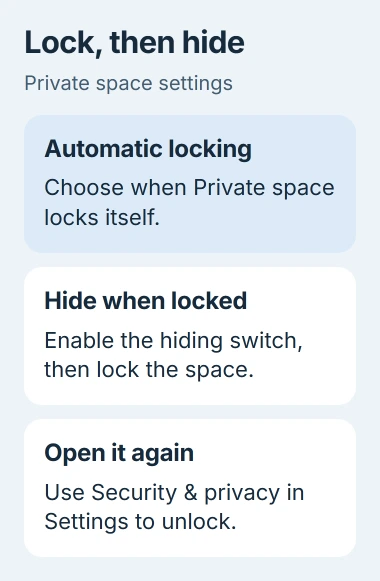
For automatic locking, open Lock private space automatically in those settings. Choose when it should lock: Every time device locks, 5 minutes after screen timeout, or Only after the device restarts.
I'd use the device-lock option when regularly lending someone the phone. It saves you from having to remember a separate manual lock before handing it over.
Private apps stop running and sending notifications while the space is locked. Keep an app outside Private space if you need its alerts or depend on it working in the background throughout the day.
The Android app rules for Private space explain why those apps stop. Silence after you lock the space is expected; it doesn't mean the app's notifications are broken.
5. Reopen it without resetting anything
Return to Settings > Security & privacy > Private space and use the lock you chose to unlock it. This gives you a route back even when the container is hidden from All Apps.
If you've replaced your Home screen app and Private space doesn't appear or work as expected, check whether that launcher supports it. Tell its developer your phone model, Android version, and which control is missing.
Don't delete or reset the space to bring back its icons. That erases its apps and their data on your phone, which a normal device backup won't restore. Use each app's sync or export option to save what you need before removing the space.
Private space doesn't hide every trace of its apps. Someone using a computer, device logs, or certain apps may see that the space exists. It keeps private apps separate and locked during everyday phone use.
If your phone supports Private space but won't open it with the correct lock, contact the phone maker before resetting. Explain whether you get stuck during setup, unlocking, or opening the app list so they can help with that step.
The Short Version
Set up Private space, install the separate app copy, and lock it. Enable container hiding if needed. Check account sync and data before removing the original app, and remember that locked private apps stop running.
Checked November 4, 2026.

Isaac Smith is the founder and editor of PC Glance, a website that covers computers, laptops, and technology. He is a tech enthusiast and a computer geek who loves to share his insights and help his readers make smart choices when buying tech gadgets or laptops. He is always curious and updated about the latest tech trends.