
Android app locks depend on the phone maker: some phones can password-protect an existing app, while others put a separate copy in a locked space. Check the built-in option for your model before installing another app to do the job.
On supported Xiaomi phones, start with Settings > Apps > App lock. On a Galaxy, use Secure Folder for a protected app copy. On a supported Pixel or another compatible Android phone, Private space also holds a separate copy.
Choose whether the existing app or a copy needs a lock
An app lock asks you to unlock an app before it opens. A protected space holds its own apps and data. Both can stop someone casually opening your apps, but they handle your existing sign-in and files differently.
Hiding an icon alone doesn't add a password. The Samsung launcher-hiding controls remove icons from normal lists while leaving other ways to open the installed app.
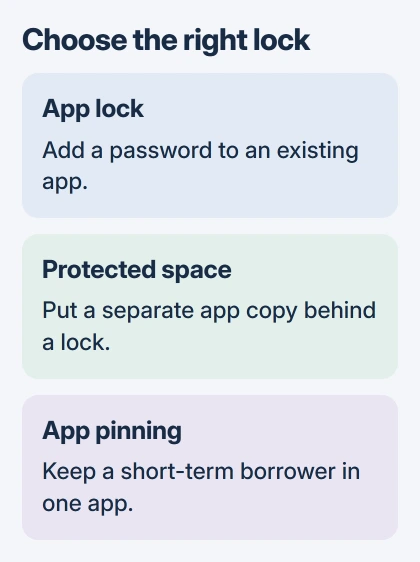
Search Settings for App lock, Secure Folder or Private space. Use the option your phone maker supports on your model. Another brand's menu may look similar while offering a feature your phone doesn't have.
I'd use the app's own fingerprint or passcode setting first if it has one and it's the only app you need to protect. A system tool becomes useful when the app has no suitable lock or you need a separate copy.
Lock selected apps on a supported Xiaomi phone
On the Xiaomi 14T Pro, open Settings > Apps > App lock, then choose Turn on. Set the requested password and select the apps that should require it. Reopen one selected app to check the prompt.
The 14T Pro setup instructions also let you link a Xiaomi Account for recovery. Set that up before depending on the lock; without the linked account, this model's instructions point to a factory reset for a forgotten password.
Other Xiaomi and Redmi models can use similar controls, but check your model's support page if the wording differs. Don't assume every Android phone has this menu just because its Settings app has an Apps section.
To change the password type on the Xiaomi 14T, open App lock, tap its settings control and choose Change password type. The password-type options include fingerprint or face unlocking where available.
Choose a lock the person borrowing your phone doesn't already know. Using the same password as a device PIN you've shared with them makes the extra lock much less useful.
Set when Xiaomi should ask for the password again
If an app opens without asking for the password again, check when App lock is set to relock it. On the 14T Pro, open App lock, tap its settings control, then open Lock settings.
The supported timing choices are: when the phone locks; when it locks or you exit the app; or when it locks or a minute passes after you exit.
Choose the exit-based option when you want a fresh prompt after leaving the app. Return to Home, reopen the protected app and check the result. Locking only with the phone can leave the app accessible while your phone stays unlocked.
If that choice is missing, give the manufacturer's support team your model number and software version. Reinstalling the app you're protecting won't add a missing system lock setting.
Put a protected app copy in Galaxy Secure Folder
Samsung says to set up Secure Folder through Settings > Security and privacy > More security settings > Secure Folder. Tap Continue, accept the requested permissions and sign in to your account if prompted.
Choose the folder's PIN, pattern or password. Consider Reset with Samsung account during setup if you want that recovery method available. Without it, forgetting the folder's lock can prevent access to its contents.
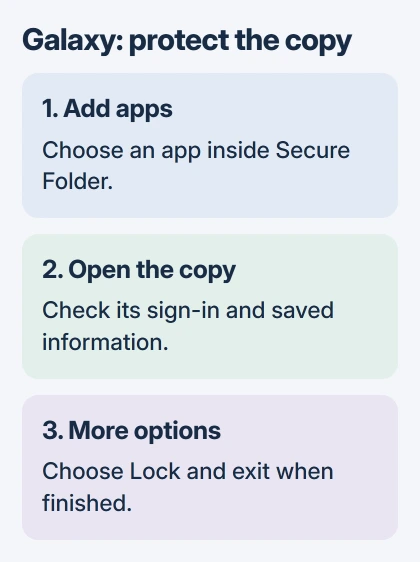
Inside Secure Folder, choose Add apps, select the app you want, then choose Add. This creates a copy inside the protected folder. Launch the protected copy and complete its sign-in if prompted.
The original app stays outside the folder and can still be opened. Before removing it, check for files saved in that copy or a signed-in account you still need. Adding a protected copy doesn't lock the original.
On One UI 8, open Secure Folder's More options menu and use Lock and exit when you're finished. Going back to Home may leave the folder unlocked. Reopen Secure Folder and confirm it asks for the unlocking method you chose.
If you can't find Secure Folder, ask support whether your model supports it. Not every Galaxy has this feature, and changing the launcher's theme can't add the protected storage it needs.
Use Private space without duplicating the wrong data
On a supported device running Android 15 or newer, choose Private space to install another app copy with its own lock. That guide explains which phones support it, account choices, setup and how to reopen the space.
Check both copies before deciding which one to keep. Signing into the same cloud account can make the same information available elsewhere. Installing a private copy doesn't change that account or turn off syncing you've enabled.
Locking Private space pauses its apps and their notifications. Keep an app outside it if you need it to keep working in the background or send immediate alerts. Check those needs before choosing where to keep it.
Pin one screen when somebody is borrowing the phone
Google says app pinning can keep someone in one app while they briefly borrow your phone. It doesn't put a separate password on each installed app.
Search Settings for App pinning. Turn it on and choose the option that asks for your PIN, pattern or password before someone can unpin the app.
Open the app, bring up your recent apps, tap the app's icon and select Pin. Check how to unpin it before handing over the phone; the button combination depends on whether you use gesture or button navigation.
If the lock still doesn't ask for a password, tell support your model, software version, which apps you locked and when they should relock. Keep the apps' data while support checks the setting; don't jump straight to a reset.
The Short Version
Use the maker's App lock for an existing app, or a protected space for a separate copy. Check when it relocks and test the password prompt. Pinning helps when someone briefly borrows your phone; hiding an icon alone doesn't lock an app.
Checked November 5, 2026.

Isaac Smith is the founder and editor of PC Glance, a website that covers computers, laptops, and technology. He is a tech enthusiast and a computer geek who loves to share his insights and help his readers make smart choices when buying tech gadgets or laptops. He is always curious and updated about the latest tech trends.