
No, BitLocker can't be installed on a Samsung Galaxy phone. It's a Windows feature that encrypts drives. To protect files on your phone or open a BitLocker USB drive, you'll need a different approach.
For private files on the phone, use the Galaxy's supported security features, including Secure Folder where available.
Installing an Android app advertised as BitLocker won't give your phone Windows drive encryption. Start by deciding whether you're protecting the phone itself, a few private files, or a drive that was encrypted on a PC.
Choose the protection that matches your files
BitLocker works with supported Windows editions and drives. Microsoft's BitLocker overview describes that Windows feature, rather than an Android app you can add through the Play Store.
Your Galaxy protects files in different ways. The screen lock controls who can open the phone, while Secure Folder holds the private files you put there. Connecting a BitLocker USB drive doesn't change that drive's Windows encryption.
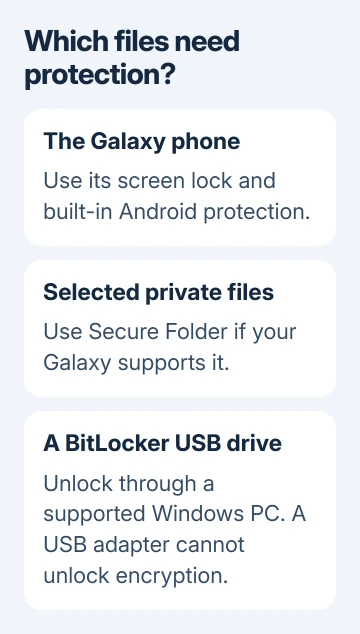
Check the device name. A Galaxy Book is a laptop, while a Galaxy S, A, Z or Note is a phone. A Galaxy Book running Windows follows Windows encryption instructions. An Android Galaxy phone can't add BitLocker through a download.
I'd settle that distinction before changing any security settings. A phone with a USB port isn't automatically able to unlock every encrypted storage format attached to it.
Protect access to the Galaxy itself
Open Settings and search for Screen lock. Choose a PIN, password or pattern through the lock-type settings offered on your model. Set it up, lock your phone, then try unlocking it. It should ask for the code or pattern you chose.
The page name varies with One UI. Use the screen-lock search result instead of looking for a BitLocker panel. A fingerprint can make daily access easier, but make sure you can remember the main unlocking code.
Modern Android devices use built-in encryption, with no BitLocker recovery key. This doesn't unlock Windows-encrypted external storage. Your phone's unlocking code and the PC drive's recovery key aren't interchangeable.
Keep the phone updated through Settings > Software update. A security update maintains the phone's own protection; it doesn't add support for installing Windows encryption software.
Once you hand someone your unlocked phone, its screen lock won't keep individual files private. For selected documents or photos you want behind another lock, move on to Secure Folder.
Put private files in the supported protected area
Open Settings > Security and privacy > More security settings > Secure Folder on supported Galaxy devices. Follow the setup prompts and complete the Samsung account sign-in if requested. Search Settings if the path differs.
Choose the folder's PIN, password or pattern. When setup offers Reset with Samsung account, decide whether to enable it. That setting lets you use the account to regain access if you forget the folder's code.
For photos already stored on the phone, open Gallery, touch and hold the items, then choose More > Move to Secure Folder. Reopen the protected area and check that the intended photos appear there.
For other documents, open Secure Folder and use More options > Add files. Choose the file type or browse through My Files. Check whether you're moving or copying. A copy left outside the folder is still accessible.
Files stored only in a cloud account need to be saved locally before they can be moved into Secure Folder. Moving the local file doesn't remove copies that still exist in a cloud service or another device.
The Android app-lock guide covers protected app copies when an app, rather than a document, needs its own lock. Adding an app and moving an existing file are different jobs.
Check locking and recovery before relying on it
Open Secure Folder's settings and check Auto lock Secure Folder if your version offers it. Choose the locking behavior you want, leave the folder, and reopen it to check whether the code is requested when you expect it.
Hiding the folder's icon only changes how easy it is to spot. It doesn't replace locking the folder. Check whether someone holding your unlocked phone can reopen the protected files without entering the folder's code.
Keep a safe copy of irreplaceable files elsewhere. Secure Folder no longer supports new backups, though you can restore older ones. The restore menu doesn't create a new backup.
If you forget the folder's code, use its Forgot and Reset options only when offered. Account recovery depends on having enabled Reset with Samsung account. Creating a replacement folder won't recover the old files.
For ordinary phone data outside Secure Folder, check what Android backup saves before assuming a device backup includes everything important.
Open a BitLocker drive through Windows
A USB adapter can't change the drive's encryption. If your real goal is reading a BitLocker-protected USB stick, attach it to a Windows computer that supports unlocking that drive and use its password or recovery method there.
Once Windows can read the files, transfer the documents you need using a method your Galaxy supports. Check the transferred copies on the phone before removing anything from the drive.
Don't format the drive when Android offers to prepare unsupported storage. Formatting replaces the way files are stored on the drive; it won't unlock them. Keep it disconnected until you can use the correct unlocking system.
For a work-owned encrypted drive, ask IT for an approved way to transfer the required files to your phone. The organization may require the data to stay in its managed apps rather than in personal storage.
When the Galaxy lacks the feature you need
Secure Folder isn't available on every Galaxy model. A missing menu can mean the model doesn't support it, rather than that another installation step is required. Check the exact model in Settings > About phone.
Ask Samsung Support whether that model and software version support Secure Folder. For an organization-managed phone, give the administrator the same details and ask which protected storage method is permitted.
For a BitLocker drive that Windows also won't unlock, give Microsoft support or the administrator managing the drive its error and recovery-key information. Installing apps on the phone won't repair that Windows access problem.
The Short Version
BitLocker doesn't install on Galaxy phones. Protect local files with the phone's supported security tools. Open an existing BitLocker drive on a suitable Windows PC, then transfer the files you need without formatting the drive.
Checked November 9, 2026.

Isaac Smith is the founder and editor of PC Glance, a website that covers computers, laptops, and technology. He is a tech enthusiast and a computer geek who loves to share his insights and help his readers make smart choices when buying tech gadgets or laptops. He is always curious and updated about the latest tech trends.