
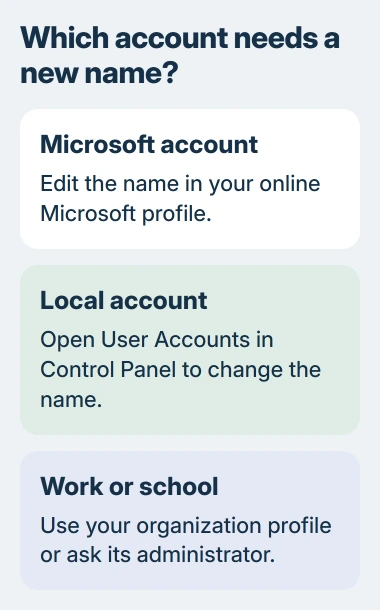
Changing a Windows 11 user name depends on the account. Personal Microsoft accounts use the online profile name; local accounts use Control Panel. Work or school names may require the organization's administrator.
Renaming the account does not rename its folder inside C:\Users. For a corrected name on the sign-in screen, leave that folder alone and change the account's name through the appropriate route.
Check which account supplies the name
Open Settings > Accounts > Your info. Microsoft documents Sign in with a Microsoft account instead as the link shown for local accounts. Microsoft accounts have the reverse option.
Use those links to identify the account type; changing account type is unnecessary for a name correction. A company-managed identity belongs with the work or school instructions later in this guide.
Status: Windows 11 account-name routes checked against Microsoft Support on November 3, 2026. Online display-name updates can take 24 hours. No account was renamed here.
Edit a personal Microsoft account name
Microsoft says to change this name through the account profile. Visit account.microsoft.com/profile, using the same Microsoft account as Windows.
- Open Your info and choose Edit name.
- Enter the intended name and complete the CAPTCHA if shown.
- Select Save and confirm that the online profile displays the correction.
Save open work before signing out of Windows and signing back in to check the sign-in display. A name that changed online but remains old on the PC may still be waiting to synchronize.
Microsoft states that the display-name update can take up to 24 hours. Check again after that interval.
This is an account-wide display name, so it can also appear when sending Outlook.com email. Editing it does not change the email address used to sign in.
Rename a local Windows account
Sign in to the local account whose displayed name needs correcting. Search Start for Control Panel, open it, then choose User Accounts > Change your account name. Enter the replacement and select Change Name.
If Control Panel shows category headings first, open User Accounts, then User Accounts again to reach the account controls. An administrator approval prompt may appear; a managed PC may require IT to complete the change.
Sign out after saving open files, then check the name on the sign-in screen. If the name is correct but the folder still has its previous spelling, that is expected.
Giving a different person access is a separate task. Add another Windows user when they need their own files and settings; renaming an existing profile keeps that profile's contents.
Correct a work or school name
For an organizational account, open myaccount.microsoft.com and check the personal information your organization allows you to edit. If the name field is locked or the correction does not persist, contact the account administrator.
Provide the old display name, the required spelling and the sign-in address. The address helps IT identify the correct account when several people share a similar name.
Leave the profile folder in place
Microsoft's profile-folder warning says its old Windows 7 workaround must not be used on Windows 10 or later.
That procedure can break winget. Do not rename the profile folder or edit its registry path to make it match the sign-in name. The account-name change is complete when the correct name appears for the account.
The laptop's device name is separate too. Use the PC rename settings if the wrong label appears in device lists or network discovery.
If the personal account still shows the old name after the documented delay, confirm the Windows account matches the edited online profile, then contact Microsoft Support. For organization-controlled names, use the IT team instead.
The Short Version
Identify the account, then edit its name online or in Control Panel. Allow time for Microsoft account synchronization. Neither the user-profile folder nor the PC's device name changes with the displayed account name.

Isaac Smith is the founder and editor of PC Glance, a website that covers computers, laptops, and technology. He is a tech enthusiast and a computer geek who loves to share his insights and help his readers make smart choices when buying tech gadgets or laptops. He is always curious and updated about the latest tech trends.