
Pokemon GO's GPS signal not found error needs two Android checks: the phone must provide a location, and the game must have permission to use it. Check Location and the app's precise-location permission before reinstalling anything.
Full signal bars do not prove that positioning is accurate. Android's Improve Location Accuracy setting can help when GPS alone cannot locate the phone reliably.
1. Allow the game to use an accurate location
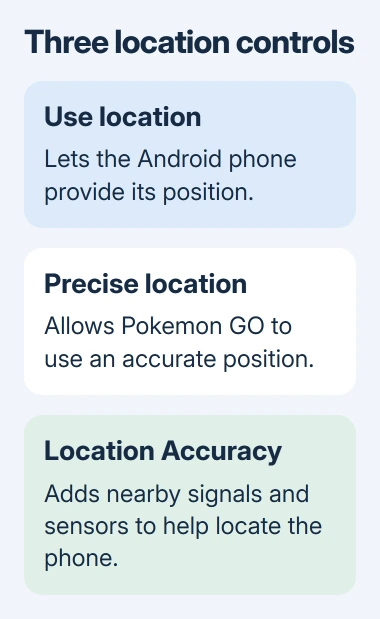
Open Settings > Location and enable Use location. Google says apps cannot obtain the device's location through that service when the main switch is off.
Touch and hold the Pokemon GO app icon, then select App info > Permissions > Location. Allow location while using the app and enable Use precise location when shown. Reopen the game to check whether its map recovers.
Status: Pokemon GO's GPS guidance and Google's Android location controls checked November 3, 2026. Menu labels vary by phone; no game session or GPS reading was tested.
Google's app-permission instructions explain the per-app control. On Pixel, Location > App location permissions is another route to the game's permission.
These checks concern the game reading the phone's position. Sharing a live location with another person is a separate feature and is not required for gameplay.
2. Enable Improve Location Accuracy
On Android 12 and later, open Settings > Location > Location Services > Location Accuracy. Turn on Improve Location Accuracy. Some manufacturers use slightly different capitalization or group these controls elsewhere.
The Android 11 route documented by Google is Location > Advanced > Location Accuracy. Use the settings search if the listed path does not match the phone.
Google states that Location Accuracy combines available Wi-Fi, cellular, GPS and sensor information. The feature is separate from the precise-location permission granted to an individual app.
The Pokemon GO GPS guide recommends enabling this setting on Android. Return to the game and check whether the warning clears and the avatar matches the current area.
3. Compare the connection and surroundings
The game's support guide warns that tall buildings can make the position drift. Try again from a safe, open place while stationary. A useful comparison keeps the phone and settings the same while changing the obstructed surroundings.
Switch between Wi-Fi and cellular service if both are available. The vendor recommends this comparison because a strong-looking connection can still be unstable or congested. Check again after the connection has changed.
If the result differs between networks, troubleshoot that connection before changing unrelated app settings. If the map remains wrong, check whether another location app can place the phone accurately in the same spot.
4. Separate a persistent GPS error from other failures
Install an offered Pokemon GO update, then reopen the game. The Android update guide explains the store controls; the game's own Android troubleshooting also recommends current app software.
For Failed to detect location, Pokemon GO support points to mock-location apps. If one was configured, open Developer options and clear Select mock location app. A spoofing tool cannot repair the phone's GPS.
If other location apps are also inaccurate outdoors, report the model and Android version to the manufacturer. If only Pokemon GO fails, give game support the app version, exact message and results of the permission and network checks.
The Short Version
Enable location, permit accurate access for Pokemon GO, then check Improve Location Accuracy. Compare an open location and another connection. Contact the phone maker or game support according to which apps still fail.

Isaac Smith is the founder and editor of PC Glance, a website that covers computers, laptops, and technology. He is a tech enthusiast and a computer geek who loves to share his insights and help his readers make smart choices when buying tech gadgets or laptops. He is always curious and updated about the latest tech trends.