

Sharing iCloud storage gives your family one allowance for backups, photos and files while each person keeps a separate Apple Account. Start with Family Sharing, then enable the iCloud+ subscription for that group.
The member joining matters too: someone already paying for storage must choose the family plan. Adding that person to the group does not automatically replace their paid subscription.
In this guide
Add the members to your family group
On the organizer's iPhone or iPad, open Settings > your name > Family > Continue to create the group. Apple documents an adult organizer and a maximum of six people, including that organizer.
For an existing group, open Settings > Family > Add Member > Invite Others. Send the invitation to the person's own Apple Account. They can accept from the message or from Settings > their name > Invitations.
Status: Apple's family subscription instructions checked November 3, 2026. Accounts stay separate; members already paying for storage must choose whether to switch.
Check the person's invitation status by tapping their name in Settings > Family. Use Resend Invitation if needed. A pending invitation means the person has not joined, so address that before changing subscription settings.
Share the iCloud+ subscription
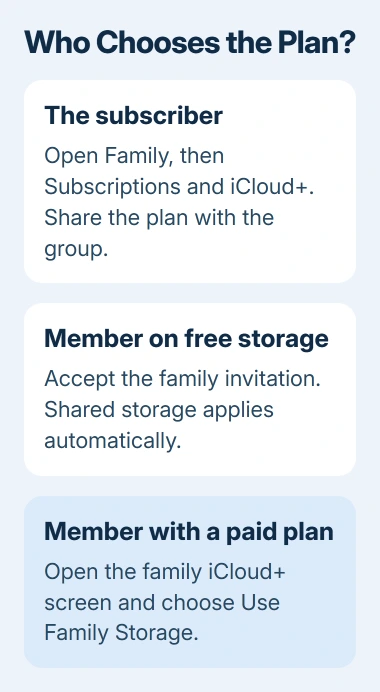
On the subscriber's iPhone or iPad, open Settings > Family > Subscriptions > iCloud+, then follow the sharing prompts. On a Mac, use System Settings > Family > Subscriptions > iCloud+ > Share with Family.
The subscriber can be a family member other than the organizer. Apple's iCloud+ sharing instructions explain that either person can supply the group's plan.
Apple says members using the free 5 GB allowance move onto the shared plan automatically. For someone with a paid plan, open that same iCloud+ family screen on their device and choose Use Family Storage. On Mac, select Use Shared Plan.
Switching refunds the unused part of the personal plan. A member can instead retain their own subscription, but their personal and shared allowances do not combine.
Check privacy and available space
Apple states that sharing the subscription does not reveal family members' photos or documents. Keep each person's account on their own device; using the subscriber's login can show that account's synced content instead.
Subscription sharing also works with Purchase Sharing turned off. Missing bought apps are a separate issue covered by the Family Sharing purchase checks.
Return to the family's Subscriptions > iCloud+ screen to review usage. The allowance serves the group as a whole. If it is filling up, the subscriber can review Manage This Subscription on iPhone or iPad before choosing a larger plan.
For a family that has outgrown its allowance, the subscriber can upgrade the iCloud+ tier from the account's current plan controls.
Extra cloud space cannot expand a phone's built-in storage. When the warning names the phone itself, compare the iPhone and iCloud storage meters before buying anything.
For an update request instead of a family invitation, match iCloud software and storage changes before choosing an account control.
For a full iPad, choose local content to remove in iPad Storage rather than expecting a bigger cloud allowance to clear downloads automatically.
When the subscription still is not available
Confirm the missing member accepted the invitation with the account they actually use for iCloud. Apple's invitation guide permits only one family group at a time, so an account belonging to another group cannot simply join both.
For a subscription missing after membership is confirmed, Apple also lists Settings > your name > Subscriptions > Manage Family Access > Share Eligible Subscriptions. Check that on the person sharing the subscription.
If the account and sharing screens agree but the member cannot use the allowance, contact Apple Support with both accounts' family membership and subscription details. Do not leave the group as a trial fix; changing families has limits.
The Short Version
Create or join the family group, share its iCloud+ subscription, then have existing paying members select the shared plan. Review the family's usage before upgrading. Each person's photos and files stay in their own account.
 If you have any business, I can build it online






