
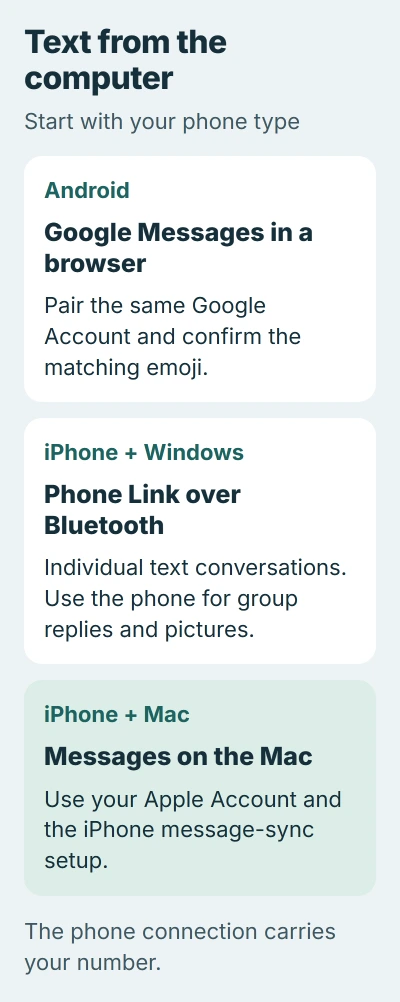
Texting from a computer through Google Messages or Phone Link uses the phone's existing number. Android supports browser pairing through Google Messages; a Windows PC can also use Phone Link with an Android phone or iPhone.
The right choice depends on the handset and the conversation. Google Messages works in a Mac or PC browser, while Phone Link's iPhone connection has limits on group replies, pictures and message history.
Pair Android messages with a computer browser
Start with Google Messages installed and updated on the Android phone. Keep the phone connected to Wi-Fi or cellular data and open a supported browser on the computer, such as Chrome, Edge, Firefox or Safari.
Google says its web messaging service relays SMS through the phone. Normal carrier charges still apply; signing in on the computer does not create a separate free texting line.
Status: Google Messages and Microsoft Phone Link instructions checked November 3, 2026. Google Account pairing and iPhone messaging limits reflect the saved vendor pages.
- In Google Messages on the phone, open the account menu and tap Device Pairing.
- Select the Google Account to use if prompted. On the computer, visit messages.google.com/web and sign in with that same account.
- When the phone displays a choice of emoji, select the one matching the computer's screen.
- Wait for the phone's vibration and the conversation list to appear in the browser.
Open the intended conversation to type a reply, or start a conversation and enter the recipient's number. Check the recipient before sending, especially when several contacts share a name.
Only one computer session can be active at a time. If another device takes over, return to the browser where you intend to work. Google also unpairs inactive connections after several weeks.
Send through Phone Link on a Windows PC
Open Phone Link from Windows search and choose the phone type. Keep both devices nearby. Follow Microsoft's pairing instructions for that handset.
For Android, use Link to Windows on the phone. Match its Microsoft account to the PC's Phone Link account. The documented requirements include Android 10 or later and a shared Wi-Fi network. Approve message access during setup.
For iPhone, turn on Bluetooth on both devices and scan Phone Link's displayed QR code with the iPhone camera. Microsoft specifies iOS 16 or later and a PC that supports Bluetooth Low Energy.
After pairing, select Messages, then New message. Enter a contact's name or number, choose the intended recipient and compose the text. Microsoft documents these composition controls in the PC messaging guide.
Android's Phone Link supports SMS and MMS. Its RCS support depends on the device and carrier, so do not assume that every feature in the phone's messaging app will appear on the PC.
Know the iPhone limits before moving a conversation
Microsoft states that the iPhone connection cannot send or receive pictures, GIFs or Memojis through Phone Link. Group conversations need the iPhone for replies, even when a group message appears as a PC notification.
The PC's displayed iPhone history is tied to the Bluetooth connection. Disconnecting removes that displayed history; Phone Link is not an archive of the phone's entire message collection.
For an iPhone and Mac, use Apple's Messages app and the Mac message-sync setup. Google Messages for web requires an Android phone.
Restore message access or disconnect a shared computer
If Android pairing finishes but texts are unavailable, open Phone Link > Settings > Features > Messages. Enable the needed text and MMS permissions, as Microsoft's message-access instructions describe.
On iPhone, open Settings > Bluetooth and select the PC's information control. Check Show Notifications and Sync Contacts, then follow any remaining permission prompts in Phone Link.
When finished on a shared computer, open the Google Messages web menu and choose Unpair. For Microsoft's connection, use the Phone Link removal procedure, which includes the phone's pairing records.
If a text also fails directly from the handset, contact the carrier about that line. If only the computer fails, report the phone type, app version and error through the messaging app's support or feedback controls.
The Short Version
Pair an Android phone with Google Messages for web, or connect a phone to Windows through Phone Link. Keep the handset available, grant message access and check the iPhone limitations before relying on the PC for a conversation.

Isaac Smith is the founder and editor of PC Glance, a website that covers computers, laptops, and technology. He is a tech enthusiast and a computer geek who loves to share his insights and help his readers make smart choices when buying tech gadgets or laptops. He is always curious and updated about the latest tech trends.