
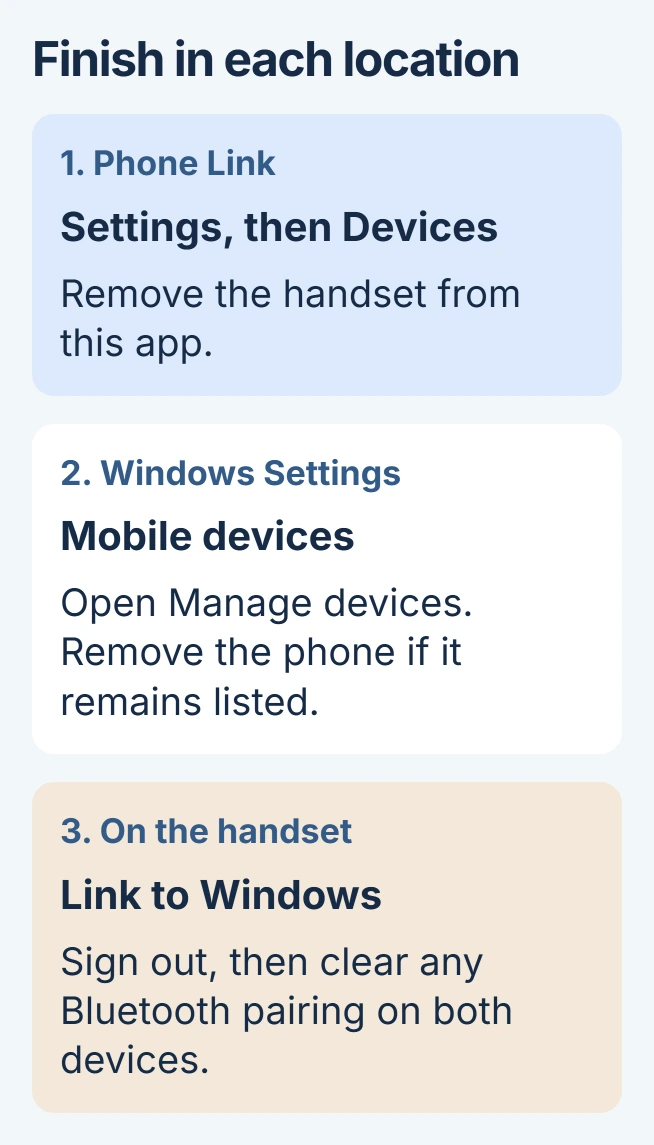
Unlinking Phone Link in Windows 11 can require cleanup on both the PC and phone. Remove the phone inside Phone Link first, then check Windows' Mobile devices list and sign out of Link to Windows on the handset.
Microsoft also includes Bluetooth unpairing when those devices are paired. Merely closing the app leaves the saved connection in place.
Remove the phone from the PC's connected devices
Open Phone Link > Settings > Devices. Find the intended phone, open its three-dot menu, select Remove, and confirm. This stops its Phone Link calls, messages and notifications.
Microsoft documents a separate Windows device list in its device-removal instructions. Check that list after removing the phone from the app.
Status: Phone Link removal routes verified against Microsoft documentation on November 3, 2026. Android and iPhone cleanup differ. No device was unpaired here.
Open Windows Settings > Bluetooth & devices > Mobile devices > Manage devices. Choose Remove if the handset remains listed. This also ends connected-camera and phone-file access through that Windows integration.
Check the device name before confirming either removal, particularly when more than one phone has used the PC. If it is already absent from Mobile devices, continue with the handset rather than adding it again.
Sign out on the Android phone
For built-in Link to Windows, open it from Settings > Connected Devices, or from the phone's Quick Panel. Select the Microsoft account and tap Sign out. Menu placement varies by manufacturer.
For the downloaded app, open Link to Windows, tap its Settings icon, choose Accounts, then Sign out.
Microsoft states in its accessible unlinking instructions that unlinking the account removes all its connected devices. Check which account is selected before signing out.
If Bluetooth pairing remains, remove the phone in Windows' Bluetooth & devices settings and unpair the PC in the phone's Bluetooth settings. Inspect both lists afterward for that specific pairing.
Clear the iPhone connection
In the iPhone's Link to Windows app, open the menu and choose Settings > Account > Sign out. If that app was not used, still check the Bluetooth pairing.
Open iPhone Settings > Bluetooth, tap the information button for the PC, then choose Forget This Device. Remove the iPhone from the PC's Bluetooth device list too if it remains there.
Microsoft says removing Bluetooth pairing stops iPhone call, message and notification synchronization in its iPhone pairing reference.
Check the result before reconnecting or switching methods
Return to Phone Link and confirm that the old handset is absent. Also verify the handset app's signed-out state and check that Windows no longer lists it as a managed mobile device.
For occasional photo transfers after unlinking, import with a USB cable.
If removal was part of a repair, pairing again is a separate setup step. The Phone Link connection checks cover connection trouble after that setup.
For messaging after reconnection, choose a computer texting route that supports the handset and conversation type.
A removal that will not save belongs with Microsoft Support or the PC's administrator. Provide the phone model, Phone Link version and the exact screen where the device returns.
The Short Version
Remove the phone from Phone Link, clear any remaining Windows Mobile devices entry, then finish on the handset. Sign out of Link to Windows and remove the Bluetooth pairing when present.

Isaac Smith is the founder and editor of PC Glance, a website that covers computers, laptops, and technology. He is a tech enthusiast and a computer geek who loves to share his insights and help his readers make smart choices when buying tech gadgets or laptops. He is always curious and updated about the latest tech trends.