Motorola Smart Connect pairs a phone or tablet with a Windows PC through its own app. Install the app on both devices, connect them to the same Wi-Fi network, then scan the PC's pairing QR code from Smart Connect on your phone.
A normal Bluetooth pairing alone doesn't finish this setup. The app also offers pairing through a shared Lenovo ID or Motorola account, and some Android connections can use USB when wireless pairing isn't suitable.
In this guide
Check compatibility and install the matching apps
Smart Connect supports Android 12 or later, Windows 10 or later, and iOS 15 or later in its current setup documentation. Check your operating-system version first so you don't spend time trying to connect an unsupported device.
Some features are limited to Motorola or Lenovo devices, and hardware also affects what's available. Even after pairing works, your phone might not offer the same app streaming, desktop, or other controls as another model.
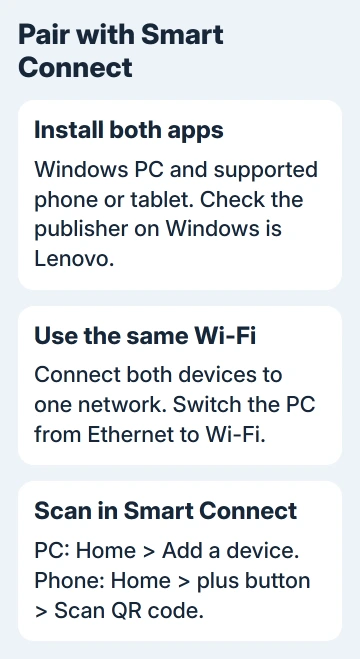
On Windows, open Microsoft Store and search for Smart Connect by Lenovo. Install and open that app. Checking the publisher matters when similarly named connection apps appear in the results.
On the phone or tablet, open its app store and install Smart Connect. If it's already on a Motorola phone, open the app, its Quick Settings tile, or Settings > Connected devices > Smart Connect when that route is available.
Update an existing copy through its app store before following newer menu instructions. The current interface uses a Home tab and Add a device; older versions can put pairing on a dashboard instead.
The apps are separate from Microsoft's Phone Link and Link to Windows. If you're switching from that setup, the Phone Link removal steps explain how to clear its own saved connection.
Put the phone and PC on the same Wi-Fi network
Check the network name on each device. Both should be connected to the same Wi-Fi network for the normal QR pairing procedure. An internet connection on each device isn't enough when they're on different networks.
Switch an Ethernet-connected PC to Wi-Fi for this method. The current pairing instructions call for that change. If your desktop doesn't have Wi-Fi, you'll need another supported way to connect.
Use the Windows Wi-Fi connection controls if the PC hasn't joined the wireless network yet. Enter the network password, then check the displayed network name against the phone's.
Disconnect a VPN, an app that routes traffic through another network, while you pair and use the current wireless connection. On a managed PC where that isn't allowed, ask the administrator for a permitted connection method.
I'd try this network check before removing either app. It takes less time than reinstalling, and it catches the common case of a phone using cellular internet while the PC is connected elsewhere.
Where no Wi-Fi network is available, Android and Windows versions can offer Settings > General > Connectivity > Wi-Fi Direct inside Smart Connect. Enable it on both Android and Windows devices, then follow the app's pairing prompts.
Wi-Fi Direct is a different way to connect from joining the same router. The Windows and Android instructions include that switch, but don't expect the same option on an iPhone.
Scan the pairing code from inside Smart Connect
On the PC, open Smart Connect > Home > Add a device. Keep the pairing screen visible. If the app first offers mobile-app installation, complete that step and select Continue pairing to return to the QR code.
On the phone or tablet, open Smart Connect, go to Home, tap the plus button, then choose Scan QR code. Scan the code displayed on the PC's Scan to pair screen.
Use the scanner inside Smart Connect rather than assuming the ordinary Camera app completes pairing. Follow the confirmation prompts on the devices until the other device appears in the app.

Keep both devices unlocked with Smart Connect open while checking the new connection. Select the paired device and check which actions the app offers for your two devices.
If a permission request appears, read which feature it enables before accepting. A call or notification permission lets that feature work. You don't need to accept every permission just because you've paired the devices.
When the other device never appears in Smart Connect, return to the network and VPN checks. For a device that appears in the list with one feature unavailable, check feature support and permissions rather than scanning the code again.
With RustDesk as your remote-control tool, an offline Android phone needs its own sharing checks; Smart Connect pairing does not start that service.
Pair through an account when that is easier
The alternative is to sign in to Smart Connect with the same Lenovo ID or Motorola account on each device. Keep Wi-Fi connected, then use Smart Connect's profile icon on each device for account sign-in.
Then open profile icon > Devices and select the devices you want to connect. This account route saves scanning a code, but automatic pairing won't work as intended if the phone and PC use different accounts.
Use your own account on devices you control. Signing in to someone else's account to make the device appear can connect more than the one feature you meant to use.
If the phone's ordinary calls and notifications are the actual goal, the Phone Link connection guide covers that separate product. The Microsoft account it uses is separate from Smart Connect's account choices.
Handle a weak connection or a cable that isn't detected
Motorola's setup help recommends another Wi-Fi network or a supported USB connection when wireless sharing is unstable. Use a data-capable cable between the Android phone and PC, then follow Smart Connect's connection prompt.
If the expected prompt doesn't appear, disconnect the cable from the phone and reconnect it. Try a different cable and check that the app is current. A charging response alone doesn't confirm that the cable is carrying data.
Use this cable advice for the Android-PC connection covered by the setup help. An iPhone being compatible with Smart Connect doesn't mean it has the same USB features as a Motorola Android phone.
For a persistent failure, open Help in Smart Connect and contact Motorola support with both device models, operating systems, app versions, and the failing connection method. Include whether the other device appears in the app at all.
Disconnect without confusing it with unpairing
For a temporary break, select the device on Home, then choose Disconnect. It stays paired for another session. To forget it, open Settings > Devices and use the unpair control next to that device.
On a phone or tablet, the device's menu can label the action Unpair device. Hiding a device with its favorite control only changes whether it appears on Home; unpair it to remove that saved connection.
The Short Version
Install Smart Connect on each device, join one wireless network, and scan the PC's QR code from the phone's Smart Connect scanner. Use the same-account route as an alternative, and check feature support separately from successful pairing.
Checked November 12, 2026.