
RustDesk must run its sharing service before another device can control your Android phone. Open Share Screen, grant screen-capture permission, and start the service. Installing the app alone doesn't make the phone ready.
The direction matters: an Android phone shown as offline is different from an Android controller that can't reach a remote PC. For the second case, check the PC's RustDesk status and server settings as well as the phone's connection.
In this guide
1. Start the service on the phone being controlled
Have someone open RustDesk on the Android phone. Select Share Screen in the bottom navigation, then select Start Service if it isn't running. Accept Android's screen-sharing permission request.
RustDesk's Android instructions explain that screen-capture permission starts the receiving service. Without that permission, other devices can't issue control requests to the phone.
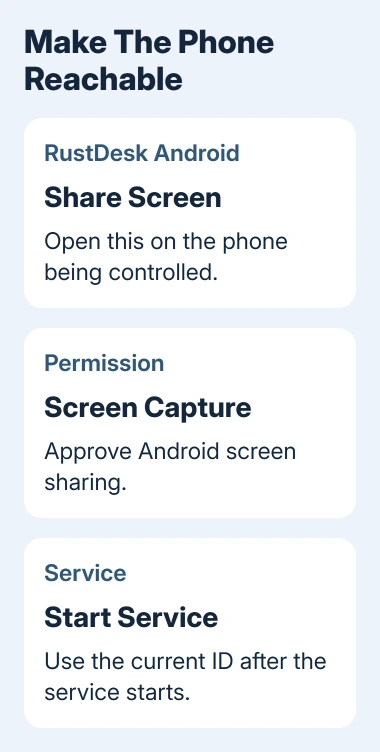
After the service starts, read the ID on the phone and enter that ID on the controlling device. Compare the digits directly with any saved device entry before using it.
Retry the connection while the phone's owner is present. They can confirm the request or supply the current password through your agreed private channel. If the password has changed, the old saved one won't let you connect.
If the phone is reachable now, keep the service running for the session. If it still appears offline, check whether the phone itself has a working connection before changing input permissions.
When Android is the controller, enter the remote computer's ID on RustDesk's home page instead. Starting Android screen sharing is for allowing someone to view that phone; it isn't needed just to view another computer.
2. Check connectivity and the selected server
Open an ordinary webpage on the phone to check internet access. The Wi-Fi icon can appear before a guest-network login is finished, and it doesn't confirm access to RustDesk's servers.
If practical, compare Wi-Fi with your cellular connection. Retry the same remote ID after changing the connection. If only one network fails, give that result to the network administrator instead of repeatedly changing sharing permissions.
A working webpage doesn't confirm access to every remote-access server. Work and school networks can restrict traffic separately, so check whether RustDesk connects on the other network.
For a self-hosted installation, open Settings > ID/Relay Server in the Android app. Compare its ID Server and Key with the details supplied by your server administrator.
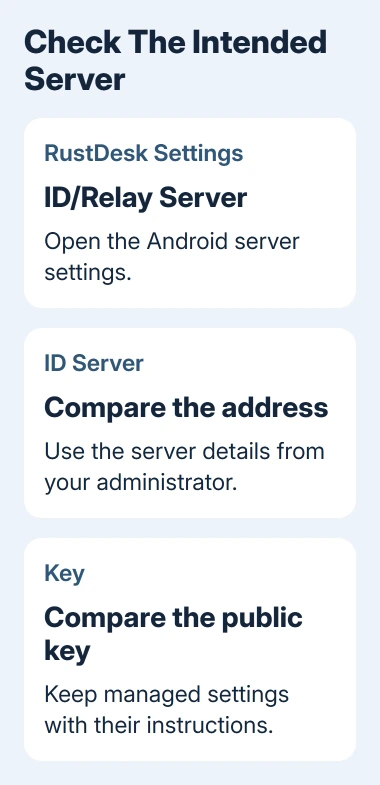
Check that the remote device uses the correct server settings too. A saved ID from another setup won't necessarily let your phone find that device through its current server.
The self-hosted Android instructions leave Relay Server and API Server blank and enter the server address and public key. Your organization may supply different values for a setup it manages. Keep its instructions with the settings.
Don't replace a working organization's configuration with a public server to guess at the problem. Have your administrator compare the address, key, server availability, and affected clients together.
3. Handle a phone that disappears after the screen locks
If access works while RustDesk is open but stops after the phone sits unused, check whether Android has limited the app's background activity. Reopen RustDesk first and confirm that its service is still running.
On a Pixel, open Settings > Apps > See all apps > RustDesk > App battery usage. Open Allow background usage and check its choices. For ongoing access, try Unrestricted and compare the result with your current setting.
Other Android phones may call the page Battery or place background controls elsewhere in App info. Search the phone's Settings for RustDesk, open its app details, and use the maker's background-activity options.
Allowing more background activity can use more battery. Change RustDesk's allowance alone instead of disabling battery management throughout the phone.
After the change, lock your phone, wait as before, then try connecting again. If the phone remains reachable, keep that result with your setup notes. If it drops again, check service status and record the timing for a RustDesk report.
The Android battery usage checks help you watch the effect of that change. Keeping a phone available for remote access all day can mean using more battery.
4. Restore touch control after the phone connects
A visible phone screen that won't respond to clicks is a permission problem to check separately from offline status. In RustDesk's Share Screen area, enable Input Control and follow the prompt into Android's accessibility settings.
The documented route uses Installed Services, then RustDesk Input. Enable the service there. Phone makers can use different accessibility menu names, so follow the prompt rather than expecting one identical Settings layout.
Return to RustDesk and reconnect. Permission changes other than screen capture apply to new connections. You may need to close the current session before the new input setting takes effect.
Android can require screen-capture and input permission again when RustDesk starts. Keep someone with physical access available until you've checked how the particular phone behaves after a restart.
If Android blocks an accessibility setting with a security message, record that exact message. Ask the phone maker about the restriction for apps installed from that source; unrelated accessibility switches won't enable RustDesk Input.
5. Plan for restarts and send a useful failure report
After a reboot, someone may need to reopen RustDesk and approve screen sharing. The project's FAQ describes limits on automatically starting Android sharing, so don't rely on a boot setting you haven't checked to restore access remotely.
Before leaving a phone unattended, try the real sequence: restart it, open RustDesk locally, start sharing, then connect from the controlling device. Check that someone can repeat the local steps if Android asks again.
I'd settle the restart procedure before leaving the phone somewhere difficult to reach. A saved remote password can't press an Android permission button on a phone that isn't sharing its screen.
For file recovery, check what your Android backup saves while the phone is accessible. Keep another route to important files besides screen sharing.
Report continued failures through RustDesk's GitHub issue tracker. Include both app versions, Android version, phone model, server type, and whether it fails after locking, restarting, or changing networks.
The Short Version
Start sharing, approve capture, and retry the phone's current ID. Check its connection and server if it's still offline. For failures after sleep, check background activity. For a visible screen that ignores clicks, check Input Control.
Checked November 12, 2026.





