
PowerPoint adds slide numbers through its header and footer controls. On Windows, open Insert > Header & Footer, select Slide number and choose Apply to All. This numbers the presentation without typing a separate number onto each slide.
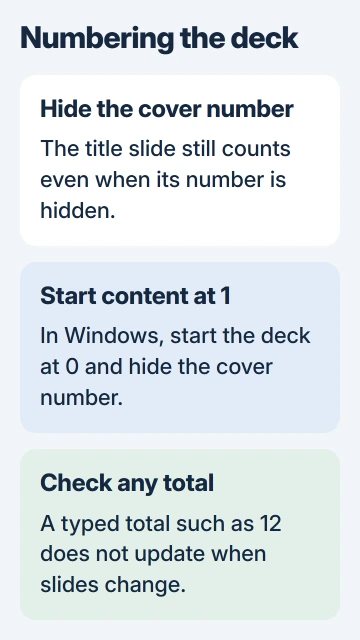
Hiding the number on the title slide does not remove that slide from the count. If the first content slide should show 1, change the starting number as well as hiding the cover's number.
Turn on automatic numbering
In desktop PowerPoint for Windows, use the Slide tab in the Header and Footer dialog. Check Slide number, then apply the change across the deck. Apply changes only the selected slide.
Microsoft documents the choices in its slide-number instructions. On Mac, the direct route is Insert > Slide Number; select the numbering option and apply it.
Status: PowerPoint numbering controls for Windows, Mac and web checked November 3, 2026. Starting numbers and manual totals are separate settings. No deck was changed.
Check a few slide layouts after applying numbers. Their position follows the presentation design, so a number need not appear in the same corner as it did in another template.
Leave the cover blank and start content at 1
Enable Don't show on title slide in the numbering dialog. For a Windows deck whose first slide is the cover, open Design > Slide Size > Custom Slide Size and set Number slides from to 0.
Confirm the change, then inspect the next slide. It should show 1 because the hidden cover occupies number 0. Review the first content slide rather than assuming that hiding the title number also reset the count.
The slide-size settings guide covers the other controls in this dialog. Leave width, height and orientation as they are when the only intended change is numbering.
Use the Footer pane in browser PowerPoint
Choose Insert > Footer > Slide Number, enable Slide Number in the pane and select Apply to All. Use Don't show on title slide if the cover should remain unnumbered.
Microsoft's web footer guide explains that placement depends on the design. Inspect the result in the presentation itself after closing the pane.
Use desktop PowerPoint for the starting-number procedure described here. The web instructions do not document the Windows Number slides from control.
Restore a number that a layout hides
If a number is absent from only certain slides, first check the title-slide exclusion. Then select an affected slide and open View > Slide Master in desktop PowerPoint.
Enable Footers for its layout. If that setting cannot be enabled, select the parent slide master, open Master Layout and enable the relevant footer elements, including Slide number. Return to the layout and enable its Footers setting.
Microsoft states that a parent master can disable layout footers in its missing-footer instructions. Save a copy first; other slides can share that layout.
The PowerPoint footnote guide explains a separate use of footer space. A typed citation mark is not the automatic slide-number field.
Keep a typed total accurate after editing
PowerPoint's ordinary number field tracks the slide's number. Microsoft says an accompanying total, such as the final number in Slide 2 of 12, must be maintained manually in its slide-total guide.
After adding or deleting slides, correct any typed total on the slide master. Check it against the finished deck before exporting or presenting. An automatic current number does not make the adjacent total automatic too.
For numbers that remain hidden after the layout checks, ask the template author or Microsoft Support to inspect a copy. Include the PowerPoint edition and which layouts are affected.
The Short Version
Enable Slide number and apply it to the deck. Hide the title number separately, and start at 0 when the following slide should display 1. Check layout footers for missing numbers and update typed totals after edits.

Isaac Smith is the founder and editor of PC Glance, a website that covers computers, laptops, and technology. He is a tech enthusiast and a computer geek who loves to share his insights and help his readers make smart choices when buying tech gadgets or laptops. He is always curious and updated about the latest tech trends.