
Android split screen opens two supported apps together through the recent-app view. Open the first app, bring up its preview, then tap its app icon and choose the split-screen option. Choose another app for the remaining space.
Pixel and Samsung name that option differently. The app must support the layout, so a missing command for one app does not necessarily mean the phone cannot split its screen.
Open two apps together on a Pixel
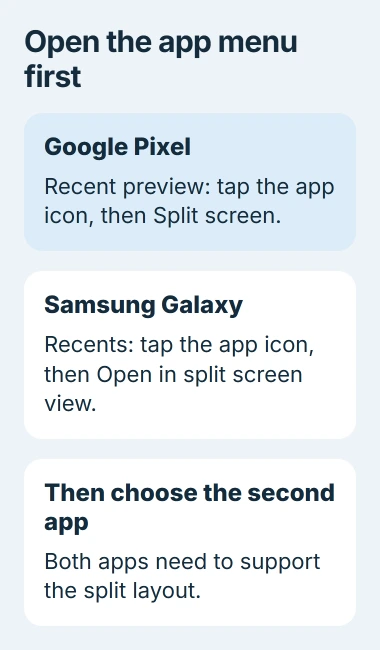
Start the first app. With gesture navigation, begin an upward swipe at the screen's bottom edge, hold briefly, then lift your finger when the recent-app previews appear.
Tap the app icon associated with its preview, rather than tapping the large preview itself. Choose Split screen, then select the other app for the remaining area.
Status: Pixel and Samsung split-screen instructions checked November 3, 2026. Some Google steps require Android 14 or later. App support and Galaxy controls vary by model.
Google says this starts the two-app layout in its Pixel split-screen instructions. Tap inside each app to confirm both are available before beginning work.
If the swipe opens a grid of installed apps, it reached the Android app drawer. Return to the first app and use the bottom-edge swipe with a hold to reach its recent preview.
With button navigation, open the phone's recent-app screen using its navigation button. The icon and placement vary, so follow the manufacturer's navigation layout when the gesture instructions do not match.
Choose Samsung's split-screen command in Recents
On Galaxy, open Recents, locate the first app, and tap its icon. Choose Open in split screen view, then select the companion app. Samsung says to use this entry in its Multi window guide.
The menu can also offer Open in pop-up view. That produces a floating window instead of the two fitted areas wanted here. Choose the split-screen command for this task.
If two apps are often needed together, Samsung can save an App pair. With both visible, tap the dotted control between their windows, choose the app-pair control, and select the offered destination.
Availability depends on the device and software. Test the ordinary Recents method before searching for an Edge panel or a saved-pair feature that this model may not include.
Resize the layout or leave it
On Galaxy, move the separator between the two apps to change their space. Check the smaller app afterward: the keyboard or a compact panel may leave less room for its content.
On Pixel, Google states that dragging the separating bar to the top or bottom returns to a single app. Move it toward the app being dismissed so the other one occupies the display.
Samsung's Home action leaves the paired apps in Recents. Returning Home therefore does not remove the pair from the recent-app view. Reopen it there when continuing the same work.
Save unfinished input before leaving an app or changing its layout. Keeping two apps visible is useful for comparing information, but it does not guarantee that either app has saved its current form or draft.
When the split-screen option is missing
Try a different pair of apps. Both Google and Samsung limit this feature according to app support. An app that opens normally by itself can still decline a multiwindow layout.
If an app closes even when used alone, follow the Android app stability checks first. That failure occurs before the split-screen arrangement matters.
A small floating video is picture-in-picture, a different feature. An app can support that floating player without offering the two-pane arrangement described here.
If supported apps all lack the command, ask the manufacturer about the phone model, Android version and navigation mode. When only one app fails, report its version and behavior outside split screen to its developer.
The Short Version
Open an app's recent-preview menu, choose its split-screen command, and select a companion app. Pixel and Galaxy label that command differently. A missing option may concern the particular app, so compare another pair.

Isaac Smith is the founder and editor of PC Glance, a website that covers computers, laptops, and technology. He is a tech enthusiast and a computer geek who loves to share his insights and help his readers make smart choices when buying tech gadgets or laptops. He is always curious and updated about the latest tech trends.