
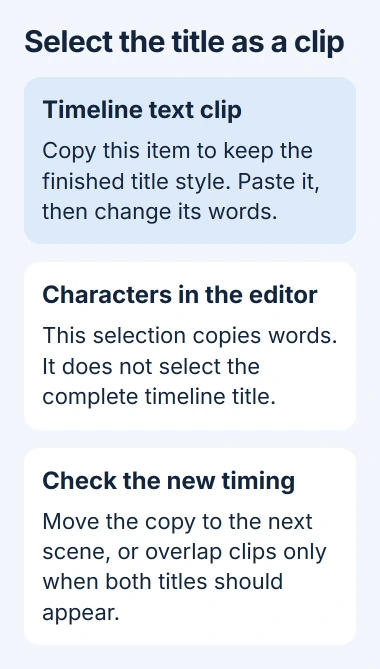
Duplicating text in CapCut on PC starts with the timeline text clip, rather than words in the editing panel. Copy and paste that clip, then change the new copy's wording. Its existing style becomes the starting point for the next title.
Finish the first title's font, size, color, and position before copying it. That saves repeating the same formatting on every new text clip.
Copy the finished text clip
Open the project in CapCut Desktop and find the text clip on the timeline. Click the clip itself so the selection applies to the title as a timeline item.
CapCut's text-editing help recommends copying a styled clip and editing each copy. It is the approach documented by the vendor to keep manually added text consistent.
Status: checked November 3, 2026. CapCut documents copying styled timeline text clips. The instructions concern manual text, rather than an automatic-caption editing command.
- Right-click the selected text clip and choose Copy.
- Right-click a blank part of the timeline and choose Paste.
- Locate the pasted text clip and drag it to the part of the video where it belongs.
- Select the copy and replace its wording in the text editing panel.
The original title should still contain its original words. Play through both titles to check that editing the copy changed the intended clip.
Microsoft documents Ctrl+C and Ctrl+V as the Windows copy and paste shortcuts. Those keys are another route when CapCut's timeline has focus.
Put the copy at the right time
For a title that appears later, drag the copied clip to the next scene and trim its ends to the needed duration. Avoid leaving it directly over the original unless both titles should appear together.
For two text items visible at once, let their clips overlap in time, then move one title to another position in the preview. Different wording can need more space even when the font and size match.
CapCut's duplicate-caption guidance identifies overlapping text clips as a cause of doubled captions. Delete an accidental extra clip or adjust its timing before exporting.
Titles used with a CapCut voiceover should appear when the corresponding line is spoken. Listen through the join between titles instead of judging timing from the still preview.
When only the words get copied
A cursor blinking inside the text field means the keyboard is editing characters. Copying there can place words on the clipboard instead of duplicating the timeline clip with its formatting.
Click the timeline text clip again, then use its right-click menu. If the new object appears on the timeline, the selection was the problem. If copy and paste also fail in other programs, use the Windows clipboard checks.
Microsoft says Ctrl+Z undoes an action. If a paste changes the wrong text field, undo it before selecting the timeline clip again. Confirm the original wording is restored before making another copy.
Check the finished video
Play through each copied title and inspect the exported video for doubled text, clipped wording, and captions that outlast the scene. A correct-looking editing panel does not show every timing mistake.
If CapCut still cannot copy a selected timeline item, report the desktop version and whether the right-click Copy command appears to CapCut support. Keep the project so support can work from the failing edit.
The Short Version
Style one text clip, select it on the timeline, and copy and paste it. Change the duplicate's wording, set its position and duration, then play the result to catch accidental overlaps.

Isaac Smith is the founder and editor of PC Glance, a website that covers computers, laptops, and technology. He is a tech enthusiast and a computer geek who loves to share his insights and help his readers make smart choices when buying tech gadgets or laptops. He is always curious and updated about the latest tech trends.