
A new iPhone alarm starts in Clock > Alarms: tap the plus button, set its time, and confirm with Done. Choose Repeat before saving when the alarm should run on particular weekdays rather than just its next occurrence.
Apple says an ordinary Clock alarm is unrelated to the wake-up schedule in Health. Setting one does not require creating a bedtime schedule.
Add the alarm and confirm its time
Open Clock, select Alarms, and tap Add, shown as a plus. Set the hour and minutes. Check AM or PM if the phone uses a 12-hour clock.
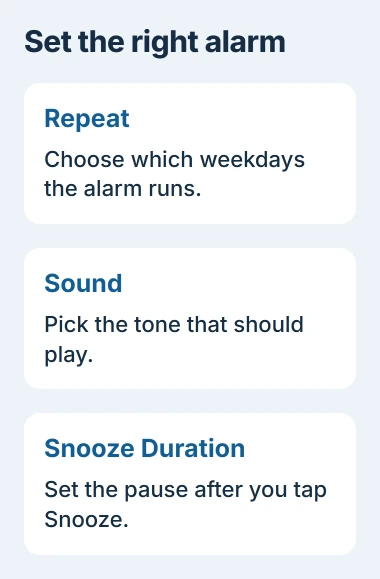
Apple documents Repeat, Label, Sound and Snooze in its alarm setup instructions. Finish with Done, represented by the checkmark on the current screen.
Status: Clock creation controls checked November 3, 2026. The iOS 27 volume section differs from Apple's older Ringtone and Alerts instructions.
Confirm the alarm appears at the intended time with its switch enabled. A listed alarm will not ring while its switch is off.
Choose the days, sound and snooze behavior
In Repeat, select each required weekday. For a weekday wake-up, check Monday through Friday individually. Read the selected days before leaving the screen, especially when the weekend should stay free.
Use Label to distinguish alarms with similar times. A purpose such as a school departure is easier to recognize later than several unlabeled entries.
Choose an audible option in Sound when the alarm must ring. None removes its tone. If snoozing is useful, enable Snooze and choose Snooze Duration on versions that show it.
These settings do different jobs: Repeat controls the days, while Snooze Duration controls the delay after snoozing a ringing alarm. It does not change tomorrow's scheduled time.
Find the volume controls for this iOS version
On iOS 27, find Alarms and Timers in Settings > Sounds & Haptics. Apple states in its current Clock guide that disabling Match Ringtone Volume lets the separate slider control alarm loudness.
Enable that switch instead when alarms should follow the ringtone level. Choose which behavior is intended before adjusting either slider.
On the older layout, adjust Ringtone and Alerts instead. This version difference explains why an instruction to find an alarm-only slider may not match an older iPhone.
Make a temporary alarm for a nearby time and listen for it. Remove that test entry afterward. If the alert appears without useful sound, follow the silent-alarm troubleshooting.
Edit, pause or remove the correct entry
Tap an existing alarm's time to edit it; some layouts use Edit first. Recheck its days as well as its time, then save the change with the confirmation control shown.
Turn its switch off to keep the entry without ringing it. To remove it, swipe left across that alarm and select Delete. Check the label before removing one from a long list.
The phone's alarm setup also differs from Windows Clock and its sleep restrictions. A reminder configured on the laptop does not create a matching iPhone alarm.
If Clock will not retain an alarm, tell Apple Support whether the entry disappears, its switch changes, or the time remains but it fails to ring. Those results distinguish saving problems from sound problems.
The Short Version
Add the time in Clock, choose its repeat days and sound, then confirm that the saved entry is enabled. Treat the sleep-schedule alarm separately and use the volume controls available in the installed iOS version.

Isaac Smith is the founder and editor of PC Glance, a website that covers computers, laptops, and technology. He is a tech enthusiast and a computer geek who loves to share his insights and help his readers make smart choices when buying tech gadgets or laptops. He is always curious and updated about the latest tech trends.