
Unlocking Apple Watch with an iPhone requires Unlock with iPhone in the phone's Watch app. Enable it under My Watch > Passcode, then unlock the paired iPhone while wearing the watch nearby.
The similarly named option in the iPhone's Face ID settings works in the opposite direction: an already-unlocked watch helps unlock the phone. Changing that option does not configure the watch to unlock.
Switch on automatic watch unlocking
On the paired iPhone, open Watch. Select My Watch, open Passcode, and enable Unlock with iPhone. Complete any authentication requested by the devices.
Apple documents automatic watch unlocking in its watch guide. This is the iPhone's companion Watch app, rather than the watch's own Settings app or the phone's Face ID menu.
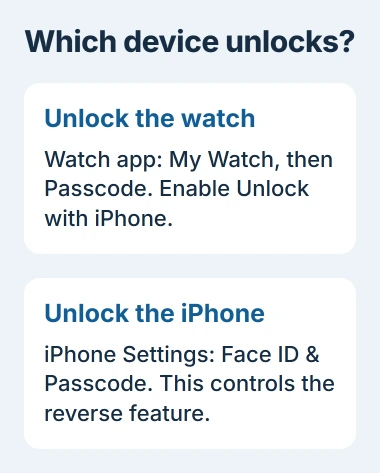
Status: Apple's watch-unlock and iPhone-unlock documentation reviewed November 3, 2026. The two controls apply to different devices.
Wear the watch, keep the iPhone beside it, and unlock the phone normally. Wake the watch display afterward and check whether its passcode screen has cleared.
An unrelated iPhone cannot perform this job. After replacing the phone, complete the watch transfer to the new iPhone before expecting this setting to work with it.
Keep the watch nearby and Wrist Detection enabled
Apple states that this feature requires normal Bluetooth range. Perform the first check with both devices together; distance through rooms is an unnecessary complication when confirming a new setting.
If Bluetooth is disabled on the watch, Apple directs using the watch passcode instead. The phone can unlock successfully while its watch connection remains unavailable.
In the watch's Settings > Passcode, leave Wrist Detection enabled for automatic locking and unlocking. Apple says disabling it removes that automatic behavior and affects several health and safety features too.
Taking the watch off normally locks it again. That is expected protection for its contents, rather than evidence that the setting failed to save.
Is the phone supposed to unlock instead?
To unlock the iPhone using a watch, Apple's separate iPhone instructions begin in Settings > Face ID & Passcode. Its current page calls the section Unlock with Nearby Devices.
That feature has its own requirements, including a watch that is already unlocked. It cannot solve the circular problem of both devices waiting for the other to unlock first.
Keep the intended direction clear when describing a failure to support. A watch still asking for its code and an iPhone refusing face-covering unlock are different reports.
Use the passcode if the automatic check fails
Enter the known watch passcode to regain access. If the watch has lost its normal pairing connection, follow the watch connection checks before changing unlock settings repeatedly.
Do not unpair a working watch simply to test this convenience feature. If its code works but nearby iPhone unlocking does not, give Apple Support the device models, software versions and whether Wrist Detection remains enabled.
If the passcode is forgotten, use Apple's passcode recovery guidance through Support. This switch is not an account-recovery method or a way to remove Activation Lock.
The Short Version
Use Watch, My Watch, Passcode and Unlock with iPhone for the watch itself. Check with the watch worn, Wrist Detection enabled and the paired phone nearby. The phone's Face ID menu controls the reverse operation.

Isaac Smith is the founder and editor of PC Glance, a website that covers computers, laptops, and technology. He is a tech enthusiast and a computer geek who loves to share his insights and help his readers make smart choices when buying tech gadgets or laptops. He is always curious and updated about the latest tech trends.