
A MacBook Pro with no sound in Windows 10 may just be sending audio to a monitor. Select its built-in speakers first; if they're missing, repair Apple's Boot Camp drivers.
1. Pick the speakers Windows should use
Disconnect headphones and any HDMI or DisplayPort monitor for this check. Click the taskbar's speaker icon, open the device list, and choose the Mac's speakers. Raise the volume and play a familiar video or music file.
Status: reviewed November 3, 2026. Apple's driver repair applies to supported Intel Macs. A separate owner report covers missing audio on a 2011 MacBook Pro running Windows through EFI.
Microsoft says a display selected as the audio destination can leave you with silence when it has no speakers. A working picture on that display doesn't mean your Mac's speakers are selected.
If only one program stays quiet, open Volume mixer from the taskbar speaker's right-click menu. Unmute that program and raise its slider. Sound returning there means you can leave the Mac's drivers alone.
If Windows lists no speakers, or the speaker icon has a red cross, continue with the Mac checks. That's a different result from an app that's simply muted.
2. Check the Mac model and listen in macOS
Restart the Intel Mac while holding Option, then select your macOS startup disk. In the Apple menu, open About This Mac and note the model year. You'll need it to choose the right repair route.
Apple's Windows 10 compatibility list includes Intel MacBook Pro models from 2012 through 2020. The 13-inch M1 model from 2020 is excluded. A 2011 MacBook Pro isn't on that list.
For a supported Intel model, continue to the driver repair. On a 2011 machine, read the EFI section too. If you're running Windows inside a virtual machine on an Apple silicon Mac, use that app's audio settings and support tools.
While you're in macOS, unplug external audio devices and try the same recording through the built-in speakers. Open Sound, then Output, in System Settings or, on older macOS versions, System Preferences. Check the volume and mute control.
Clear sound in macOS means the speakers can work, so concentrate on Windows next. Silence in both systems needs a wider check, especially if the sound is distorted or only one speaker responds.
If macOS was erased, skip this comparison. The model name can also be checked through the Mac entry in your Apple Account's device list, without reinstalling macOS just to identify it.
3. Repair the Apple driver package
Apple says missing built-in speaker audio is a reason to reinstall its Windows support software. Get the package through Boot Camp Assistant on this Mac so you're using its matching drivers.
Install available macOS updates first. For Apple's download procedure, prepare a USB stick with at least 16GB of capacity. Copy anything you need off that stick before formatting it, because the next action erases its contents.
- Open Disk Utility in macOS. Use View, Show All Devices, and select the USB stick itself.
- Click Erase. Set the format to MS-DOS (FAT) and the scheme to Master Boot Record, then confirm.
- In Boot Camp Assistant, open Action and choose Download Windows Support Software. Save it to that USB stick.
- Start Windows, open the stick, and run Setup from WindowsSupport or BootCamp. Approve the prompt, choose Repair, then Finish, and restart when asked.
Play audio again after signing in. If the speakers return, the driver repair was enough. If they remain absent, check the device's error before choosing another package.
4. Read the audio error before changing another driver
Search Start for Device Manager. Expand the category for sound, video and game controllers. If you see a marked audio device, open Properties and read Device status on the General tab.
A Device Manager error such as Code 10 says the device couldn't start. It doesn't tell you whether the cause is the driver, the installation method, or hardware.
If audio worked until a driver update, open that device's Driver tab and select Roll Back Driver, if available. Microsoft documents this option in its audio repair steps.
Restart and listen again. When rollback is unavailable, an older driver isn't saved for that device. Keep the error text for the next step rather than installing assorted Cirrus or Realtek packages.
For a supported Mac whose speakers are listed without an error, the broader Windows sound checks cover services and audio processing. Keep reading if an older EFI installation still has no speaker output.
5. Use external audio while deciding on the deeper repair
I'd try a borrowed USB headset before changing the way an older Mac boots. A USB headset or USB audio adapter provides its own sound device, bypassing the Mac's internal audio controller.
Connect a Windows-compatible device directly to the Mac and select it as the playback output. If it works, you can hear calls or videos while sorting out the internal audio. This won't restore sound through the MacBook's built-in speakers.
6. On a 2011 MacBook Pro, check the EFI installation
Press Windows+R, enter msinfo32, and press Enter. Under System Summary, read BIOS Mode. A value of UEFI identifies how this Windows installation started; it isn't an audio fault by itself.
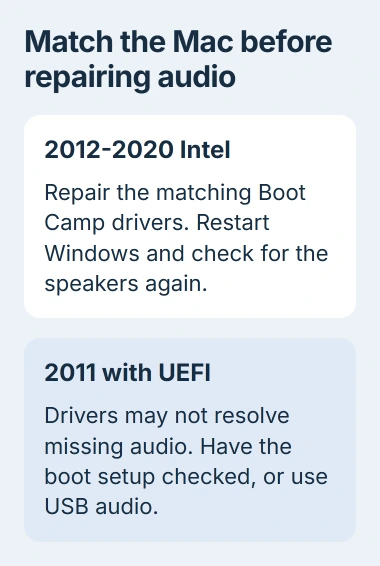
On a 2011 MacBook Pro, an owner reported that Windows booted through EFI but couldn't use the internal audio controller. They restored sound by changing the hardware information passed to Windows at startup.
Their detailed account uses a modified DSDT, a table describing the computer's hardware, with Clover. They also reported success loading that table through a Windows override. Cirrus drivers were already installed.
That explains why installing the sound driver again may change nothing on this particular setup. The owner had also tried UEFI-shell commands and commands through GRUB without success.
Take a backup and your model details to a technician familiar with older Intel Macs before changing the startup files. The report warns about failed Clover installations; a DSDT copied from another Mac isn't a suitable starting point.
For a supported model still missing audio after the Apple repair, give Apple Support the model, Device Manager error, and macOS comparison. If both operating systems are silent, ask a Mac repair shop to check the hardware.
For the 2011 EFI case, ask whether changing the Windows installation or using a model-specific boot repair makes sense before paying for speaker replacement.
The Short Version
Start with Windows' output choice, then use the Mac's model year to pick the repair. Apple's support drivers are the first repair for a supported Intel Mac. Persistent missing audio on a 2011 EFI installation needs a different approach.

Isaac Smith is the founder and editor of PC Glance, a website that covers computers, laptops, and technology. He is a tech enthusiast and a computer geek who loves to share his insights and help his readers make smart choices when buying tech gadgets or laptops. He is always curious and updated about the latest tech trends.