
The 2018 Mac mini has Thunderbolt 3, but Windows 10 needs Boot Camp drivers and a compatible accessory connection. If macOS detects the accessory while Windows cannot, repair Apple's Windows drivers before changing hardware.
A USB-C plug can carry USB without supporting Thunderbolt. Check the cable and accessory's connection requirements, especially when ordinary USB devices still work through the same port.
Compare the same device in macOS and Windows
Connect the accessory directly with its recommended Thunderbolt cable, avoiding an intervening USB hub. Test that same accessory, cable, and port after starting macOS, then after starting Windows.
Apple documents four Thunderbolt 3 ports on the 2018 Mac mini. Those USB-C-shaped ports also support USB devices, so a working USB mouse does not verify the Thunderbolt connection.
Status: checked November 3, 2026. Apple documents Boot Camp driver repair. CalDigit documents Windows Thunderbolt detection and approval checks, but no single fix covers every accessory.
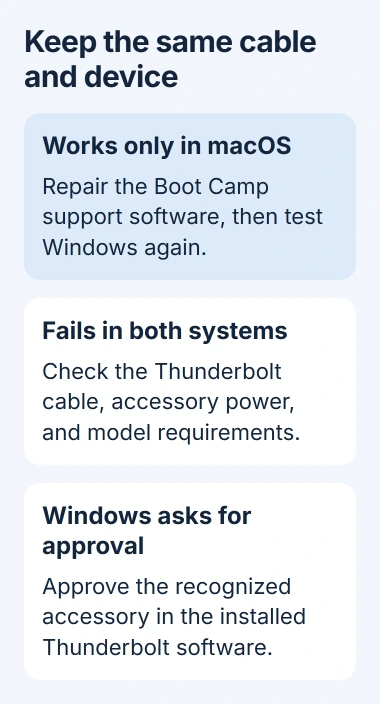
If it fails in both systems, check the cable and the accessory's power and model requirements first. If macOS works, keep that known-working connection for the Windows checks.
The macOS USB and Thunderbolt troubleshooting page concerns macOS faults. Its front-port comparison does not apply to a 2018 Mac mini, which has no front ports.
Repair Apple's Windows support software
Apple says to install available macOS updates before downloading the Windows support software. Then use Apple's Boot Camp driver procedure to obtain the package for the Mac.
Apple states that the download requires a USB flash drive of at least 16GB. Back up its contents first: formatting erases the selected drive. Select the USB drive carefully, never the Mac's internal drive.
- In macOS, open Disk Utility and choose View, then Show All Devices.
- Select the USB drive, choose Erase, and use MS-DOS (FAT) with Master Boot Record as the scheme.
- Open Boot Camp Assistant from Applications, Utilities.
- In its menu bar, choose Action, then Download Windows Support Software, and save it to the USB drive.
Start Windows with that USB drive connected. Open setup.exe or Setup in the downloaded WindowsSupport or BootCamp folder. Allow the installer, choose Repair, then Finish, and restart when prompted.
This repairs support software in the existing Windows installation. It does not require removing the Boot Camp partition or installing Windows again. Check the accessory after the restart before trying another change.
Reconnect after Windows has signed in
CalDigit's Windows Thunderbolt guidance includes a reconnect sequence when its devices are not detected. Disconnect the accessory, restart Windows, then reconnect after signing in.
Allow about 20 seconds for detection. If the accessory has its own power supply, keep it connected. This is a manufacturer-documented troubleshooting step, not a guarantee that every dock supports Boot Camp.
Approve the device if Intel's software asks
Some Windows installations expose an Intel Thunderbolt approval interface. If it lists the accessory in Approve Thunderbolt Device, select Always Connect, then OK. The system-tray menu also offers Approve Attached Devices.
Only approve an accessory you recognize and intend to connect. CalDigit notes that the Intel Thunderbolt software can be absent on Macs running Boot Camp, so the missing menu is not proof of a broken port.
Do not install a driver package intended for a different PC just to obtain that screen. Get any additional driver or firmware from the accessory manufacturer for the exact model and supported Windows configuration.
Changing Boot Camp Secure Boot settings is a separate task. Keep the Mac's startup security in place while checking a missing Thunderbolt accessory.
If the accessory stays undetected
Give the accessory manufacturer the Mac model, Windows version, accessory model, cable type, and whether it works in macOS. Include any Device Manager error code and the result of the Boot Camp repair.
Ask explicitly whether that accessory and firmware support Windows through Boot Camp on the 2018 Mac mini. A USB-C connection and working macOS support do not establish that Windows configuration's compatibility.
The Short Version
Compare the identical connection in both operating systems. Repair Apple's Windows support software for a Windows-only failure, reconnect after sign-in, and approve the device if the installed Thunderbolt software offers that control.

Isaac Smith is the founder and editor of PC Glance, a website that covers computers, laptops, and technology. He is a tech enthusiast and a computer geek who loves to share his insights and help his readers make smart choices when buying tech gadgets or laptops. He is always curious and updated about the latest tech trends.