
A Kindle that won't charge needs a cable and power-source check first. If both seem to work but the screen stays frozen, hold its power button for 40 seconds to restart it.
A frozen screen doesn't always mean the battery isn't charging. These checks help you tell the two problems apart on Kindle e-readers. Fire tablets have different hardware and need different troubleshooting steps.
1. Check the cable at both ends
Connect a compatible USB cable firmly to your Kindle and its power source. Amazon recommends the cable that came with it if you still have it. Older readers use Micro-USB; newer models such as the 11th-generation Kindle use USB-C.
The plug should fit without force. If the plug won't fit all the way in, remove any case that's in the way and look for obvious damage. Don't push a mismatched connector into the port to see whether it will charge.
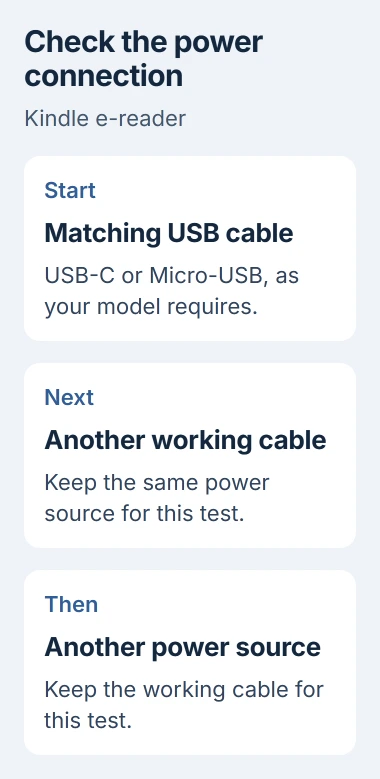
Status: checked November 3, 2026. Amazon provides a 40-second restart for frozen e-readers. Wireless charging is limited to compatible Kindle models, including the listed Signature Editions.
Try another compatible cable while keeping the same power source. If that works, the first cable needs replacing. Then try a different working USB power source with the good cable if the Kindle still doesn't respond.
Swap one part at a time so you don't replace both accessories needlessly. If an adapter charges your phone, you know it supplies some power. That still leaves the Kindle's cable and port to check.
I'd finish these checks before buying a battery. You can check a damaged cable or loose plug without opening the Kindle. Replacing the battery is a much larger job.
2. Read the charging signs for your model
Look for the charging indicator and, when the Kindle responds, the battery symbol on screen. Amazon's older Kindle user guide describes an amber charging light and a green light when charging is complete.
That guide also shows a lightning bolt on the battery icon when the Kindle is plugged in. Check your model's instructions for what its lights mean; an older reader's charging time won't apply to every Kindle.
If your Kindle responds, note its battery level and let it charge with the screen asleep. Check the level later to see whether it's rising, rather than repeatedly waking the reader to watch the same icon.
If the screen is stuck on one image, try the restart next. Its battery reading won't update while the reader is frozen, so the image alone can't tell you whether it's charging.
Stop using a Kindle with a swollen case, unusual heat or a damaged charging port, and contact Amazon. Have Amazon check the hardware before trying to charge it for longer.
3. Restart a screen that won't respond
Amazon's Kindle restart procedure addresses temporary problems such as a frozen screen. These steps documented by the vendor restart your Kindle; they don't factory-reset it.
Hold down the power button. Keep holding if a power menu appears or the screen becomes blank, and release after 40 seconds. Amazon says the indicator should return and the device should restart after a short pause.
Let your Kindle finish restarting. If its Home screen returns, plug in the charging cable and see whether the battery level rises. If it still needs attention, continue with the checks for your model.
If nothing changes, return to the known-working cable and power source. Repeating the button hold over and over won't tell you whether power is reaching the battery.
Keep your books and account on the Kindle during these checks. A factory reset erases its setup, so try the charging checks before considering that step.
4. Leave USB drive mode when charging from a PC
Some older Kindles display USB Drive Mode when connected to a computer. Amazon's manual explains that they can keep charging in this mode even though you can't read your books.
If your computer shows the Kindle as a connected drive, finish transferring any files and eject it through the computer. Keep the USB cable plugged in so the reader can keep charging.
Microsoft says to use Safely Remove Hardware for removable devices. Find it in the taskbar's notification area and select your Kindle if it's listed.
Microsoft documents using Show hidden icons if you can't see the control. Eject the Kindle only if Windows lists it as a removable device; leave unrelated drives alone if the reader isn't there.
If Windows doesn't recognize an otherwise responsive reader, the USB connection checks address that computer-side problem. A missing drive entry alone doesn't tell you that the Kindle battery is faulty.
After ejecting, try opening a book and check that the charging indicator is still on. If both work, USB mode had stopped you reading while the Kindle was still charging.
5. Check wireless support before changing the dock
Wireless charging is available only on compatible models. Amazon's current help page lists Kindle Paperwhite Signature Edition and Kindle Colorsoft Signature Edition. Check the full model name, including Signature Edition.
A regular model from the same family may need its cable. Putting an unsupported reader on a charging pad won't add wireless charging, even when another Kindle works on that pad.
For a supported Kindle, use a compatible Qi-certified charger or a Made for Amazon dock. Plug in the dock and center your reader on it. On the Made for Amazon stand, place it upright in portrait orientation.
Remove a cover if its flap comes between the reader and the charger. Check the dock's own indicator according to its manual, then compare charging by cable.
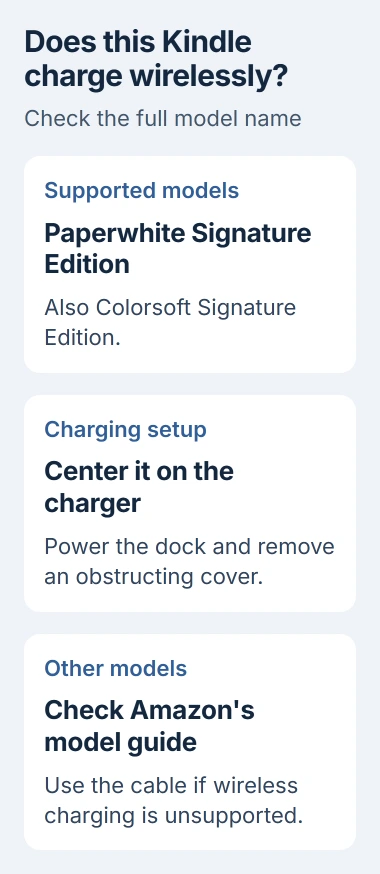
If USB charging works but the pad doesn't, check the Kindle's position, its cover and the dock. If neither method works on a compatible reader, tell Amazon what you tried before buying a replacement pad.
6. Separate battery drain from failure to charge
A Kindle you've just set up can use extra power while downloading books and installing updates. Amazon also explains that indexing, the work that makes your books searchable, keeps using power after a download finishes.
Keep the reader charging during that work. Once setup finishes, reduce the built-in light, switch off its internet connection when you don't need it, and put the Kindle to sleep when you're done reading.
Those changes address a battery that drains quickly. They don't repair a broken port or explain a reader that never shows any response to a working power source.
If it still won't charge, tell Amazon your Kindle model, which cables and adapters you tried, whether restarting helped, and what its lights show. Ask about repair or replacement before opening the reader.
If the device is actually a Fire tablet and now charges but won't finish setup, follow the Fire registration checks. Its account setup differs from the e-reader steps here.
The Short Version
Check the cable and power source first, then restart a frozen Kindle. USB drive mode can stop you reading while it still charges. Wireless charging needs a compatible model. If charging still fails, contact Amazon.

Isaac Smith is the founder and editor of PC Glance, a website that covers computers, laptops, and technology. He is a tech enthusiast and a computer geek who loves to share his insights and help his readers make smart choices when buying tech gadgets or laptops. He is always curious and updated about the latest tech trends.