
The floating Home button on an iPad comes from AssistiveTouch. To bring it back, turn on AssistiveTouch in Settings under Accessibility, then Touch; if it's already on, check its visibility and mouse settings.
A missing floating button, a missing Home command in its menu, and a broken physical Home button need different checks. Follow the steps that match the button or command you're missing.
1. Turn the floating button back on
Open Settings, choose Accessibility, then Touch, and open AssistiveTouch. Turn on the main AssistiveTouch switch. A floating menu button should appear at the edge of the display.
Apple says this switch displays the button in its iPad AssistiveTouch instructions. It's available on iPads with a physical Home button and on models that use gestures instead.
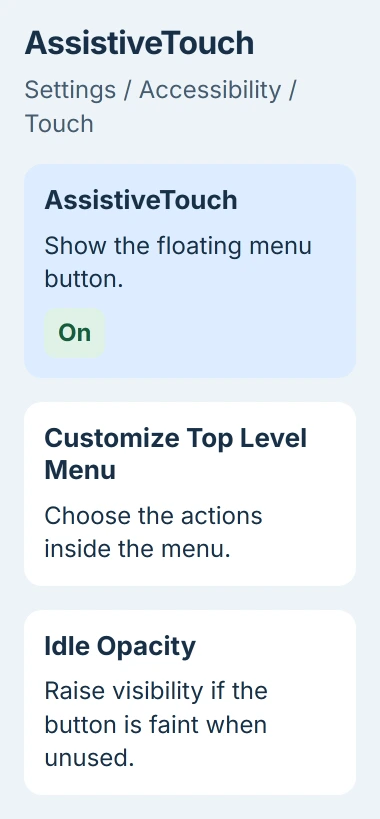
Status: iPad controls checked November 3, 2026. AssistiveTouch supplies the floating button. Its opacity, custom actions, and pointer-device options can change how it appears or responds.
Tap the floating button once. It normally opens a menu of shortcuts; choose Home to leave your current app. If tapping it does something else straight away, check the custom actions in section 3.
If Settings is hard to reach, tell Siri to enable AssistiveTouch. Apple documents that voice command too. You'll need Siri available on your iPad to use it.
The button may be on a different edge from where you remember it. Rotate your iPad and check each edge before changing the switch again. Once you find the button, drag it somewhere easy to reach.
If the button returns now, you can stop. If AssistiveTouch is on but you can barely see the button, check how it looks between taps next.
2. Make a faint button easier to see
Return to AssistiveTouch in Settings and open Idle Opacity. Increase the slider while watching the button. Opacity controls how visible it remains when you're not using it.
A very transparent button can blend into an app's background. Try looking at it against both a light page and a dark page. If the higher setting makes it easy to find, leave it at a comfortable level.
Apple states that Idle Opacity controls how visible the menu button is when you aren't using it. It won't change your iPad's screen brightness or add another Home button.
I'd try this before resetting the menu. It keeps the shortcuts you've already arranged while making a button that fades between taps easier to see.
If the floating button is visible but Home isn't among its commands, opacity isn't the problem. Open the menu customization options instead.
3. Put Home back in the menu or on a tap
In AssistiveTouch, select Customize Top Level Menu. Tap an existing icon whose action you don't need, select Home from the action list, then confirm the choice with Done when shown.
Open the floating menu again and test Home from inside an app. When the Home Screen appears, the shortcut is working. The floating button can stay where you've placed it.
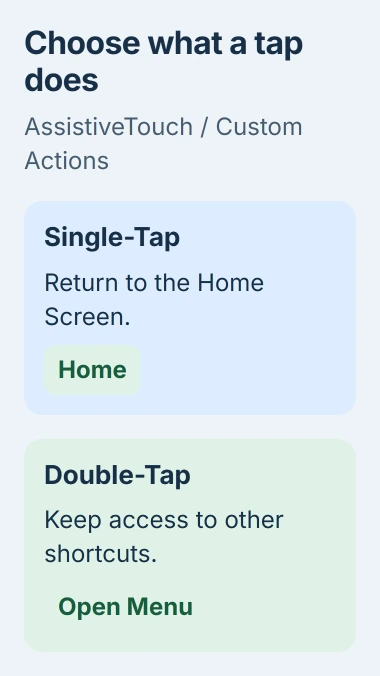
To go straight home, choose Single-Tap under the custom actions and set it to Home. You can then tap the floating button once to leave an app without opening its menu first.
Keep Open Menu on another action, such as Double-Tap, if you still use the other shortcuts. Otherwise, changing Single-Tap to Home can make it look as though the menu has stopped opening.
Apple documents separate actions for a single tap, double tap, and long press. Change the gesture you actually use, then test that gesture before editing the others.
If Home works but your screenshot gesture doesn't, the AssistiveTouch screenshot options have a separate location. The button doesn't need replacing just because one command changed.
4. Keep the menu visible with a mouse connected
Check whether the button disappears only when you connect a mouse or trackpad. AssistiveTouch has a setting to keep its menu visible while you use one of these pointer devices.
Open the same AssistiveTouch settings page, find Always Show Menu, and turn it on. Then reconnect or use the pointer device and check whether the floating menu remains available.
The mouse pointer and AssistiveTouch button are separate. You can still see the small moving cursor when the menu button is hidden. Changing the pointer's size won't bring that menu back.
Apple describes Always Show Menu as the control for this situation. If the menu remains visible with that option enabled, keep the mouse connected and use the button normally.
If the issue also happens with no pointer device connected, return to the main switch and opacity checks. Changing Bluetooth settings won't help a button that's missing all the time.
5. Check whether a shortcut keeps switching it off
If AssistiveTouch is the only feature selected for your Accessibility Shortcut, a triple-click switches it on or off right away. An accidental triple-click can therefore hide the floating button.
Go back to Settings, open Accessibility, and find Accessibility Shortcut near the end of the page. Check whether AssistiveTouch is selected.
On an iPad with a physical Home button, triple-click that button. On other models, use the top button. If you've selected several features for the shortcut, a triple-click opens a list so you can choose one.
Keep the shortcut if you use it. If accidental triple-clicks keep hiding the button, uncheck AssistiveTouch in the shortcut list and leave its main switch on. The shortcut will no longer turn it off by mistake.
Apple's accessibility-shortcut guide describes both button arrangements. Test the result once, then check that your floating control remains on screen.
6. Separate a frozen iPad from a missing shortcut
Try another touch action, such as opening an app or scrolling in Settings. If the whole display ignores touches, the missing Home button is part of a wider problem. Use the frozen iPad restart steps.
An iPad without a physical Home button normally returns home with a swipe from the bottom edge. That gesture remains useful while you're setting up AssistiveTouch, as long as the touchscreen still responds.
On an older iPad with a broken physical Home button, you can use AssistiveTouch's on-screen controls. The physical button and a failed Touch ID sensor will still need repair.
If Settings works but the menu still won't appear, restart your iPad normally and check again. Contact Apple Support if AssistiveTouch stays on but its visibility and pointer settings don't bring the button back.
Tell support whether you can't see the floating button, can't find Home in its menu, or get no response when you tap it. Mention any connected mouse too, so they can focus on the controls that match your problem.
The Short Version
Enable AssistiveTouch, raise Idle Opacity if the button is faint, and assign Home to the menu or a custom tap. Check Always Show Menu for a connected mouse and the Accessibility Shortcut if the control keeps switching off.

Isaac Smith is the founder and editor of PC Glance, a website that covers computers, laptops, and technology. He is a tech enthusiast and a computer geek who loves to share his insights and help his readers make smart choices when buying tech gadgets or laptops. He is always curious and updated about the latest tech trends.