
Ads can get through Brave on Android if you've allowed them on a site, its blocking rules are old, or it's using the default blocking level. Tap the lion beside the address to check that Shields is on, then check its ad-blocking setting.
A setting saved for one website can stay in place even after you change your browser defaults. That's why changing the main privacy menu sometimes seems to do nothing for the page you're trying to fix.
1. Turn Shields on for the affected website
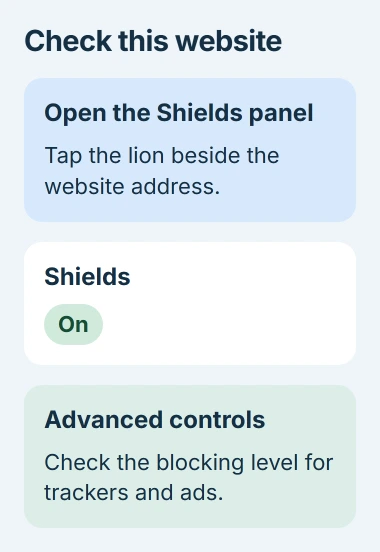
Open the page inside Brave and tap the Shields lion in the address bar. Check the website address shown in the panel, then switch Shields on if it's off. Reload the page and see whether the unwanted ads disappear.
Brave's site-specific settings guide explains that this panel controls the current website. It remembers your choice even after you change the defaults for other sites.
Status: Brave's Android filter and Shields instructions checked November 3, 2026. Individual sites can still need updated blocking rules.
If you turned Shields off to get a video or checkout working, it may still be off for that site. Turning it on removes that exception, but the original problem can return. Note which control changes how the page works.
I'd check this panel before changing settings for every website. If Shields is already on and ads remain, leave it on and move to the blocking level.
These controls apply to pages you open in Brave. An ad in another app, or an alert in Android's notification panel, needs a different control. For alerts, identify the app sending the notification first.
2. Try Aggressive blocking on that site
In the Shields panel, open Advanced controls. Find the control for trackers and ads, then choose Aggressive instead of Standard. Revisit the same part of the page where the ad appeared.
Brave explains that Standard blocking allows some ads supplied by the website itself, called first-party ads. Aggressive blocking tries to block those too, so it can remove ads you still see with Standard.
You may still see sponsored text or an ad segment within a video. This setting changes what Brave tries to block, but its rules don't catch everything on every page.
Try this on the affected site first. If a player, sign-in box or other needed control stops working, return that site's ad blocking to Standard. Broader blocking can interfere with useful page content too.
If the same ad gets through both levels, try updating the filter lists next. Filters are the rules Brave uses to recognize ads and other content it should block.
3. Update Brave and its filter lists
Google says app updates bring new features and improve security and stability. Open Google Play, tap your profile picture, then choose Manage apps & device. Under Updates available, tap See details and update Brave if it's listed.
Those are Google's steps for updating Android apps. Let installation finish before opening Brave again. Google adds that some app updates need a device restart; follow that prompt if it appears.
An Open button on Brave's store page means the store isn't offering an update right now. If an update won't install, work through the Android app-update checks to fix the download first.
Next, open Brave's menu and select Settings > Brave Shields & privacy > Content filtering. Tap UPDATE at the top right. Brave documents this separate filter refresh in its ad-block filter instructions.
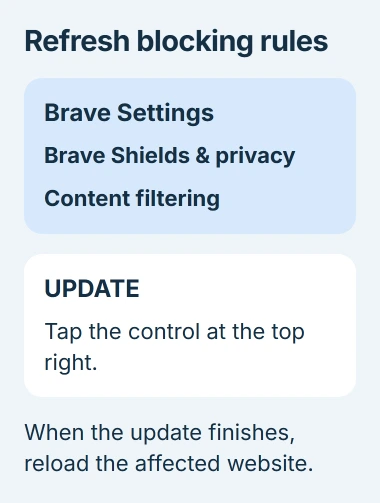
Return to the affected page and reload it after the update finishes. The app update changes Brave itself; the filter update refreshes its blocking rules. Check both when ads suddenly appear on a page that used to have none.
If the same ad remains, check whether other websites are affected too. When the problem is limited to one page, give Brave's support team its address so they can check that site.
4. Check regional filters and your own additions
Stay in Content filtering and look through the available lists. Brave offers extra lists for regional websites and other unwanted content. Try one that matches the language or region of the site showing ads.
Choose a list that matches the sites you read, then check the result. Switching on several lists together leaves you guessing which one helped or caused a problem.
If you've added your own rules, open Create custom filters from that menu. Copy the rules somewhere safe before editing, and leave any rule you don't understand unchanged.
If the problem started after adding a rule, check that rule first. For a stubborn banner on one page, Brave's visual blocking tool is easier than writing a rule yourself.
5. Hide a remaining banner with Block element
On the affected page, tap Shields > Advanced controls > Block element. Tap the banner or other unwanted part of the page, then press Block Elements to confirm your selection.
Brave's Android element-blocking instructions explain that this creates a rule to hide the content you selected. The feature arrived in Brave for Android version 1.78, so an older installation needs an update.
Before confirming, check that you've selected only what you want to hide. Selecting a larger area can hide a useful part of the page along with the ad.
To undo the change, open Shields on that website and choose Clear all blocked elements. This removes the rules you made to hide parts of that site. You'll see the option only if you've blocked something there.
Report ads that survive these checks
If ads keep returning, report them through Brave's support community. Include the page address, your Android and Brave versions, and the blocking level you tried. Say where the ad appears and whether the filter update finished.
Include a screenshot with personal details removed if it helps show the missed banner. For an ad inside a video, explain when it starts. That gives support a specific example to check instead of just saying that ads are getting through.
The Short Version
For ads on one site, check its Shields switch and blocking level. Update Brave and its filters, then try a list for that site's region. Block element can hide leftover banners. Report ads that keep appearing, with the page address.

Isaac Smith is the founder and editor of PC Glance, a website that covers computers, laptops, and technology. He is a tech enthusiast and a computer geek who loves to share his insights and help his readers make smart choices when buying tech gadgets or laptops. He is always curious and updated about the latest tech trends.