
Photoshop's scratch disk is the drive selected in Photoshop > Settings > Scratch Disks. Open that panel to see which drive Photoshop uses for temporary files. You won't find this setting by searching Finder for a Scratch Disk folder.
If a full-disk error brought you here, check the selected drive before deleting files. Free space on a different disk won't help until Photoshop is set to use it.
Find the selected drive inside Photoshop
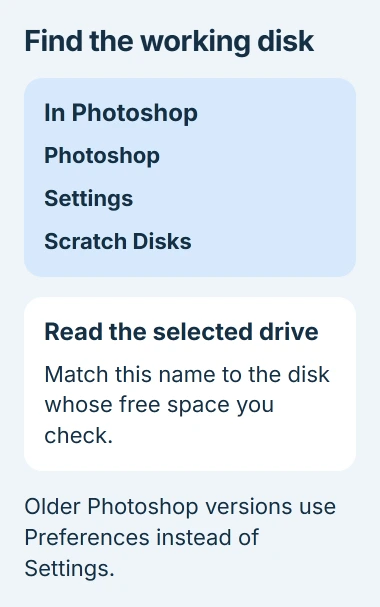
Bring Photoshop to the front so its name appears beside the Apple menu. Choose Photoshop, open Settings, then select Scratch Disks. Older Photoshop releases call the submenu Preferences.
The panel lists available drives and lets you choose which ones Photoshop can use. Check the selected drive's name. It might be your Mac's internal storage or an external drive you chose when setting up Photoshop.
Status: checked November 3, 2026. Adobe's current Mac instructions use Settings > Scratch Disks. Its full-disk guidance recommends freeing space or selecting another suitable drive.
Adobe's scratch disk instructions put the choice inside Photoshop. Mac System Settings shows storage use, but it doesn't choose Photoshop's working disk.
A scratch disk holds temporary data Photoshop needs while you edit. It's separate from your saved PSD project or exported JPEG picture. Moving a finished picture to another drive doesn't change the scratch-disk setting.
I'd note the drive name before doing any cleanup. That gives you a specific place to check and avoids deleting files from an external disk while Photoshop is still filling the internal one.
Check the free space on that disk
For your Mac's internal storage, open the Apple menu, choose System Settings, then General > Storage. Apple says this screen groups storage by category so you can see what's taking up room.
Apple documents the older route as About This Mac > Storage. Use that on macOS versions before Ventura. Your macOS version decides which storage screen you see; your Photoshop version decides whether its menu says Settings or Preferences.
For another drive or volume (a named part of a drive), select it in Finder and choose File > Get Info. Check its total size and available space. Its name should match the disk selected in Photoshop.
An external drive missing from Finder needs a connection check first. The Mac external-drive checks explain how to tell a hidden Finder entry from a volume that hasn't mounted.
If macOS reports plenty of available space but Photoshop still shows the error, check actual free space in Disk Utility. The Mac storage comparison explains why available and free can differ.
The saved image's size doesn't tell you how much room Photoshop needs. Layers and earlier versions of your edits take up temporary space too, beyond the JPEG in your Pictures folder.
Make room without hunting through hidden folders
Save your work, then quit Photoshop before reorganizing large files. Start with files you recognize, such as old downloads, exported videos, or duplicate projects whose backups you've checked.
Apple's Mac storage guidance explains how to move your files onto external storage. Check that the moved copy opens before removing the original, especially when it's your only project copy.
Apple states that files in the Trash still take up space until you empty it. Review what's there before emptying it, then check how much free space the selected drive has now.
Adobe's full scratch disk guidance recommends freeing at least 100GB on the primary scratch drive. That's its troubleshooting target, not the size every image needs.
Restart Photoshop and repeat the task that triggered the warning. If it works now, freeing that space helped. If it still fails, check the scratch settings for another suitable disk.
These steps don't require you to find a Mac temporary-files folder. Adobe gives a specific temporary-file cleanup example for Windows; its Mac instructions focus on freeing space on the drive.
Choose another drive when the internal disk is too small
Connect the drive before opening the Scratch Disks panel. Select it in the list, then arrange the selected drives in the order you want Photoshop to use them. Adobe recommends putting faster drives first.
Confirm with OK, quit Photoshop, and open it again before retrying the project. Open the panel again to check which drive is selected after the restart.
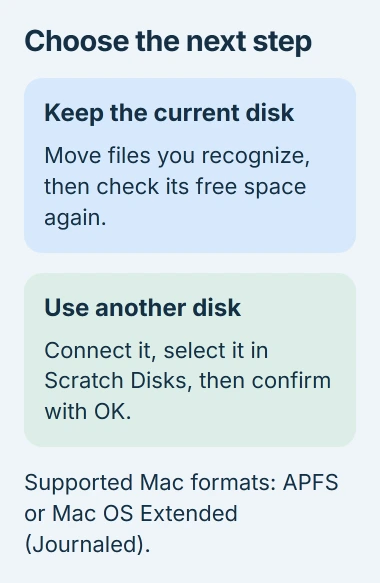
Adobe lists APFS and macOS Extended (Journaled) as supported Mac scratch-drive formats. These describe how the drive stores files. A drive you use to move files might use a different format and need preparing first.
Formatting erases a drive, so don't do it just because the drive is missing from Photoshop's list. Copy its contents somewhere safe first and decide whether you can set it aside for Photoshop.
A second volume on the same physical drive doesn't add storage space. For example, creating another volume on your crowded internal solid-state drive (SSD) won't give you more room the way a separate drive would.
Keep an external scratch drive connected while you edit. If you work away from your desk, bring that drive along whenever a project needs it.
When Photoshop cannot reach its settings
If a full-disk warning stops Photoshop from opening, start by freeing space on your Mac. That can give Photoshop enough room to open so you can change its scratch drives and keep your other preferences.
I'd leave resetting Photoshop's preferences until later. Adobe includes it as a repair, but it resets other app choices too. If the drive is full, you'll still need to free some space.
If Photoshop still won't open after you've freed space, give Adobe Support the exact error, Photoshop version, selected disk, free space, and drive format. Mention whether the problem began after moving or disconnecting an external drive.
If the disk also disappears or fails to copy files in Finder, contact its maker or a Mac repair service. Photoshop settings won't repair a failing connection or storage device.
The Short Version
Open Photoshop's Scratch Disks panel to see which drive it uses. Free space on that drive or choose another supported disk. Photoshop uses this space while you edit; it's separate from the pictures you save.

Isaac Smith is the founder and editor of PC Glance, a website that covers computers, laptops, and technology. He is a tech enthusiast and a computer geek who loves to share his insights and help his readers make smart choices when buying tech gadgets or laptops. He is always curious and updated about the latest tech trends.