
Download Cisco Packet Tracer from the Networking Academy Resource Hub, choose the Windows installer, and sign in with a NetAcad account when the app opens. You'll sign in to the app separately from the download page.
Cisco lists 64-bit Windows 11 as supported. The official hub has the current installer and instructions for the account you'll need.
Get the installer from Cisco's Resource Hub
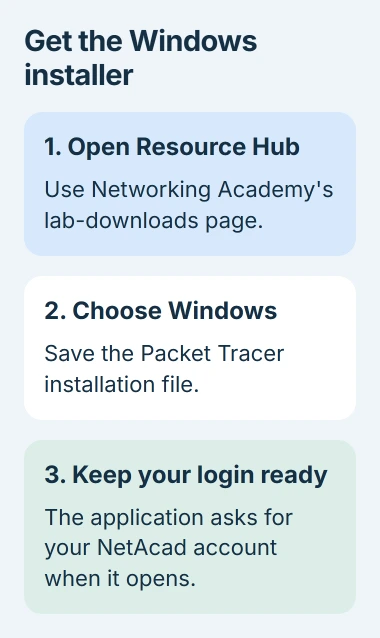
Open Cisco's lab-download page in your browser. Sign in when requested, then find Packet Tracer and select the download for Windows.
If you don't have a NetAcad account, Cisco's login help says to ask your instructor or join one of its free Packet Tracer courses. Use your own account for both the course and the app.
Status: Cisco's download, Windows installation and login instructions checked November 3, 2026. The desktop help lists 64-bit Windows 11; download availability is controlled by Cisco's hub.
Keep the installer in Downloads or another familiar folder, and wait until it's fully downloaded before opening it. Check that you've saved the Windows installer itself. A course link or PDF instruction sheet won't install the app.
I'd use the hub instead of an old direct file link. The hub identifies the package Cisco currently offers, while an old file link can give you a different release from the one your instructor expects.
The laptop app-download guide explains downloads from an app's maker and installations through Microsoft Store. Cisco's Packet Tracer instructions use its own installer.
Check the computer before running setup
Cisco's desktop system requirements list 4GB of free RAM, 1.4GB of free disk space, and a 1920 by 1080 display resolution, along with 64-bit Windows 10 or 11.
Free RAM means memory the app can use, not the total printed on your laptop's box. If little memory is free, close programs you don't need before opening a large networking exercise.
Microsoft documents your PC's basic details in Settings > System > About. Check System type and the processor listed there. The Windows device-information page explains that screen.
For help reading those fields, the PC specification checks explain the processor and system-type details.
If your Windows laptop has an ARM processor, ask Cisco or your instructor whether the installer works on it before using it for class. The 64-bit Windows label alone doesn't tell you which processors it supports.
Cisco also says larger, more complicated practice networks can need much more memory. A small exercise and a large assessment file can run differently on the same laptop, even if both open in Packet Tracer.
Run the Windows installation wizard
Open the Windows installer you downloaded. If a school or work PC asks for administrator approval, follow your organization's installation process. Trying another copy of the installer isn't the next step.
The setup steps documented by the vendor are in Cisco's installation instructions. The Windows installer takes you through these screens:
- Read the License Agreement. If you agree to its terms, choose the agreement option and select Next.
- At Select Destination Location, keep the suggested folder unless you have a reason to choose another, then continue.
- Check Select Start Menu Folder. You're choosing where the program appears in Start, not where you'll save your lab files.
- At Select Additional Tasks, choose the shortcuts you want, then continue to the final review screen.
- Check the choices on Ready to Install. Use Back to change anything, or select Install when you're ready.
When setup finishes, leave Launch Cisco Packet Tracer selected to open the app now, then choose Finish. To open it later, search Start for Packet Tracer.
Complete the login inside Packet Tracer
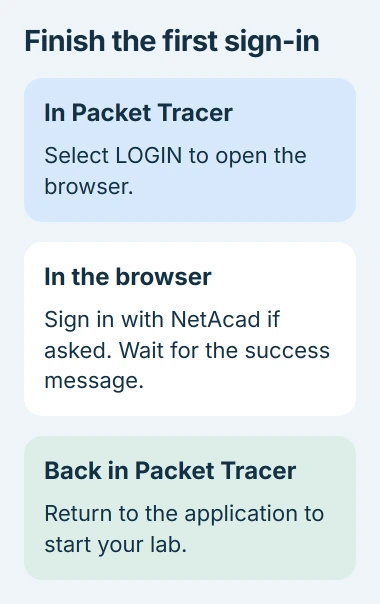
The app can ask you to log in even if you already signed in to download it. Select LOGIN. Cisco's login instructions explain that this opens a browser to check your account.
If you recently signed in to NetAcad in your browser, it may confirm your login right away. If that sign-in has expired, sign in again there. Once the page says you've signed in successfully, return to Packet Tracer.
The Keep me logged in option keeps you signed in for three months according to Cisco. Use it only on your own computer. On a shared machine, leave it off and log out through File when finished.
If browser sign-in fails, Cisco's help points to a browser built into the app under Advanced Settings on the login form. Use that option instead of giving your account details to an unrelated download site.
Once you're signed in, you should be back in Packet Tracer's main window. If you can't sign in to your account in the browser either, ask Networking Academy support to fix the account problem before reinstalling the app.
Handle the first network prompt and an installation block
Cisco's installation guide says you can answer No when the app first asks about running multi-user mode at startup. That mode connects sessions with other users; you don't need it for every exercise you do on your own.
Windows may also ask about firewall access. Cisco says advanced features such as multi-user need network access. Its guide lets you decline access to private and public networks if you don't need those features.
If Windows says the app must come from Microsoft Store, check Settings > Apps > Advanced app settings > Choose where to get apps. Microsoft says this controls warnings or blocks when you install apps from elsewhere.
The app-recommendation setting is separate from malware protection. On a managed computer, ask the administrator to approve Cisco's package instead of weakening security controls.
If setup or a course file still fails
Write down the exact error and when it appeared: during download, setup, browser sign-in, or opening a lab. Send that, your Windows system type, and your Packet Tracer version to your instructor or Cisco Networking Academy support.
If setup and sign-in worked but one exercise won't open, check which Packet Tracer version your course requires. When only that lab file fails, check the file and course requirements before changing the Windows installation.
The Short Version
Download and install the Windows app through Cisco's Resource Hub, then sign in when it opens. Check that your PC meets the installer and course requirements. If something fails, check which step it happened at before trying a fix.

Isaac Smith is the founder and editor of PC Glance, a website that covers computers, laptops, and technology. He is a tech enthusiast and a computer geek who loves to share his insights and help his readers make smart choices when buying tech gadgets or laptops. He is always curious and updated about the latest tech trends.